S.T.A.L.K.E.R. 2: Heart of Chornobyl delivers an immersive survival experience filled with dangerous environments, intense combat, and detailed open-world exploration. However, some PC players encounter unexpected crashes that interrupt gameplay or prevent the game from launching. These crashes can result from graphics driver problems, corrupted game files, excessive memory usage, unstable hardware settings, or software conflicts. If Stalker 2 keeps crashing on your PC, this guide explains the possible causes and provides eight practical solutions to improve game stability on Windows 10 and Windows 11.
Method 1: Verify the Integrity of Game Files
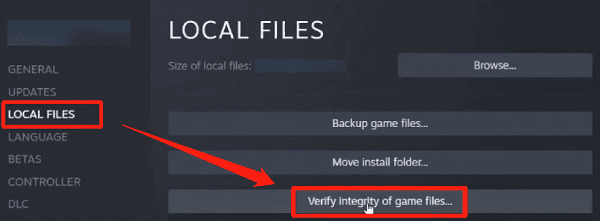
For Steam users
Open Steam and navigate to Library.
Right-click S.T.A.L.K.E.R. 2: Heart of Chornobyl.
Select Properties.
Open the Installed Files section.
Click Verify integrity of game files.
Wait until Steam finishes checking the installation.
Steam will attempt to replace missing or corrupted files when necessary.
For Xbox App or PC Game Pass users
Open the Xbox app, locate Stalker 2, and access its management settings. Look for the available Files or Verify and Repair option, depending on your app version.
After the repair process, restart the game.
This method is especially useful when crashes begin after a failed update or interrupted download.
Method 2: Lower Graphics Settings
Texture Quality: Lower this setting if your graphics card has limited VRAM.
Shadow Quality: Reduce shadows to decrease rendering demands.
Effects Quality: Lower demanding visual effects during combat or exploration.
Resolution: Try a lower resolution if the GPU is struggling.
Frame Rate Limit: Set a reasonable FPS cap to reduce sustained hardware load.
If you are using DLSS, FSR, or another upscaling option, test whether changing or temporarily disabling it affects stability.
Method 3: Disable Overlays and Background Applications
Some applications run additional processes while games are active.
To investigate potential conflicts, temporarily disable the following:
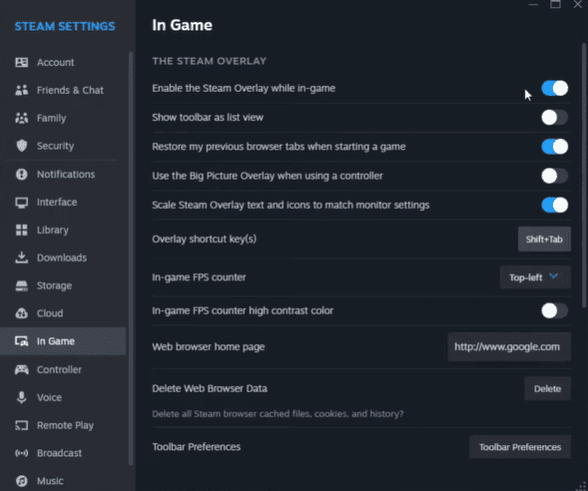
Steam Overlay.
Discord in-game overlay.
NVIDIA or AMD performance overlays.
Third-party screen recording utilities.
Unnecessary background monitoring applications.
You can disable Steam Overlay through the game's Properties > General settings in Steam.
For Discord, open its settings and locate the Game Overlay controls.
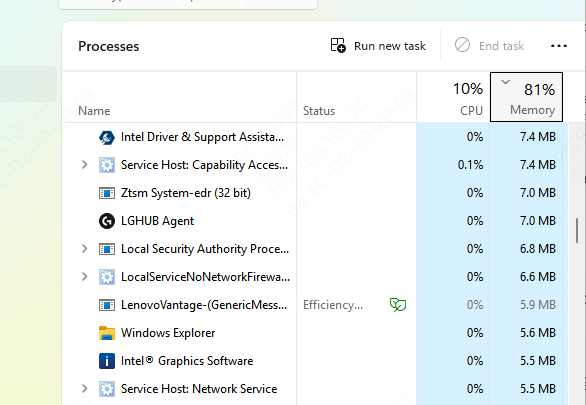
Next, press Ctrl + Shift + Esc to open Task Manager and close unnecessary applications.
Avoid ending unfamiliar Windows system processes.
Restart Stalker 2 after disabling these applications.
Method 4: Update Your Graphics Drivers
Graphics drivers are responsible for communication between Windows, the GPU, and the game engine. When a driver becomes outdated or corrupted, demanding games such as Stalker 2 may experience crashes or rendering problems.
Updating the graphics driver is a useful first step, especially if the issue appeared after a Windows update or GPU change.
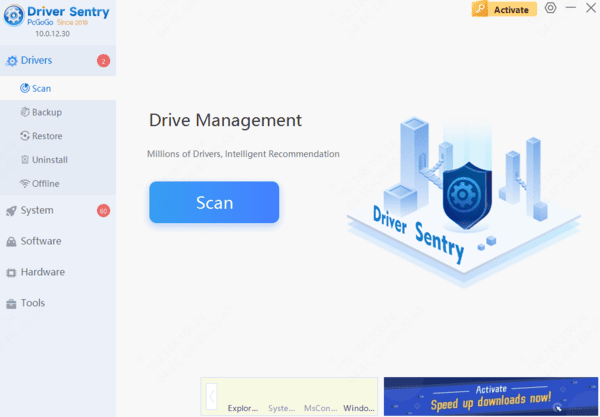
Option 1: Update Drivers with Driver Sentry
Driver Sentry provides a convenient way to check for certain outdated, missing, or problematic Windows drivers.
Download Driver Sentry.
Install and launch the software.
Click Scan to check the computer's drivers.
Review the detected graphics driver issues.
Install an appropriate compatible update if available.
Restart your computer.
Option 2: Update Graphics Drivers Manually
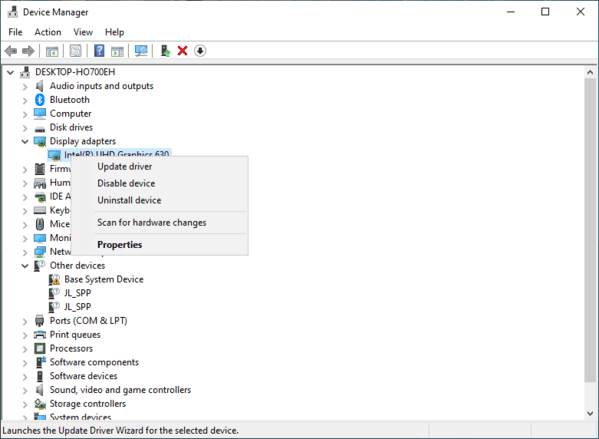
Right-click the Start button and select Device Manager.
Expand Display adapters.
Right-click your graphics card.
Select Update driver.
Choose Search automatically for drivers.
Follow the instructions and restart Windows if necessary.
Method 5: Check Virtual Memory
Press Windows + R.
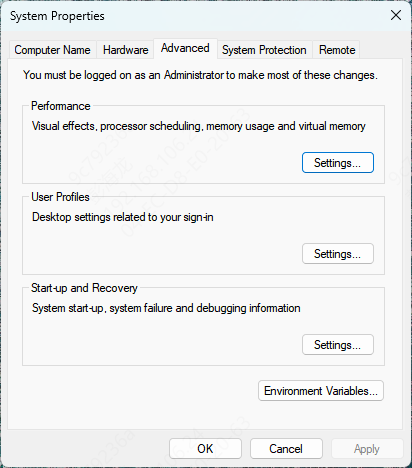
Enter sysdm.cpl and press Enter.
Open the Advanced tab.
Under Performance, click Settings.
Select Advanced > Virtual memory > Change.
Check whether Automatically manage paging file size for all drives is enabled.
Method 6: Update Windows
Windows updates can include compatibility improvements, security fixes, and changes that affect gaming applications.
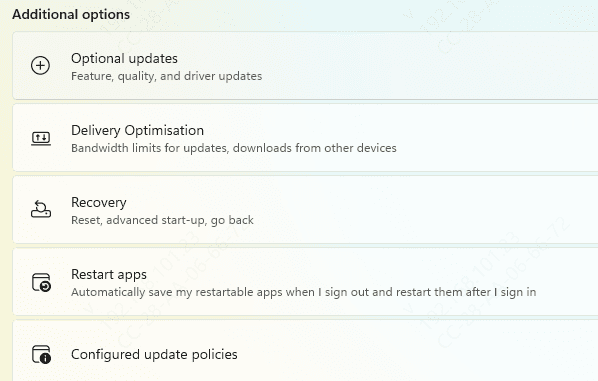
Press Windows + I to open Settings.
Select Windows Update.
Click Check for updates.
Install applicable updates
Restart your computer.
Conclusion
To troubleshoot Stalker 2 crashing on PC, update graphics drivers, verify game files, and lower demanding settings. Driver Sentry offers an optional way to check for supported driver issues. If crashes persist, disable conflicting apps, remove mods, and restore default hardware settings. Back up your saves before reinstalling the game.