






Keeping the Intel HD Graphics driver up to date helps Windows maintain stable display output, smooth video playback, better application compatibility, and consistent graphics performance. An outdated or damaged driver can lead to screen flickering, low resolution, crashes, poor gaming performance, or display detection problems. This guide explains five practical ways to update Intel HD Graphics drivers, including downloading them directly from Intel, using Driver Sentry for automatic detection, checking Windows Update, updating through Device Manager, and using Intel Driver & Support Assistant to keep compatible Intel graphics drivers current.
Download Intel HD Graphics Driver from Intel's Website
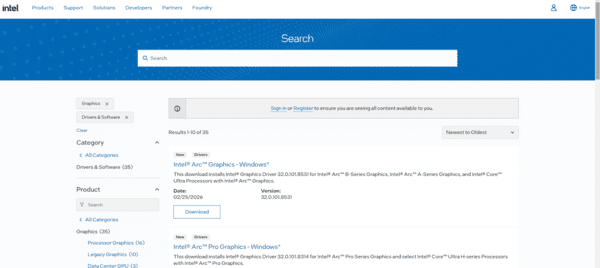
If you prefer to manually download and install the driver, you can directly access the most current driver versions from Intel's official website.
Visit Intel's Download Center: Go to the Intel Download Center
Search for Intel HD Graphics Drivers: In the search bar, type your Intel graphics model (e.g., Intel Iris Xe, Intel HD Graphics 620) and select Windows 10/11 as the operating system
Download and Install: Download the latest driver version, and follow the installation instructions provided by Intel
Update via Windows Update
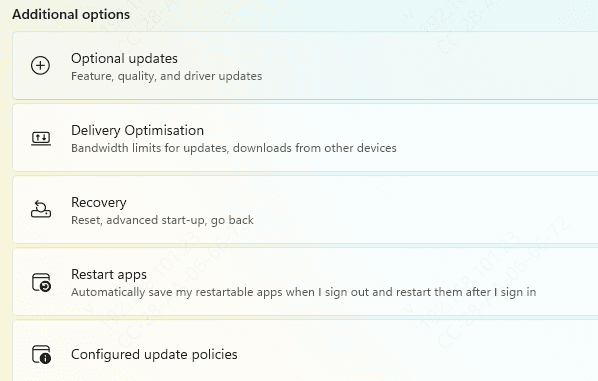
Windows Update is a quick and easy way to check for and install Intel HD Graphics driver updates, especially if they are released as part of a broader system update.
Open Settings: Press Windows + I to open the Settings menu
Navigate to Update & Security: Go to Update & Security and click on Windows Update
Check for Updates: Click Check for updates to search for available updates
Install Updates: If an Intel HD Graphics driver update is available, Windows will automatically download and install it
Use Device Manager Update
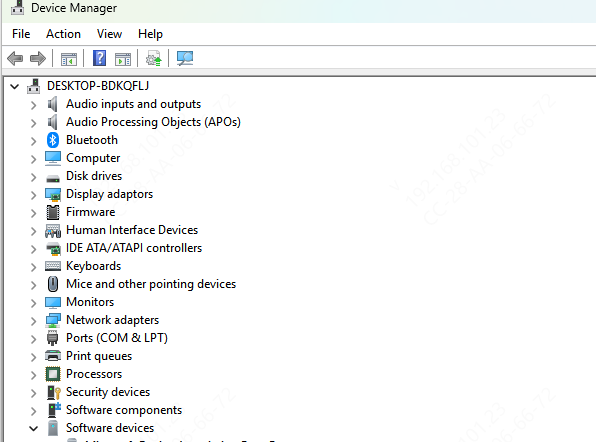
If you prefer to manually update your Intel HD Graphics driver, the Device Manager offers a straightforward method to do so.
Open Device Manager: Right-click on the Start button and select Device Manager from the context menu
Locate Intel HD Graphics: Expand the Display adapters section and find Intel HD Graphics
Update the Driver: Right-click on Intel HD Graphics and select Update Driver
Search Automatically for Updates: Choose Search automatically for updated driver software
Use Intel Driver & Support Assistant (DSA)
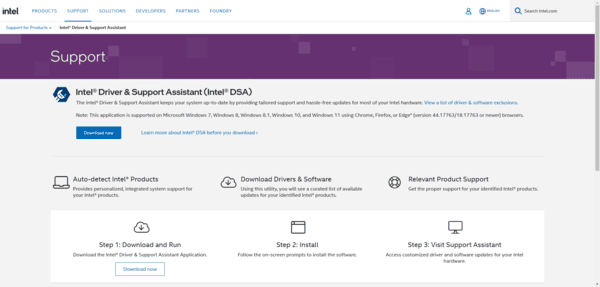
Intel offers a tool called the Intel Driver & Support Assistant (DSA), which simplifies the process of detecting and installing the latest drivers for your Intel hardware.
Download Intel DSA: Visit the Intel Download Center and download the Intel Driver & Support Assistant
Install DSA: Follow the on-screen instructions to install the software
Run the Tool: Launch Intel DSA, and the tool will automatically scan your system for outdated Intel drivers, including Intel HD Graphics
Install Driver Updates: If there's an update available, Intel DSA will prompt you to download and install it
Simplify Driver Updates with Driver Sentry
While manually updating your Intel HD Graphics driver can be effective, it's not always the easiest or fastest approach. If you're looking for a hassle-free and efficient way to keep your drivers up to date, Driver Sentry is the perfect solution.

Download and Install: Click the "Download" button to install Driver Sentry on your Windows 11 PC
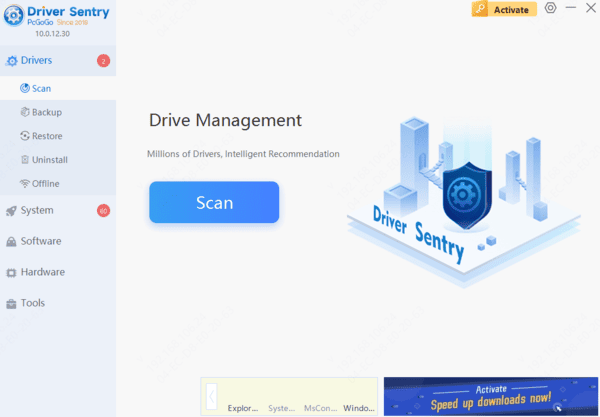
Run a Scan: Open the program and click Scan. Driver Sentry will automatically analyze your system for outdated or missing drivers
Update Intel HD Graphics Driver: Once the scan is complete, you'll see a list of drivers that need updating. Select Intel HD Graphics and click Repair Now to download and install the latest driver
Restart Your System: After the update process finishes, restart your PC to apply the new drivers and enjoy enhanced graphics performance
Frequently Asked Questions
Should I install the Intel generic driver or my computer manufacturer's driver?
Use the manufacturer-provided driver first for laptops and all-in-one PCs because it may include model-specific power, display, and thermal customizations. Try Intel's generic driver only when the OEM version is outdated or unavailable.
Why does the Intel graphics driver say my system is unsupported?
The package may not support your GPU generation, Windows version, or computer manufacturer's customized configuration. Identify the exact processor or graphics model before downloading another driver.
Will updating Intel HD Graphics improve gaming performance?
It may fix bugs, improve compatibility, and provide modest performance gains, but it cannot overcome the integrated GPU's hardware limits. Use suitable resolutions and graphics settings for demanding games.
Conclusion
With these simple steps, you can ensure that your Intel-powered system stays optimized and ready for any task, from casual browsing to high-end gaming and contentIntel HD Graphics is an integrated graphics solution that drives your PC's visual performance, supporting everything from everyday tasks to more demanding activities like gaming, media editing, and streaming high-definition videos.




