



Is Steam not letting you sign in even though you entered the correct account information? You may encounter an incorrect password message, a connection error, or a Steam Guard verification request that never completes. Sometimes, Steam repeatedly returns to the login screen without explaining what went wrong.
Steam login problems can occur for several reasons, including temporary server issues, incorrect account credentials, unstable network connections, or corrupted client data. Security software and outdated network drivers may also interfere with connectivity.
This guide explains how to fix Steam login issues on Windows 10 and Windows 11.
Method 1: Check Steam Server Status and Restart Steam
Close the Steam login window.
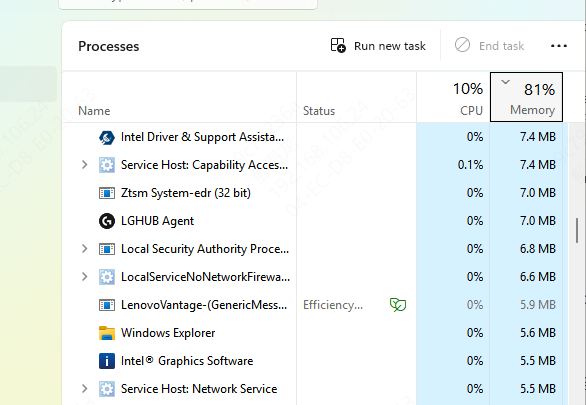
Press Ctrl + Shift + Esc to open Task Manager.
Locate any remaining Steam processes.
Select the relevant processes and click End task.
Restart Steam.
Try signing in again.
Method 2: Verify Your Steam Account Credentials
Open the Steam login window.
Confirm that you entered the correct account name.
Check whether Caps Lock is enabled.
Verify your keyboard language and layout.
Method 3: Fix Steam Guard Verification Problems
Steam Guard Email Code Not Arriving
If Steam sends a verification code by email, check the inbox associated with your Steam account.
Also inspect the spam, junk, and filtered message folders.
Steam Mobile Authenticator Not Working
If you use the Steam Mobile Authenticator, open the Steam app on your phone.
Check whether a login confirmation request is waiting for approval.
Confirm that the app is signed in to the correct account.
Method 4: Restart Your Internet Connection
Close Steam completely.
Restart your computer.
Restart your router if you can do so safely.
Reconnect to the internet.
Open several websites to check connectivity.
Launch Steam and try signing in.
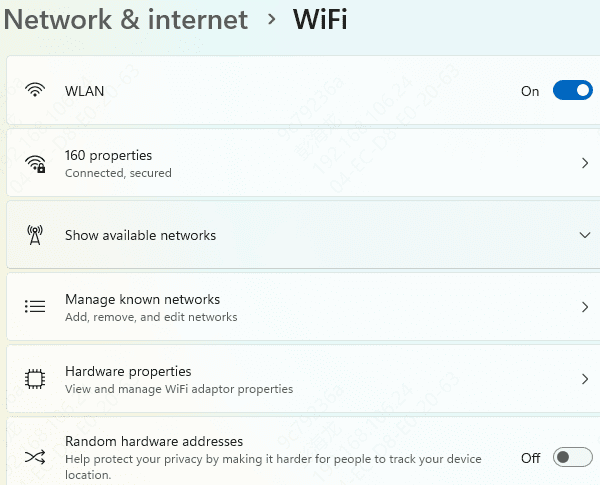
If you use Wi-Fi, consider testing an Ethernet connection.
Method 5: Update Network Drivers
Network adapter drivers allow Windows to communicate with Wi-Fi and Ethernet hardware. If a network driver is corrupted or incompatible, you may experience connection interruptions that affect Steam authentication.
Updating the relevant driver can help when Steam login failures occur alongside broader network problems.
Check Network Drivers with Driver Sentry
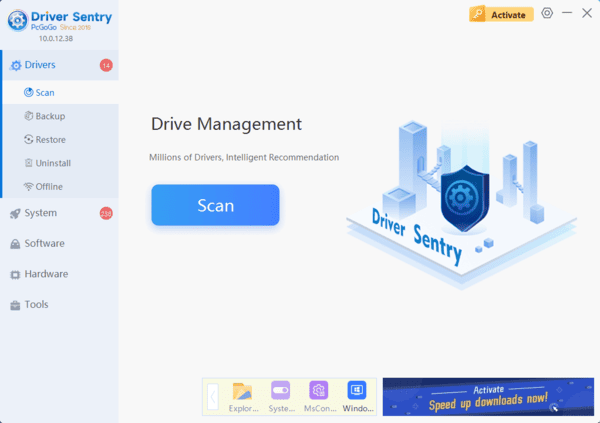
Driver Sentry is a Windows driver management utility that can identify supported missing, outdated, or problematic drivers.
Download Driver Sentry.
Install and launch the software.
Click Scan to check your computer.
Review the detected network adapter driver issues.
Install an appropriate compatible update if available.
Restart Windows.
After restarting, reconnect to the internet and test Steam again.
Driver Sentry can assist with supported driver problems, but it cannot resolve incorrect account credentials or Steam server outages.
Update Network Drivers Manually
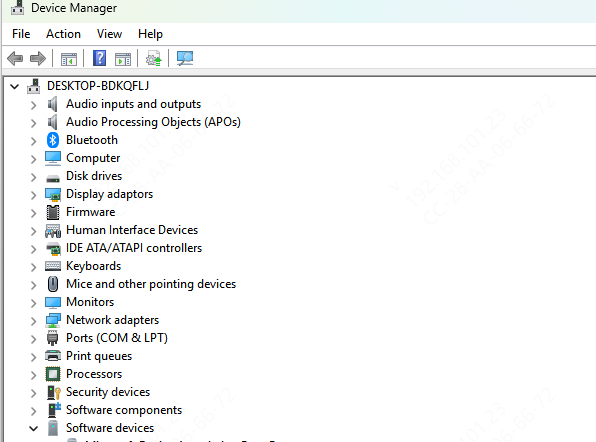
Press Windows + X.
Select Device Manager.
Expand Network adapters.
Identify your Wi-Fi or Ethernet adapter.
Download a compatible driver from the manufacturer.
Install the driver and restart Windows.
Method 6: Clear Steam-Related Browser Data and Check the Client
Open a browser and visit the official Steam website.
Try signing in using the same account.
If browser login works but the desktop client fails, the problem may involve the Steam installation or local connectivity settings.
If browser login fails, try clearing Steam-related cookies and cached site data.
Method 7: Check Windows Firewall and Antivirus Settings
Open Windows Security.
Select Firewall & network protection.
Click Allow an app through firewall.
Check whether the legitimate Steam application is allowed.
Review the relevant network permissions.
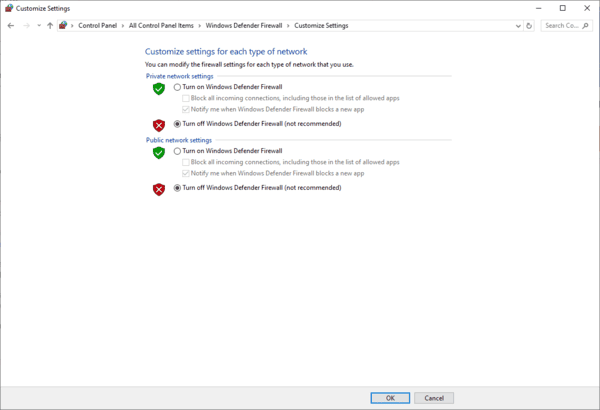
If Steam is missing, use the available option to add the verified Steam executable when appropriate.
You should also review notifications from third-party antivirus software.
If a security application has blocked Steam, investigate the reason before changing its rules.
Avoid permanently disabling antivirus or firewall protection.
Method 8: Reset Windows Network Settings
Flush the DNS Cache
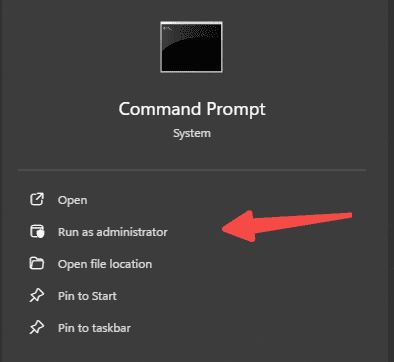
Type cmd in Windows Search.
Select Run as administrator.
Enter the following command:
ipconfig /flushdns
Press Enter.
This clears cached DNS resolver information.
Reset Winsock
If Steam still cannot connect, enter:
netsh winsock reset
Restart Windows after running the command.
The reset may affect applications that use custom network configurations, so use it when simpler connection checks have failed.
After restarting, open Steam and attempt to sign in again.
Method 9: Correct Windows Date and Time
Press Windows + I.
Open Time & language.
Select Date & time.
Enable Set time automatically.
Confirm that the correct time zone is selected.
Use the available synchronization option.
Restart Steam after correcting the system clock.
Method 10: Repair or Reinstall the Steam Client
Before reinstalling, confirm that you can access your Steam account through the official website.
Also make sure your game installations and important local data are backed up.
Download the latest Steam installer.
Close the existing Steam client before running the installer.
For persistent authentication failures or account recovery problems, contact official Steam Support to restore access securely.