

Does SteamVR keep crashing on your PC when launching a VR game or connecting your headset? You may experience sudden application shutdowns, frozen VR displays, black screens, or unexpected Windows restarts. These problems can interrupt gameplay and make your VR headset difficult to use.
SteamVR crashes can result from incompatible graphics drivers, corrupted installation files, unstable USB connections, demanding rendering settings, or conflicting background applications. In some cases, hardware overheating and system instability may also contribute to the problem. This guide explains how to fix SteamVR crashing on Windows, with practical solutions for common software, driver, and headset connection issues.
Method 1: Restart SteamVR and Check Headset Connections
Close SteamVR completely.
Exit Steam from the system tray.
Disconnect the VR headset if recommended by its manufacturer.
Restart Windows.
Reconnect the headset using the supported ports.
Launch Steam and open SteamVR again.
Method 2: Verify SteamVR Installation Files
Open Steam.
Go to Library.
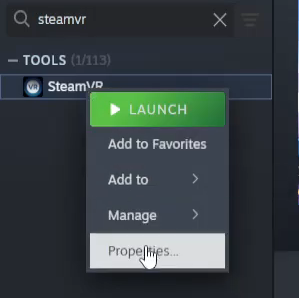
Locate SteamVR under Tools.
Right-click SteamVR.
Select Properties.
Open Installed Files.
Click Verify integrity of tool files or the available file verification option.
Wait for Steam to finish checking the installation.
Method 3: Launch SteamVR in Safe Mode
If SteamVR offers Safe Mode after a crash, select the option and test the application.
You can also check SteamVR's available developer and troubleshooting options for Safe Mode controls.
When Safe Mode is active, some third-party components may be disabled.
Launch SteamVR and check whether the application remains stable.
If SteamVR works in Safe Mode, investigate recently installed VR utilities, add-ons, and third-party drivers.
Method 4: Update Graphics and USB Drivers
Graphics and USB drivers are essential for SteamVR performance and headset communication.
Outdated or incompatible graphics drivers can cause rendering failures, while USB controller problems may interrupt headset tracking or connectivity. If SteamVR started crashing after a driver change, the installed driver version may also be contributing to the problem.
Update Drivers with Driver Sentry
Driver Sentry is a Windows driver management utility that can identify supported missing, outdated, or problematic drivers.
It provides an additional way to check graphics, USB, and chipset driver issues.
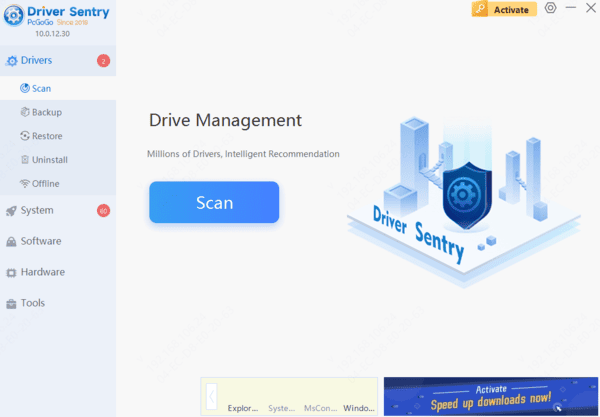
Download Driver Sentry.
Install and launch the application.
Click Scan to examine your computer.
Review the detected graphics, USB, and chipset driver issues.
Install appropriate compatible updates if available.
Restart Windows.
Update Drivers Manually
You can also install drivers directly from the hardware manufacturer.
For graphics drivers, visit NVIDIA, AMD, or Intel's official support website.
For USB and chipset drivers, check your motherboard or computer manufacturer's support page.
If SteamVR began crashing immediately after a graphics driver update, consider rolling back to a previously stable version.
Avoid installing drivers intended for different hardware models.
Method 5: Reduce SteamVR Rendering Resolution
Launch SteamVR.
Open SteamVR Settings.
Select Video.
Locate the rendering resolution settings.
Switch to a lower manual resolution if appropriate.
Apply the changes.
Restart the affected VR game.
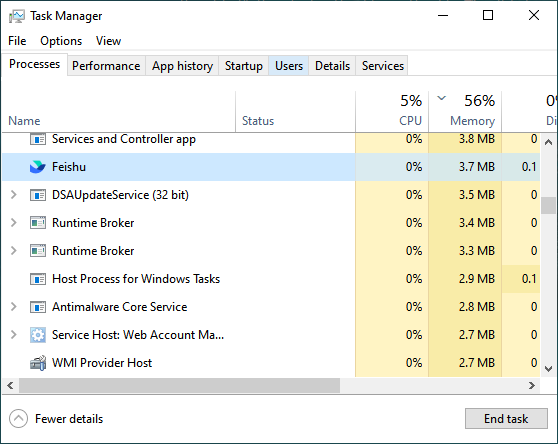
Method 6: Disable Conflicting Overlays and VR Utilities
Some background applications interact with SteamVR's graphics rendering and tracking systems.
Recording tools, performance overlays, and third-party VR utilities may occasionally cause compatibility problems.
Temporarily close unnecessary applications before launching SteamVR.
Check whether you have recently installed any VR add-ons or monitoring tools.
Method 7: Reset SteamVR USB Devices and Power Settings
USB communication problems can cause headset disconnections, tracking failures, and SteamVR errors.
Some supported SteamVR headset configurations provide a USB device reset option.
Reset SteamVR USB Devices
Open SteamVR.
Access Settings.
Enable advanced settings if necessary.
Open Developer.
Locate Remove All SteamVR USB Devices.
Follow the instructions.
Restart Windows.
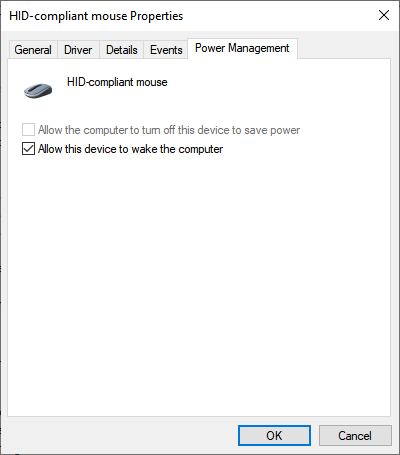
Check Windows USB Power Management
Press Windows + X.
Select Device Manager.
Expand Universal Serial Bus controllers.
Open the properties of a relevant USB hub.
Select Power Management if the tab is available.
Method 8: Check SteamVR Beta and Headset Software
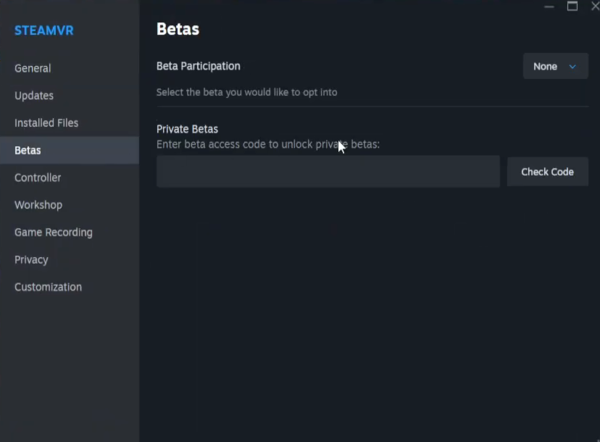
Open Steam.
Go to Library.
Right-click SteamVR.
Select Properties.
Open Betas.
Review your current beta participation setting.
Select the stable branch if appropriate.
Allow Steam to download the required files.
Restart SteamVR afterward.
Conclusion
SteamVR crashes on PC may result from incompatible graphics driver, corrupted installation files, unstable USB connections, excessive rendering demands, or conflicting VR software.
Start by restarting SteamVR, checking headset connections, verifying installation files, and reviewing drivers. If crashes continue, test Safe Mode, adjust rendering resolution, and investigate USB or hardware stability.
Following these troubleshooting methods can help restore a more stable VR experience on Windows 10 and Windows 11