






A frozen Windows 10 taskbar can interrupt your workflow and prevent you from accessing important shortcuts, apps, and system functions. This issue is usually caused by Explorer process errors, outdated drivers, corrupted system files, excessive taskbar clutter, or Windows configuration problems. This guide provides 7 effective solutions to fix a frozen or unresponsive taskbar, including restarting Windows Explorer, updating drivers, repairing system files, and restoring normal taskbar functionality.
Clutter on the Taskbar
Right-click on the search box or an empty area of the taskbar. Then, select "Search" and change it to either "Show search icon" (a small magnifying glass) or Hidden to get rid of it completely.
Cortana has also become less relevant since Windows 10's release. If you don't use it, uncheck the "Show Cortana" button. The same goes for the "Show Task View" button; you can rely on the Win + Tab shortcut instead.
On the right-hand side of the taskbar, there are more elements you might not need. Disable the "Show People on the taskbar", and if you don't use the features under Toolbars, turn them off. If you don't have a touchscreen, buttons like "Show Windows Ink Workspace" button and "Show touch keyboard button" are useless.
Restart the Explorer Process
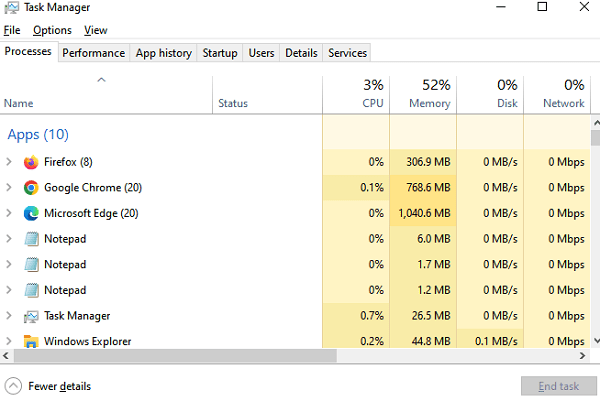
When your taskbar is frozen or not responding, a simple yet effective first step is to restart the explorer.exe process. This process controls the Windows shell, which includes the File Explorer, taskbar, and Start menu. By restarting it, you can clear up minor glitches that might be causing the problem.
Update Drivers and Windows
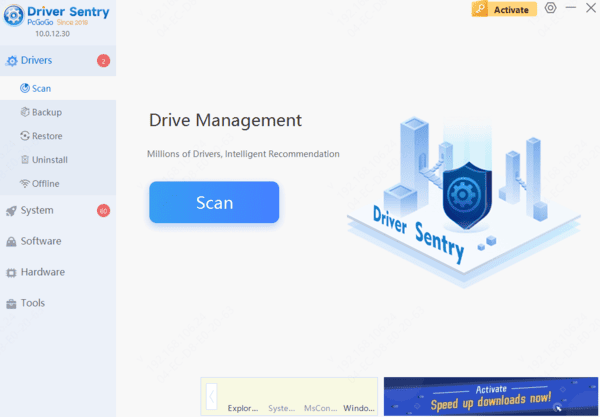
Outdated drivers, especially display drivers, can cause all sorts of problems with your Windows taskbar, including making it freeze or not respond. That's where PcGoGo Driver Sentry comes in. Driver Sentry is an excellent tool that can scan your system for outdated drivers and update them automatically. It's user-friendly and can save you a lot of time and hassle. Using PcGoGo Driver Sentry regularly can prevent the taskbar frozen issue and other Windows taskbar not working problems.
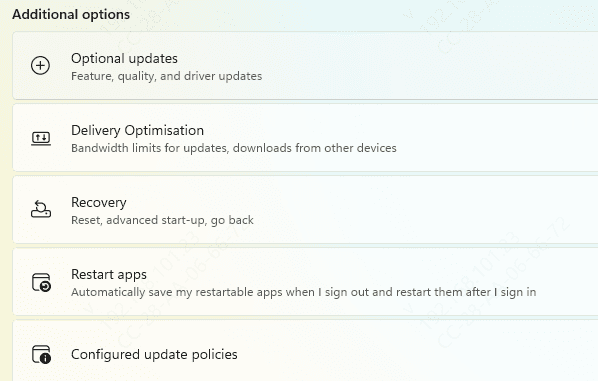
In addition to updating drivers, make sure you've installed all the latest Windows updates. Go to Settings > Update & Security > Windows Update. Sometimes, these updates contain patches that can fix strange taskbar issues. Keeping your system up-to-date is crucial for smooth operation.
Taskbar Icons Missing: Troubleshooting Steps
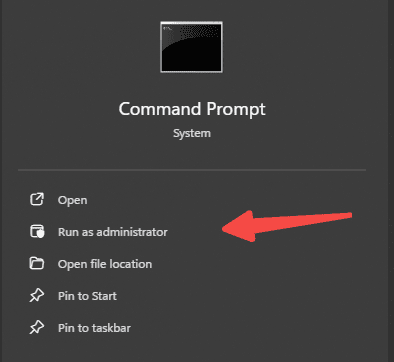
From there, launch a Command Prompt (Admin), Windows PowerShell (Admin), or Windows Terminal (Admin). First, try the SFC command. In the prompt, type sfc /scannow and hit Enter. This runs the System File Checker utility to fix Windows issues.
After it's done, reboot your computer. If this doesn't work, try another utility. Enter the command DISM /Online /Cleanup-Image /RestoreHealth and reboot. These steps can often solve the problem of missing taskbar icons and get your taskbar working again.
Taskbar Not Hiding: What to Do
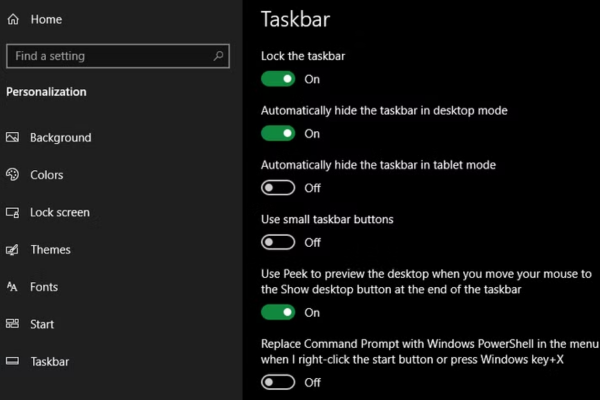
Head to Settings > Personalization > Taskbar and make sure Automatically hide the taskbar in desktop mode is turned on. You can also try disabling and re-enabling this option; sometimes, it gets stuck, and toggling it can fix the problem.
Taskbar Not Responding: PowerShell Fixes
Type PowerShell into the Start menu, right-click its entry, and choose Run as administrator. Enter the command Get-AppXPackage -AllUsers | Foreach {Add-AppxPackage -DisableDevelopmentMode -Register "$($_.InstallLocation)\AppXManifest.xml"}. This re-registers all apps, which might fix the taskbar frozen issue.
After that, navigate to C:\Users\[Your Username]\AppData\Local. Find the TileDataLayer folder and delete it. This should, hopefully, unfreeze your taskbar and let you click on items normally. If your taskbar is still frozen, there's a more drastic solution.
But be warned, this will remove all Windows 10 apps, including the Microsoft Store, from your system. Only use this if you don't mind losing those apps and nothing else has worked.
Open PowerShell with admin rights and input the commands Get-AppxPackage | Remove-AppxPackage and Get-AppxProvisionedPackage -Online | Remove-AppxProvisionedPackage -online. Then restart your system.
System Restore or New User Account
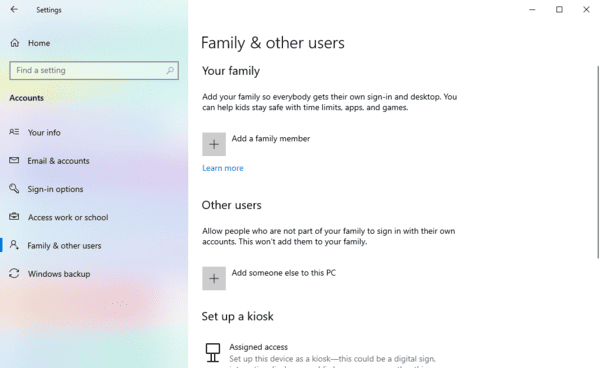
Open the Settings app (Win + I), go to Accounts > Family & other users, and under the Other Users section, select Add someone else to this PC. Follow the account creation process.
If you're replacing your own account, choose I don't have this person's sign-in information and then Add a user without a Microsoft account to avoid confusion.
Conclusion
In conclusion, dealing with a taskbar frozen issue or other problems like the Windows taskbar not working can be frustrating. But with these tips and the help of PcGoGo Driver Sentry, you can keep your Windows 10 taskbar in top-notch condition. So, don't let a misbehaving taskbar get you down; try these solutions and get back to smooth computing.




