





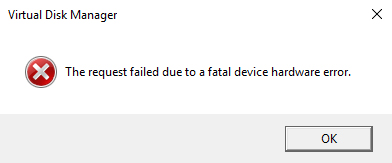
"The request failed due to a fatal device hardware error" usually appears when Windows has trouble reading from or writing to an HDD, SSD, USB drive, or other storage device. You may encounter the message while opening files, copying data, initializing a disk, or accessing an external drive. Although the wording sounds like definite hardware failure, the actual cause can range from a damaged cable or storage driver problem to file system corruption, bad sectors, or a physically failing drive. If important files are still accessible, back them up before performing intensive disk repairs. Then use the troubleshooting methods below to determine whether the problem comes from Windows, the connection, or the storage device itself.
Common Causes of the Error
This error typically appears when:
The hard drive is failing (common with HDDs)
Outdated or corrupted drivers are causing communication issues.
Bad sectors or file system corruption exists.
The storage device has physical damage.
Fixes for "The Request Failed Due to a Fatal Device Hardware Error"
1. Run CHKDSK to Repair Disk Errors
CHKDSK scans and fixes file system errors and bad sectors.
Steps:
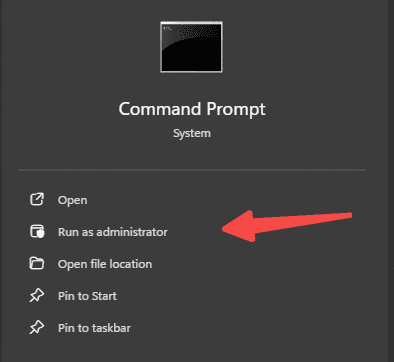
Open Command Prompt as Admin.
Type: chkdsk /f /r C: (Replace C: with your affected drive letter.)
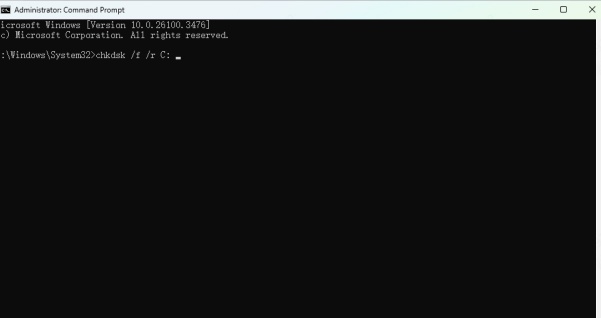
Restart your PC to allow the scan.
Success Rate: ~70% for logical errors (not physical damage).
Tip: If CHKDSK fails repeatedly, your drive may be physically failing—back up data immediately.
2. Check Hard Drive Health with S.M.A.R.T. Tools
Use tools like CrystalDiskInfo to check your drive's health. If it shows "Caution" or "Bad", replace the drive ASAP.
3. Update Drivers
Outdated or corrupted drivers often trigger hardware errors. Manually updating drivers can be tedious, so we recommend PcGoGo Driver Sentry for a hassle-free fix.
Why Use PcGoGo Driver Sentry?
One-Click Driver Updates: Scans and updates all outdated drivers automatically.
Backup & Restore: Safely roll back problematic drivers.
Hardware Monitoring: Detects potential hardware failures early.
How to Update Drivers with Driver Sentry
Download & Install PcGoGo Driver Sentry.
Launch the tool and click Scan.
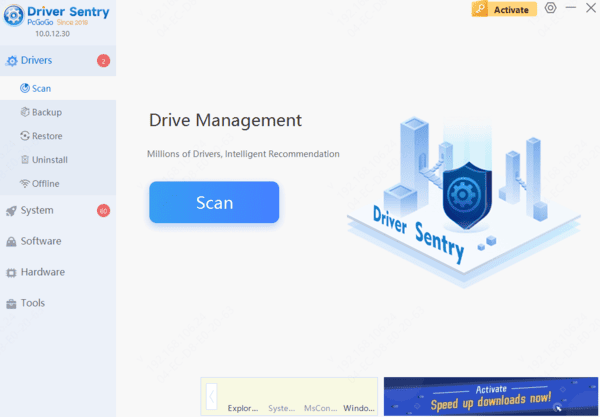
Review outdated drivers and click Update All.
Restart your PC.
Success Rate: ~85% for driver-related hardware errors.
4. Replace Faulty Cables or Ports
Sometimes, a loose SATA/USB cable or damaged port causes this error. Try:
Switching to a different cable/port.
Testing the drive on another PC.
Success Rate: ~50% (if the issue is connection-related).
5. Perform a Clean Windows Reinstall (Last Resort)
If software fixes fail, backup your data and reinstall Windows to rule out OS corruption.
Conclusion
"The request failed due to a fatal device hardware error" does not always confirm that a drive has failed, but it should never be ignored. Back up accessible files first, then check the cable, port, drive health, file system, and storage drivers. Driver Sentry can help identify driver-related problems, while CHKDSK may repair logical errors on an otherwise healthy drive. If S.M.A.R.T. warnings appear or the drive repeatedly disconnects, makes unusual noises, or fails on another computer, stop using it and prioritize professional data recovery or replacement.




