






Forgetting your iPhone passcode can lock you out of your device and prevent access to your apps, photos, and settings. This guide explains how to unlock an iPhone using a computer, covering Apple’s official recovery mode and a simpler solution with PcGoGo Screen Unlock to help you regain access quickly and safely.
What Happens When You Forget Your iPhone Password
Temporary lockouts that increase in duration
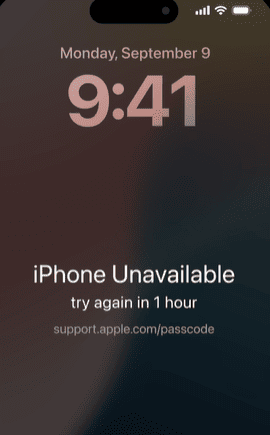
A permanently disabled device showing iPhone Unavailable
Face ID or Touch ID being disabled
No access to apps, photos, messages, or settings
Things You Should Know Before Unlocking iPhone Without Password
Before you begin, keep these important points in mind:
Data will be erased in most unlocking methods
If Find My iPhone is enabled, Apple ID verification may be required after unlocking
Having an iCloud or iTunes backup makes restoring data much easier
Method 1: Using Apple Recovery Mode
Apple's recovery mode is the official solution for unlocking a disabled iPhone. It's secure, but the steps must be followed carefully.
Step 1: Turn Off Your iPhone
Press and hold the Side button and Volume Down button, then slide to power off

Step 2: Enter Recovery Mode
Connect your iPhone to a computer using a USB cable
Press and hold the Side button immediately and keep holding it until you see the recovery mode screen (a cable and computer icon)

Step 3: Restore Your iPhone
Open Finder (Mac), iTunes, or Apple Devices (Windows)
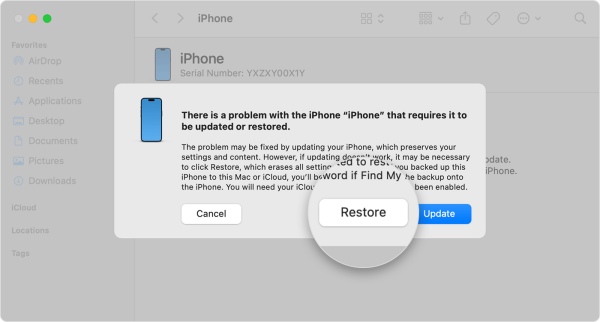
Select your iPhone and choose Restore
Wait for the software download and restore process to finish
Method 2: Using PcGoGo Screen Unlock (Recommended)
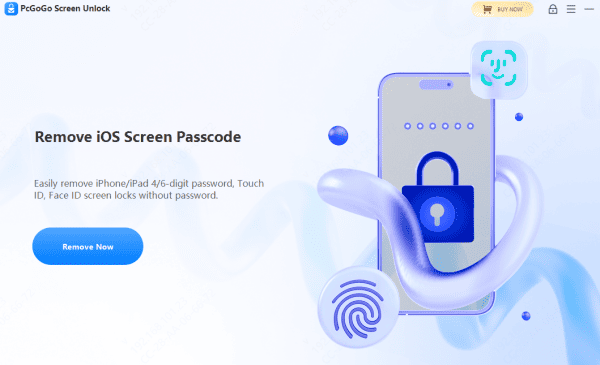
If you want a simpler, faster, and more user-friendly way to unlock your iPhone, PcGoGo Screen Unlock is a great alternative. It's designed for users who don't want to deal with complex recovery steps.
Step 1: Download and Install PcGoGo Screen Unlock
Step 2: Connect Your iPhone to the Computer
Step 3: Download the Firmware Package
Step 4: Remove the Screen Lock
Tips to Avoid Getting Locked Out Again
Use a passcode you can remember
Set up Face ID or Touch ID properly
Back up your iPhone regularly
Store Apple ID credentials securely
Conclusion
If you're locked out of your iPhone, you're not out of options. You can unlock your iPhone without a password using a computer through Apple's recovery mode, but it can be slow and frustrating. For a faster, easier, and more beginner-friendly experience, PcGoGo Screen Unlock offers a reliable solution that works on all iPhone models and iOS versions. Choose the method that fits your needs and get back to using your iPhone without stress




