







Forgot your iPhone passcode and locked out of your device? This guide covers two methods to regain access — using Apple's official recovery mode with Finder or iTunes to restore your iPhone, and using PcGoGo Screen Unlock for a faster way to remove passcodes, Face ID, and Touch ID locks without the password.
Unlock iPhone Using Apple's Recovery Mode
Apple provides an official method to unlock your iPhone by using recovery mode. While this method works well, it requires a computer and erases all data on your device. Here's how to do it:
Step 1: Turn Off Your iPhone
iPhones with Face ID:
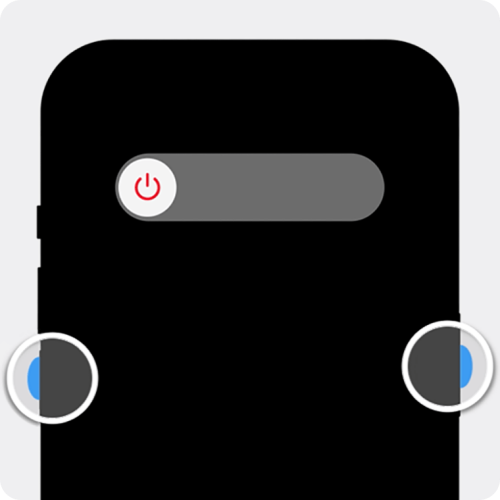
Press and hold the Side button and Volume Down button at the same time until the power-off slider appears.
iPhones with Home button (iPhone 8 and earlier):
Press and hold the Top button until the slider appears
Drag the slider to turn off your iPhone, and wait until it powers down completely
Step 2: Enter Recovery Mode
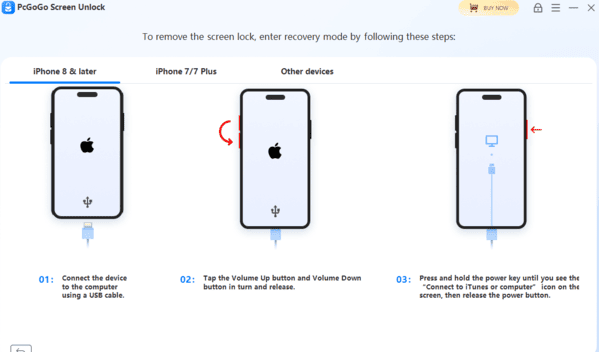
For iPhones with Face ID (iPhone X and later):
Press and release the Volume Up button
Press and release the Volume Down button
Then, press and hold the Side button until the recovery mode screen appears
For iPhones with a Home button (iPhone 8 and earlier):
Press and hold both the Home button and Top button (or Side button) at the same time.
Keep holding the buttons until the recovery mode screen appears
Once in recovery mode, you'll see a screen that shows a computer and cable icon

Step 3: Restore Your iPhone Using Finder or iTunes
On a Mac running macOS Catalina or later: Open Finder and select your iPhone under Locations
On Windows or older macOS versions: Open iTunes and select your iPhone
When prompted, select Restore. Your computer will download the necessary software and begin restoring your iPhone to its factory settings. This process will take a few minutes
Note: If the download takes more than 15 minutes and your iPhone exits recovery mode, let the download complete, then turn off your iPhone and repeat the recovery mode process

Step 4: Set Up Your iPhone After Restore
Once the restore process is complete, your iPhone will restart and show the Hello screen
Disconnect your iPhone from the computer
Follow the on-screen instructions to set up your iPhone
If you have a backup, you can restore your data from iCloud or iTunes. Otherwise, you can set up your iPhone as new
Using PcGoGo Screen Unlock
If you want a faster and more convenient way to unlock your iPhone, PcGoGo Screen Unlock offers an easy solution. This tool removes all types of screen locks—including passcodes, Face ID, and Touch ID—without requiring the password.
Step 1: Download and Install PcGoGo Screen Unlock
Visit the official PcGoGo Screen Unlock website and download the latest version of the software
Install the program on your Windows
Launch PcGoGo Screen Unlock to start the unlocking process
Step 2: Connect Your iPhone to the Computer
Use a USB cable to connect your locked iPhone to your computer
Once connected, the software will automatically detect your iPhone
On the main screen, select Unlock Screen Passcode, then click Remove Now
Step 3: Download the Firmware Package
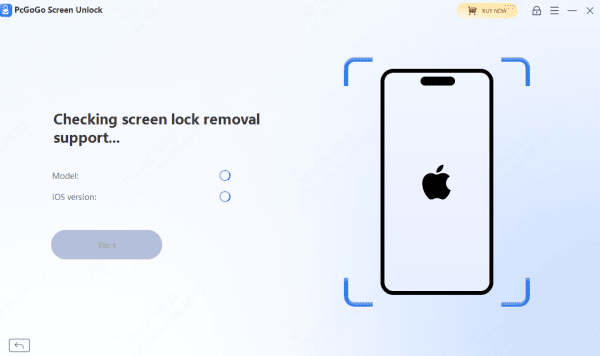
PcGoGo Screen Unlock will automatically identify your iPhone model and iOS version
Click Download to download the necessary firmware package for the unlocking process
Wait for the firmware download to complete
Step 4: Start the Unlocking Process
Once the firmware package is ready, click Start Removal to begin unlocking your iPhone
PcGoGo Screen Unlock will start removing the passcode, Face ID, or Touch ID
Do not disconnect your iPhone during the process
Wait for the process to complete, which usually takes just a few minutes
Step 5: Set Up Your iPhone After Unlocking
After the unlocking process is finished, your iPhone will restart and the lock screen will be removed
Follow the on-screen setup instructions to complete the setup
If you have a backup, you can restore your data from iCloud or iTunes
Tips to Prevent Forgetting Your iPhone Passcode
Enable Face ID or Touch ID for easier access
Choose a passcode that is secure yet easy to remember
Set up regular iCloud or iTunes backups to avoid data loss
Store your Apple ID credentials securely
Conclusion
Forgetting your iPhone passcode doesn't mean your device is permanently locked. By following the official Apple recovery mode method or using a faster tool like PcGoGo Screen Unlock, you can easily regain access to your iPhone. Both methods are effective, but if you want a quicker solution, PcGoGo Screen Unlock is the way to go. Regular backups and enabling biometric access can help prevent this issue in the future.
