




The WerFault.exe application error can appear unexpectedly when you start Windows, launch a program, play a game, or shut down your computer. In some cases, the error message indicates that memory could not be read or written, while others experience repeated pop-ups or unusually high CPU usage.
Although WerFault.exe is a legitimate Windows component, problems involving this process may indicate application crashes, corrupted system files, incompatible drivers, or system instability.
This guide explains how to identify the underlying cause and fix WerFault.exe application errors on Windows 11 and Windows 10 without unnecessarily disabling Windows Error Reporting.
What Is WerFault.exe?
WerFault.exe is an executable associated with Windows Error Reporting (WER), a built-in Windows feature that collects diagnostic information when applications or system components encounter problems.
Method 1: Identify the Application Behind the Error
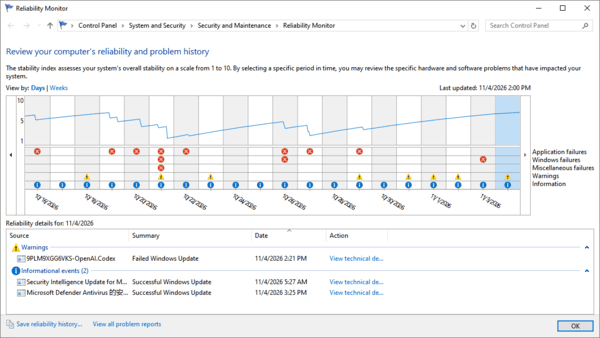
Before repairing Windows, determine whether the error is associated with a particular application. Windows Reliability Monitor provides a timeline of application crashes and system failures, making it easier to identify recurring problems.
1. Press Windows + R to open the Run dialog.
2. Type perfmon /rel and press Enter.
3. Locate the red error icon corresponding to the time when the WerFault.exe error appeared.
4. Select the affected application.
5. Click View technical details.
6. Review the application name, faulting module, and exception code.
For additional information, open Event Viewer by running eventvwr.msc and navigating to Windows Logs > Application.
Method 2: Repair or Reinstall the Problematic Application
When WerFault.exe errors occur exclusively while running a particular application, damaged installation files or incompatible application components may be responsible.
1. Press Windows + I to open Settings.
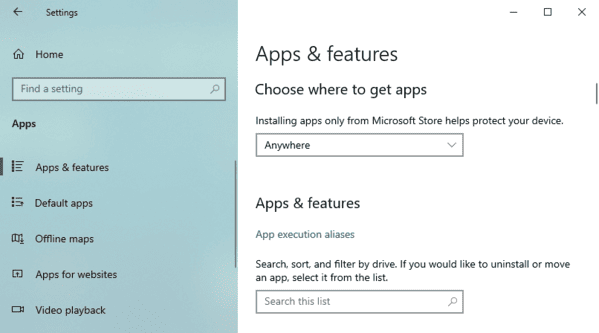
2. Navigate to Apps > Installed apps.
3. Locate the affected application.
4. Click the three-dot menu and select Advanced options, if available.
5. Click Repair.
Method 3: Update or Roll Back Device Drivers
Driver-related application crashes can repeatedly trigger Windows Error Reporting. This is particularly relevant when WerFault.exe errors occur while gaming, playing videos, using external devices, or running graphics-intensive applications. Checking graphics, chipset, audio, and other relevant hardware drivers may help identify compatibility problems.
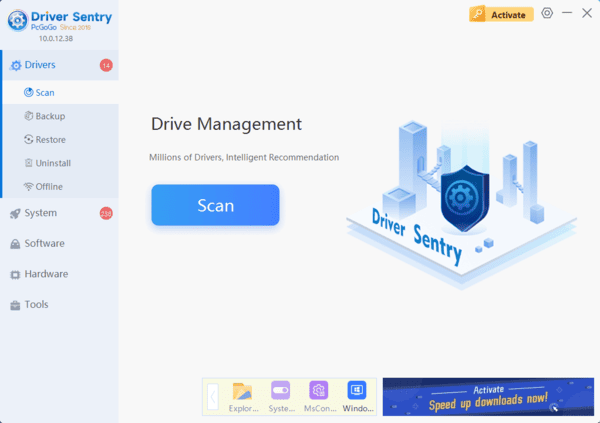
Driver Sentry provides an additional way to identify supported outdated, missing, or problematic device drivers.
1. Download Driver Sentry from the official website.
2. Install and launch the software.
3. Click Scan to check your computer's drivers.
4. Review the detected driver issues.
5. Install an appropriate compatible driver related to the affected hardware, if available.
6. Restart your computer.
If the error started immediately after a driver update, try restoring the previous driver:
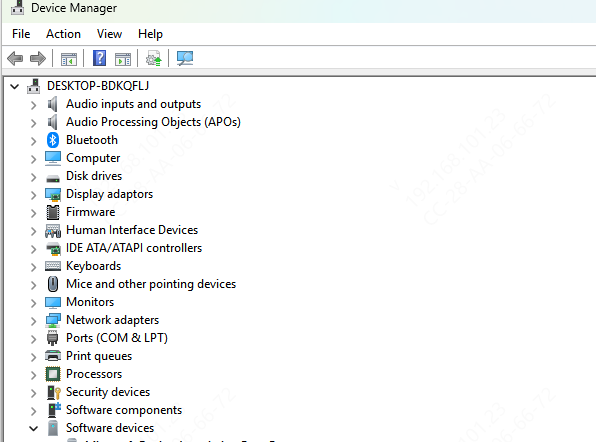
1. Right-click the Start button and select Device Manager.
2. Locate the affected hardware device.
3. Right-click it and select Properties.
4. Open the Driver tab.
5. Click Roll Back Driver, if available.
6. Restart Windows.
Method 4: Repair Corrupted Windows System Files
If multiple applications are crashing or WerFault.exe itself repeatedly fails, corrupted Windows system files may be involved.
Windows includes two built-in repair utilities: Deployment Image Servicing and Management (DISM) and System File Checker (SFC).
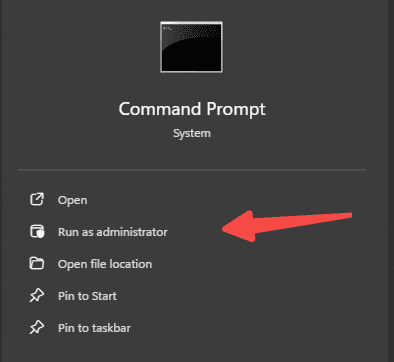
1. Type Command Prompt into the Windows search box.
2. Select Run as administrator.
3. Execute the following command:
DISM /Online /Cleanup-Image /RestoreHealth
4. Wait until the operation completes successfully.
5. Execute the following command:
sfc /scannow
6. Wait until the verification reaches 100%.
7. Restart your computer.
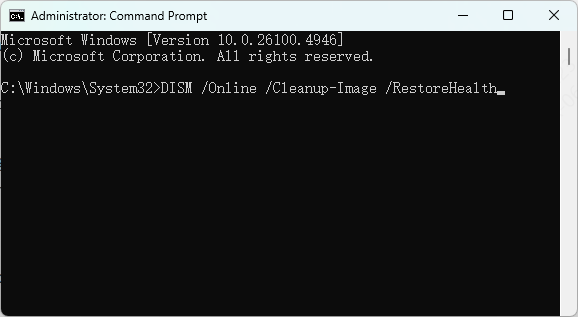
DISM repairs the Windows component store, while SFC checks and repairs protected system files. Microsoft recommends running DISM before SFC when repairing system corruption.
Method 5: Check the Windows Error Reporting Service
An improperly configured or unresponsive Windows Error Reporting service may contribute to problems involving WerFault.exe.
1. Press Windows + R.
2. Type services.msc and press Enter.
3. Locate Windows Error Reporting Service.
4. If the service is running, right-click it and select Restart, when available.
5. Restart your computer and test the affected application.
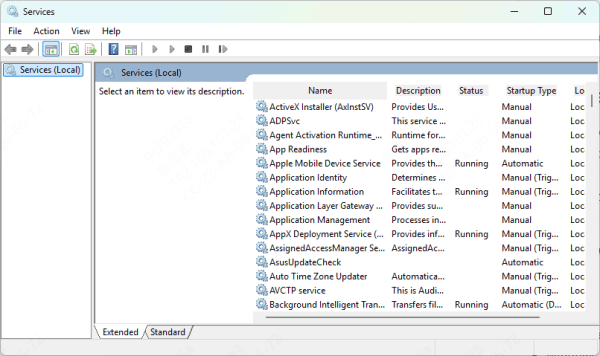
The service may normally use a manual or trigger-based startup configuration. A stopped service does not necessarily indicate a problem.
Avoid permanently disabling Windows Error Reporting. Doing so may suppress diagnostic information without resolving the application crash responsible for the error.
Method 6: Scan Your Computer for Malware
WerFault.exe is a legitimate Windows executable, but malicious software may use a similar filename to disguise itself.
An unexpected location warrants further investigation but does not automatically confirm a malware infection.
Next, perform a security scan:
1. Open Windows Security.
2. Select Virus & threat protection.
3. Click Scan options.
4. Select Full scan.
5. Click Scan now.
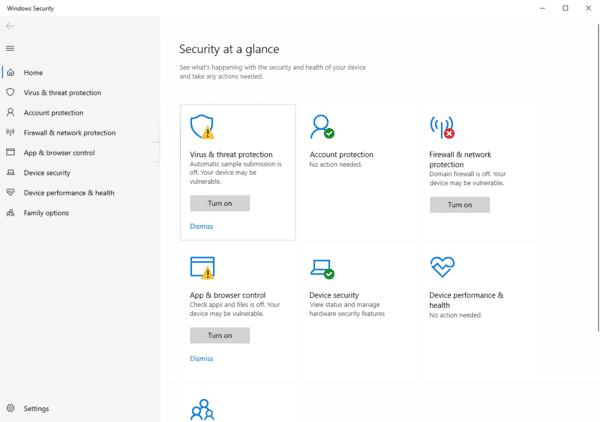
If suspicious activity persists, consider running Microsoft Defender Offline scan after saving your work.
Never manually delete the legitimate WerFault.exe system file.
Method 7: Install Available Windows Updates
Application compatibility issues and Windows component failures may be addressed through operating system updates.
On Windows 11, open Settings > Windows Update.
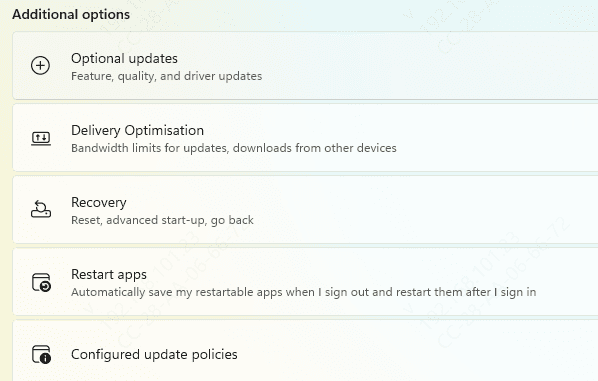
On Windows 10, navigate to Settings > Update & Security > Windows Update.
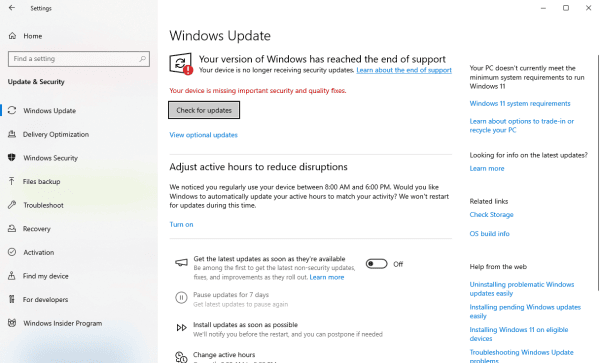
Check for applicable updates, complete the installation, and restart your computer.
Advanced Troubleshooting
If the previous methods do not resolve the problem, investigate memory stability, storage integrity, and background software conflicts.
Run Windows Memory Diagnostic
An error stating that memory could not be read or written may indicate an application access violation, software corruption, or unstable memory.
It does not necessarily mean that your physical RAM is defective.
1. Save all open documents.
2. Press Windows + R.
3. Type mdsched.exe and press Enter.
4. Select Restart now and check for problems.
5. Allow Windows Memory Diagnostic to complete its examination.
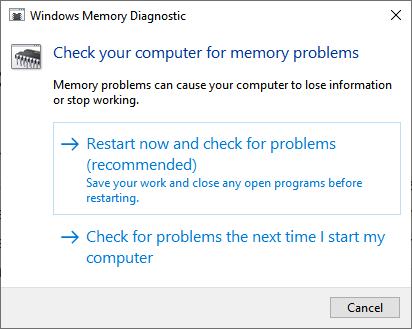
If memory errors are detected, investigate RAM compatibility, unstable memory profiles, or defective hardware. Additional hardware testing may be necessary.
Check Your Hard Drive or SSD
Storage errors can damage application files and Windows components, resulting in recurring crashes.
1. Open Command Prompt as administrator.
2. Enter:
chkdsk C: /scan
3. Press Enter and wait for the scan to finish.
4. Review the reported results.
This command performs an online scan of the NTFS volume. If Windows is installed on another drive, replace C: with the appropriate drive letter.
Restore Windows to a Previous Working State
System Restore may help if the error began after a recent software installation, driver update, or system configuration change.
1. Press Windows + R.
2. Type rstrui.exe and press Enter.
3. Select an available restore point created before the error first appeared.
4. Click Scan for affected programs to review potential changes.
5. Follow the remaining restoration instructions.
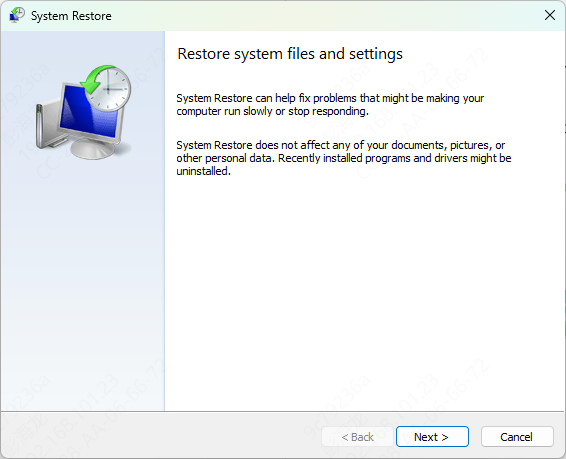
System Restore does not normally remove personal documents, but it may remove applications, drivers, and system changes installed after the selected restore point.
Back up important data before proceeding.
Frequently Asked Questions
Is WerFault.exe a Virus?
No. The legitimate WerFault.exe is part of Windows Error Reporting. However, malicious programs may impersonate it. Check the executable's location and authenticity if you suspect malware.
Can I Delete WerFault.exe from Windows?
No. WerFault.exe is a Windows system component. Deleting it may interfere with error reporting and does not address the underlying application failure.
Does WerFault.exe Application Error Mean My RAM Is Failing?
Not necessarily. Memory-related application errors can also result from programming errors, corrupted files, incompatible drivers, and software conflicts. Use memory diagnostics before concluding that RAM replacement is necessary.
Conclusion
The WerFault.exe application error can result from application crashes, corrupted system files, incompatible drivers, or hardware instability. Start by identifying the affected application through Reliability Monitor, repairing problematic software, and installing available Windows updates. If the error persists, run DISM and SFC, check memory and storage health, or use Driver Sentry to identify and update supported problematic drivers. Addressing the underlying cause rather than disabling Windows Error Reporting can help prevent recurring application errors and restore system stability on Windows 10/11.