





Trying to install a Windows 10 update only to encounter error code 0x800f0922 can be frustrating, especially when the installation repeatedly fails or Windows automatically rolls back the changes. This error may appear during cumulative updates, security patches, or certain Windows feature installations, preventing your computer from receiving important improvements. Common causes include corrupted Windows Update components, damaged system files, insufficient system-reserved partition space, and problems connecting to Microsoft's update servers. This guide explains six practical ways to fix Windows 10 update error 0x800f0922, including checking network adapter drivers with Driver Sentry, repairing system files using SFC and DISM, resetting Windows Update components, verifying .NET Framework settings, and running the Windows Update troubleshooter. Follow these steps to diagnose installation failures and restore normal Windows Update functionality.
1. Run SFC and DISM Scans
Press Win + S, type "Command Prompt", and select "Run as Administrator".
In the Command Prompt, type the following command and press Enter: sfc /scannow
The SFC tool will scan and repair damaged system files. Restart your computer after the scan.
If the SFC scan doesn't resolve the issue, run the DISM tool: DISM /Online /Cleanup-Image /RestoreHealth
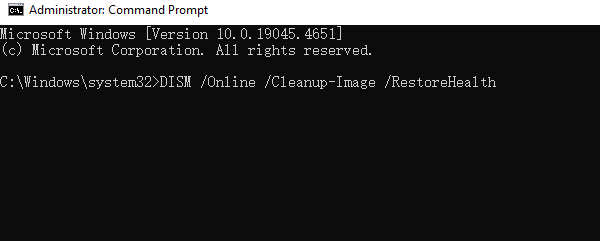
DISM will fix any problems in the Windows image. After the process is complete, restart your computer and try updating again.
2. Reset Windows Update Components
Open Command Prompt as an administrator and enter the following commands, pressing Enter after each:
Disable Update Components:
net stop wuauserv
net stop cryptSvc
net stop bits
net stop msiserver
ren C:\Windows\SoftwareDistribution SoftwareDistribution.old
ren C:\Windows\System32\catroot2 Catroot2.old
Re-enable Update Components:
net start wuauserv
net start cryptSvc
net start bits
net start msiserver
These commands will stop update services, clear the update cache, and restart the necessary services. Restart your computer and try updating Windows again.
3. Enable .NET Framework
Open "Control Panel" and click "Programs".
Select "Turn Windows features on or off".
Locate ".NET Framework 3.5" and ".NET Framework 4.8" in the list, ensuring both boxes are checked.
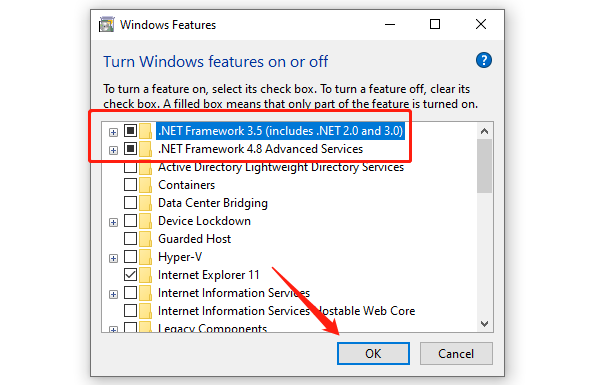
If not enabled, check the boxes and click "OK".
Windows may need to download and install the required components. Restart your computer afterward.
4. Run Windows Update Troubleshooter
Press Win + I to open "Settings", then go to "Update & Security" > "Troubleshoot" > "Additional troubleshooters".
Find "Windows Update" and click "Run the troubleshooter".
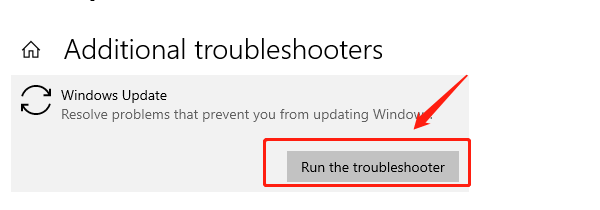
The tool will automatically detect and fix update-related issues.
Restart your computer after completing the troubleshooting process and try updating again.
5. Update Network Adapter Drivers
Sometimes, network connection issues can cause error 0x800f0922. Updating your network adapter drivers can help ensure a stable connection. It's recommended to use Driver Sentry to automatically detect and update drivers, saving time and avoiding installation of incorrect drivers.
Download the latest version of Driver Sentry and install it. Open the software and click "Scan".
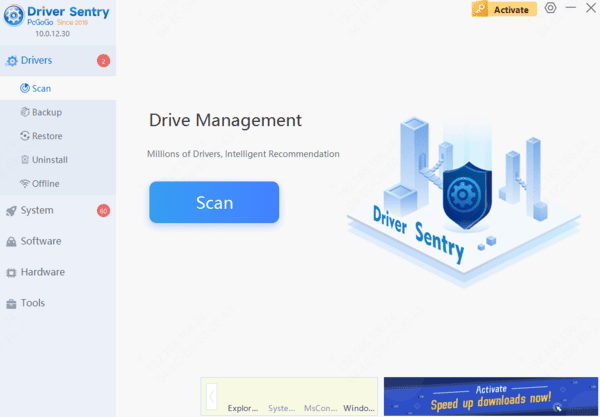
After the scan, a list of outdated or missing drivers will appear. Locate the network adapter driver and click "Upgrade".
Once updated, restart your computer to ensure the new driver is active.
6. Disable Firewall and Third-Party Antivirus Software
Disable Windows Firewall:
Press Win + R, type "control firewall.cpl", and press Enter.
Select "Turn off Windows Defender Firewall (not recommended)" .
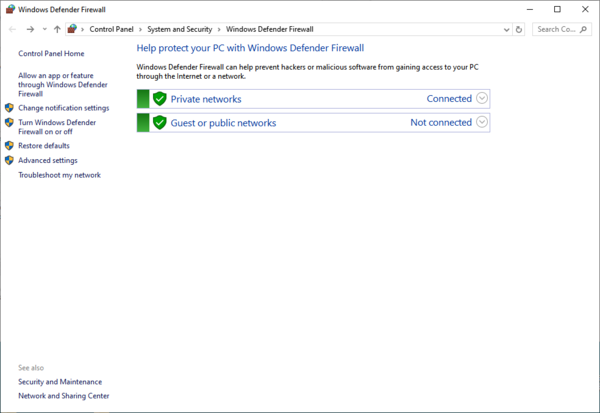
Disable Third-Party Antivirus Software:
Open your antivirus software and locate the option to disable or turn off its protection temporarily.
After disabling these features, restart your computer and attempt the update.
Once the update is successful, re-enable your firewall and antivirus software for security.
7. Frequently Asked Questions
Will freeing space on C: resolve a full system-reserved partition?
Not necessarily. The system-reserved or EFI partition is separate from your main Windows partition. Deleting personal files from C: does not increase its available space. Confirm the cause before modifying partitions.
Do I need to enable both .NET Framework versions?
No. Enable optional .NET components only when the affected application or update requires them. Checking every .NET option is not a general fix for error 0x800f0922.
Should I disable Windows Firewall to install updates?
Keep it enabled during normal troubleshooting. Check for a specific block, VPN restriction, or third-party security conflict first. If you temporarily disable protection for a test, restore it immediately afterward, even if the update fails.
Follow these steps to resolve Windows 10 update error 0x800f0922. If the issue persists, contact professional support or check your system and hardware for further issues.




