Some Windows 10 users may experience a missing wireless adapter, preventing their PC from connecting to Wi-Fi networks. This issue can be caused by outdated drivers, disabled devices, system settings, or hardware detection problems. In this guide, we'll provide effective solutions to restore the missing wireless adapter, fix related driver issues, and quickly bring back wireless connectivity.
Check Hardware Connections
Ensure the wireless adapter is properly connected. For USB wireless adapters, verify it is securely inserted into the port.
For laptops, ensure the wireless switch (e.g., Fn + function key) is enabled.
Try plugging the adapter into a different USB port to rule out port issues.
Show Hidden Devices
Press Win + X and select "Device Manager".
In the menu bar, click "View" and select "Show hidden devices".
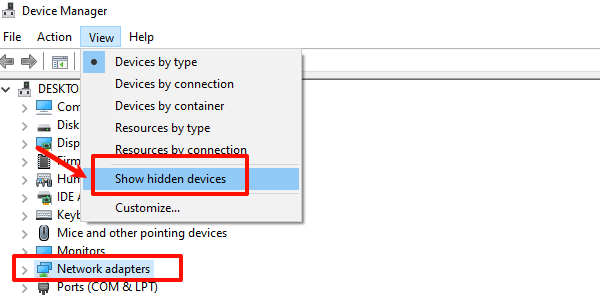
Check if the wireless adapter appears under the network adapter list. If it is grayed out, right-click and select "Enable device".
If no device is listed, try clicking "Action" > "Scan for hardware changes".
Reset Winsock Settings
Press Win + S, search for "cmd", and right-click to select "Run as administrator".
Enter the following commands one by one, pressing Enter after each:
netsh winsock reset
netsh int ip reset
ipconfig /release
ipconfig /renew
ipconfig /flushdns
Restart your computer and check if the issue is resolved.
Run Network Troubleshooter
Press Win + I to open "Settings".
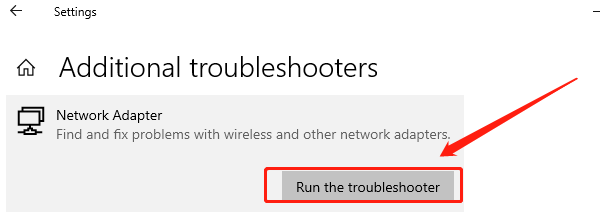
Navigate to "Update & Security" > "Troubleshoot" > "Additional troubleshooters".
Under the "Network Adapter" section, click "Run the troubleshooter".
Follow the on-screen instructions to complete the troubleshooting process.
Update Drivers
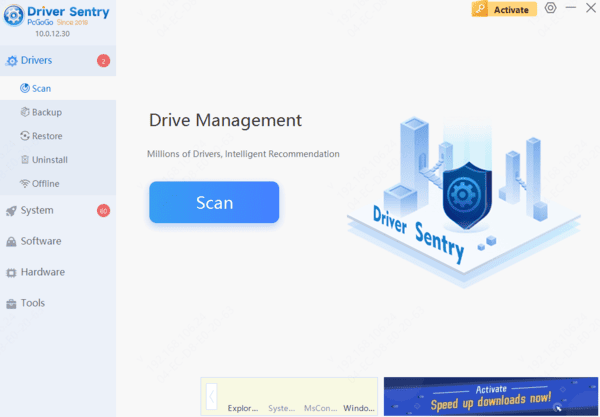
Outdated or corrupted drivers can cause the wireless adapter to disappear. Updating the network adapter driver can effectively fix the issue. Using Driver Sentry is recommended for automatic driver detection and updates, saving time and avoiding installation errors.

Use System Restore
In the taskbar search bar, type "Create a restore point" and open it.
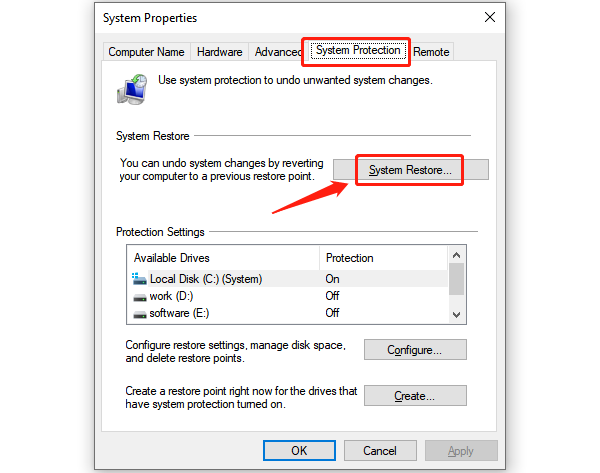
In the "System Protection" tab, click "System Restore".
Select a restore point created when the wireless adapter was working correctly, click "Next", and confirm the operation.
Your system will restart and restore to the selected point. Check if the adapter is now functional.