






A frozen or unresponsive taskbar can prevent you from opening the Start menu, switching applications, accessing notifications, or using system shortcuts in Windows 10. The problem may be caused by a stalled Windows Explorer process, corrupted system files, driver conflicts, damaged user profiles, or incomplete updates. This guide provides seven practical solutions to restore normal taskbar functionality.
1. Restart Windows Explorer
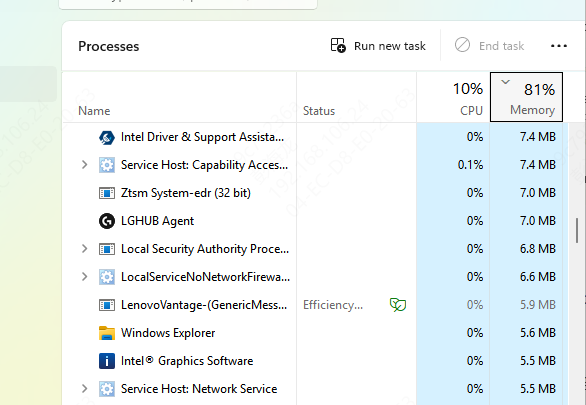
Windows Explorer (Explorer.exe) manages the display of desktop and taskbar. Restarting Windows Explorer can fix many taskbar related issues:
Press Ctrl + Shift + Esc' to open Task Manager.
Find and select "Windows Explorer" in Task Manager.
Right-click on "Windows Explorer" and select "Restart". Windows Explorer will restart and the taskbar should work normally again.
2. Run System File Checker (SFC)
System File Checker (SFC) scans and repairs corrupt system files, which may cause the taskbar not to work:
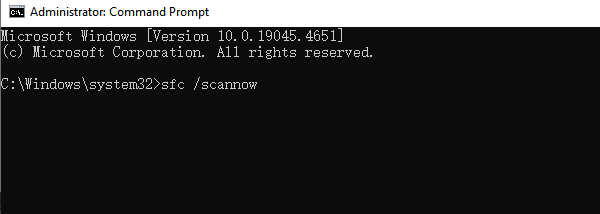
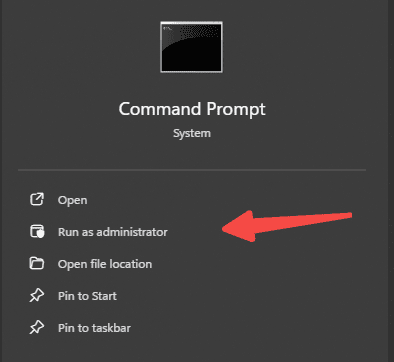
Press 'Win + X' and select 'Command Prompt (Administrator)' or 'Windows PowerShell (Administrator)'.
Type 'sfc /scannow' in the command prompt and press Enter.
Wait for the scan to complete and System File Checker will automatically fix the problems found.
Restart your computer when finished and check if the taskbar is back to normal.
3. Update Graphics Card Driver
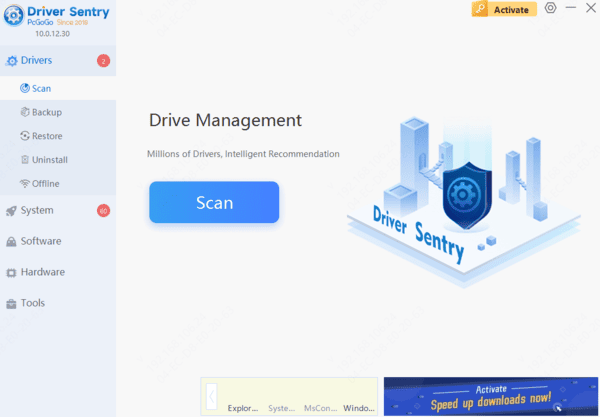
Graphics card driver issues may cause the taskbar to not work properly. Make sure your graphics card driver is up to date. Driver Sentry is recommended for automatic driver detection and updates, saving time and avoiding errors during installation.
4. Run the DISM Tool
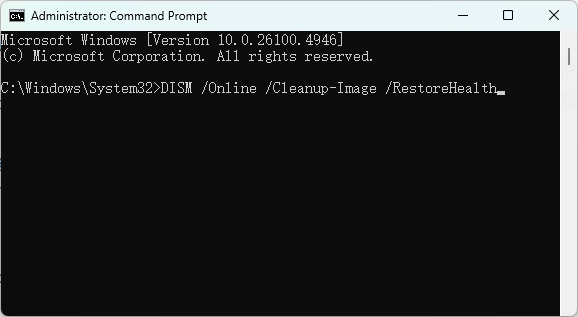
The Deployment Image Service and Management tool (DISM) can repair Windows system images, which may resolve the taskbar issue:
Press 'Win + X' key and select "Command Prompt (Administrator)" or "Windows PowerShell (Administrator)".
Type the following commands in order at the command prompt and press Enter after each command:
DISM /Online /Cleanup-Image /CheckHealth
DISM /Online /Cleanup-Image /ScanHealth
DISM /Online /Cleanup-Image /RestoreHealth
Wait for each command to complete before proceeding to the next command.
Restart your computer when finished and check if the taskbar is back to normal.
5. Create a New User Account
Sometimes, a corrupted user profile may cause the taskbar to not work. Creating a new user account can help determine if the problem is with the user profile:
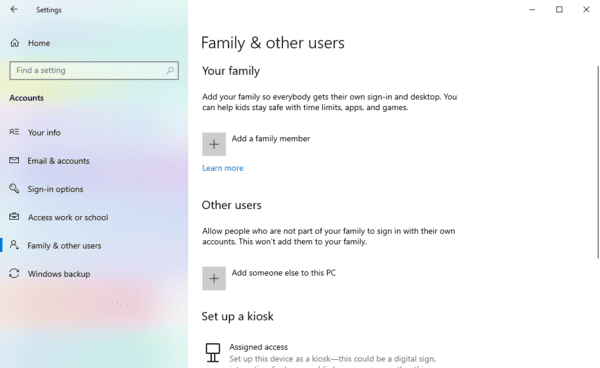
Press 'Win + I' and open 'Settings'.
Select "Accounts".
Click on "Family and other users" and then "Add someone else to this computer".
Follow the prompts to create a new local user account.
Switch to the new account and check if the taskbar is working properly. If the taskbar works properly under the new account, the configuration file of the original account may be corrupted, so you can consider migrating the files to the new account.
6. Reset Windows Taskbar
Resetting Windows Taskbar can solve some problems caused by settings:
Press "Win + R", type "powershell" and press Enter.
Type the following command in PowerShell and press Enter:
Get-AppXPackage -AllUsers | Foreach {Add-AppxPackage -DisableDevelopmentMode -Register "$($_.InstallLocation)\AppXManifest.xml"}
Wait for the command to finish executing, restart your computer and check if the taskbar is back to normal.
7. Check and Update your System
System updates may contain patches to fix the taskbar problem. Make sure your system is updated to the latest version:
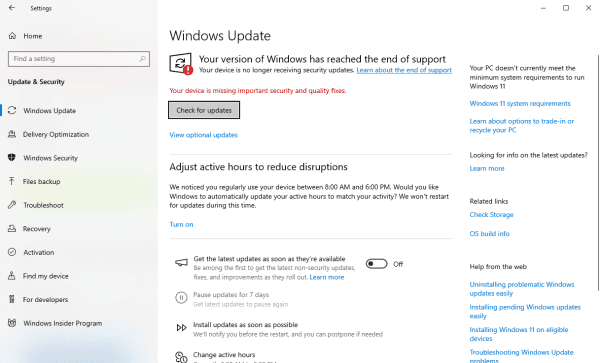
Press 'Win + I' and open 'Settings'.
Select "Update and Security".
Click on "Check for updates" and let your system automatically download and install the latest updates.
After the installation is complete, restart your computer and check if the taskbar is back to normal.
A frozen Windows 10 taskbar is often caused by a stalled Windows Explorer process, corrupted system files, outdated graphics drivers, or a damaged user profile. Start by restarting Windows Explorer, then try updating drivers, running SFC and DISM, resetting the taskbar, or installing Windows updates. If the issue persists, create a new user account to check whether the original profile is corrupted.




