Your microphone is connected, but nobody can hear you during calls, meetings, or voice recordings. Why is your computer not picking up any sound? The issue may come from an incorrect audio input selection, disabled microphone access, faulty connections, or missing and corrupted sound drivers. Before replacing your microphone, try a few straightforward troubleshooting steps to identify the cause. This article walks you through practical solutions for microphone sound problems on Windows 10/11, including checking device settings, testing microphone connections, managing app permissions, and using Driver Sentry to detect and repair potential audio driver issues.
Step 1: Check Hardware Connections and Microphone Settings
Before we dive into the troubleshooting, let's start with the easiest part to make sure the problem is not caused by external devices or settings.
1. Check the microphone connection
If you're using an external microphone, check that it's properly connected to your computer's microphone port (usually the pink jack). If it's a USB microphone, make sure the USB port is firmly connected.
If it's a headset with its own microphone, check that the headset is plugged into the correct connector (usually a 2-in-1 connector or separate microphone and headset connectors).
2. Check if the microphone is disabled
Right-click on the volume icon at the bottom right corner of your computer and select "Sound".
In the "Recording" tab, check if the microphone device is shown as "Enabled". If it shows "Disabled", right-click on the microphone device and select "Enable".
3. Check the microphone volume setting
In the "Recording" tab of the "Sound" window, select your microphone device and click "Properties".
In the Levels tab, make sure that the microphone volume is not minimized and that the microphone boost (if any) is set appropriately.
Step 2: Check if the microphone driver is working
If there are no problems with the hardware connection and settings, then it is likely that the microphone driver is malfunctioning. The driver is the bridge between the hardware and the operating system. If the driver is damaged, outdated or incompatible, the microphone will not work properly.
1. Check the driver status
Right-click on "This Computer" or "My Computer", select "Manage" and enter "Device Manager".
Find "Audio Input and Output" or "Sound, Video, and Game Controllers", expand it and check if the microphone device has a yellow exclamation mark or question mark. If so, there may be a problem with the driver.
2. Update or reinstall the driver
If you don't want to update the drivers manually, you can use Driver Sentry to automatically scan and update all the hardware drivers to make sure the device is running stably.
Click the download button to get the latest version of Driver Sentry. After installation, open the software and click "Scan".
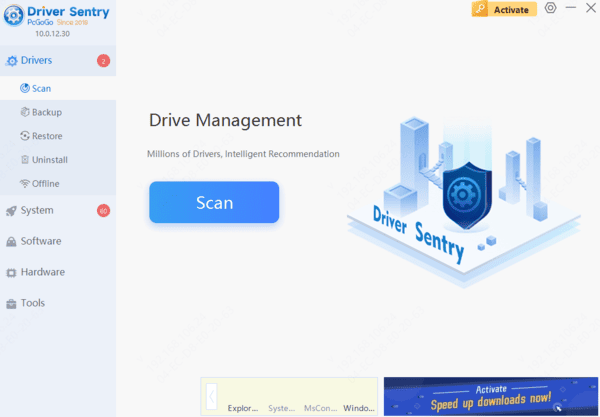
If the software detects outdated or damaged drivers, it will recommend updates. Click "Repair Now" to complete the update.
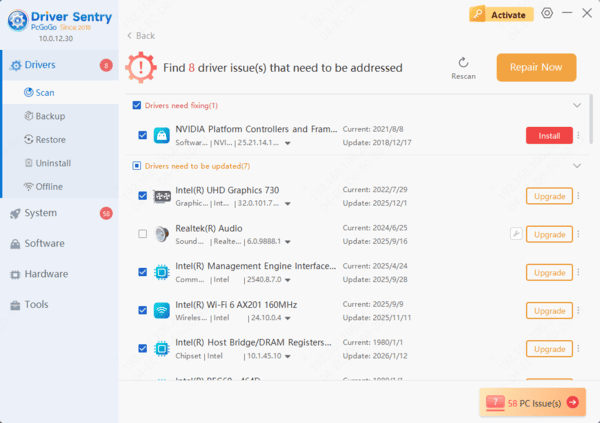
Restart your computer to see if the issue is resolved.
Step 3: Check Application Permissions and Settings
Sometimes, the problem of no sound from the microphone may be caused by incorrect application permissions or settings.
1. Check Application Permissions
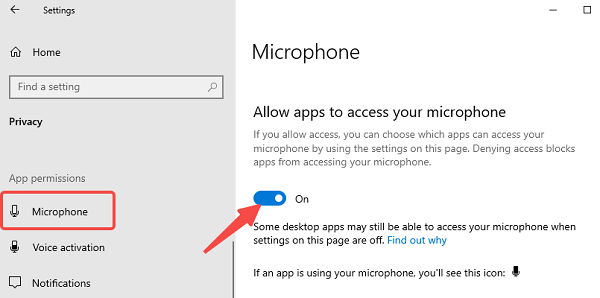
In Windows system, click "Start" menu, select "Settings" > "Privacy" > "Microphone". Select "Settings" > "Privacy" > "Microphone".
Make sure the "Allow apps to access the microphone" option is turned on and the app you are using is in the list of apps that are allowed to access the microphone.
2. Check the app settings
Open the application you are using and check the audio settings to make sure the microphone device is selected correctly and the volume is set appropriately.
Frequently Asked Questions
Why does my microphone work in Windows but not in a meeting app?
The app may use a different input device or lack microphone permission. Select the correct microphone in its audio settings, check mute controls, and review browser permissions if the meeting runs on a website.
Why do my headset's headphones work while its microphone does not?
A headset with one combined 3.5 mm plug may need a compatible splitter when your PC has separate headphone and microphone sockets. Also check the headset's physical mute switch.
How can I test whether my microphone is recording?
Open Windows Sound settings, select your microphone under Input, and speak while watching the input level. Record a short clip to confirm that your voice is captured clearly.
Conclusion
A computer microphone with no sound can be frustrating, but most issues can be resolved with a few simple troubleshooting steps. Checking hardware connections, adjusting microphone settings, enabling app permissions, and updating audio drivers can help restore normal functionality. If outdated or corrupted drivers are causing the problem, Driver Sentry can help detect and repair driver-related issues. Follow these solutions to get your microphone working properly again on Windows 10/11.