
Keeping your Dell Inspiron 15 3000 laptop running at peak performance requires regular driver updates. Drivers act as the communication bridge between your operating system and hardware, ensuring components like the graphics card, audio system, network adapters, and other devices work properly with Windows. Outdated or corrupted drivers can cause performance issues, hardware malfunctions, connectivity problems, and even security vulnerabilities. In this comprehensive guide, we'll walk you through simple and effective methods to update your drivers, helping ensure your Dell Inspiron 15 3000 runs smoothly and reliably.
Method 1: Update Drivers via Windows Update
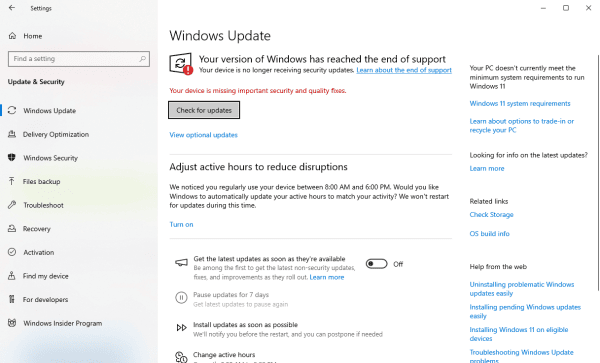
Open Settings: Click the Start menu and select Settings
Navigate to Update & Security: Go to Update & Security and then click Windows Update
Check for Updates: Click Check for Updates. If any driver updates are available, they will appear under Optional Updates.
Install Updates: Select the updates and click Install
Restart Your Laptop: Restart your laptop after the update is complete to ensure everything is applied properly
Method 2: Manually Download Drivers from the Dell Support Website
For users who prefer more control over their updates, downloading drivers manually from the official Dell website is an excellent choice.
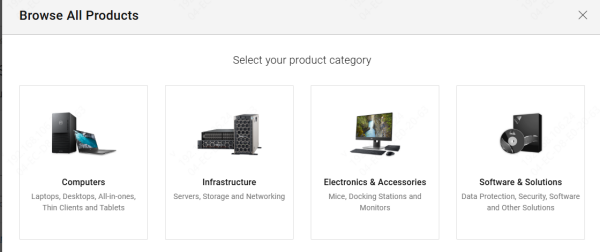
Visit the Dell Support Website: Navigate to the Dell Support page and enter your Service Tag or choose Dell Inspiron 15 3000 from the product list
Select Your Operating System: Choose Windows 10 from the dropdown menu
Browse and Download Drivers: Look for the latest drivers for components like Audio, Graphics, Wi-Fi, and Chipset, then click Download
Install Drivers: Open the downloaded files and follow the on-screen instructions to install each driver
Restart Your Laptop: After the installation is complete, restart your laptop to apply the updates
Method 3: Update Drivers Using Device Manager
For users who want to update specific drivers or troubleshoot hardware issues, Device Manager is a useful tool built into Windows.
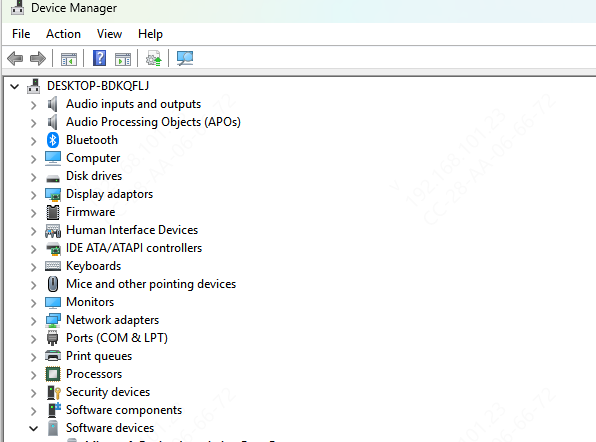
Open Device Manager: Right-click the Start Menu and select Device Manager
Select the Device: Expand the device category (e.g., Display Adapters, Network Adapters) and find the specific hardware
Update Driver: Right-click on the device and select Update Driver
Search for Updates: Select Search automatically for updated driver software
Install the Driver: If an update is found, Windows will automatically install it
Restart Your Laptop: Restart your system to complete the update
Method 4: Use Driver Sentry for Automatic Driver Updates
If you want a more automated solution that scans and updates all your drivers at once, Driver Sentry can help.
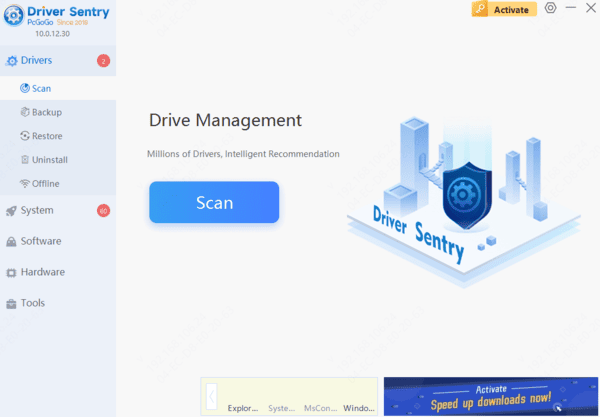
Download and Install Driver Sentry: Visit the Driver Sentry website and download the software
Run a Full System Scan: Open the application and click Scan to detect outdated or missing drivers
Update Drivers: Once the scan completes, select the drivers you wish to update and click Repair Now
Restart Your Laptop: After the updates are installed, restart your laptop to apply them
Method 5: Use Dell SupportAssist for Driver Updates
Dell SupportAssist is an official tool designed to make it easy to update your drivers automatically. This software scans your system, detects outdated drivers, and installs the latest updates from Dell.
Open the application and allow it to scan your system for outdated drivers
SupportAssist will present the available updates for your drivers. Click Install to proceed
After the installation completes, restart your system to apply the updates

Conclusion
Regularly updating drivers is crucial for maintaining the health and performance of your Dell Inspiron 15 3000. Whether you choose to use Dell SupportAssist, Windows Update, Device Manager, or a third-party tool like Driver Sentry, keeping your system's drivers up to date will ensure your laptop runs smoothly and securely. By following the steps outlined in this guide, you can keep your Dell Inspiron 15 3000 performing at its best.