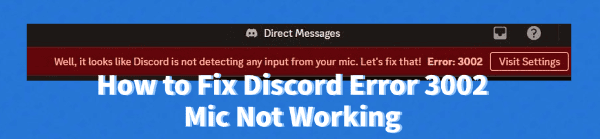
Discord Error 3002 usually appears when the microphone fails to initialize properly. This issue is often caused by outdated audio drivers, incorrect permissions, software conflicts, or corrupted settings. If your microphone suddenly stops working in Discord and this error appears, there are several effective ways to fix it. This guide explains the common causes and provides detailed solutions.
Update Audio Drivers
Outdated or corrupted audio drivers are one of the most common reasons behind Discord Error 3002. Updating the drivers using Driver Sentry ensures your sound devices operate correctly.
Download and Install:
Click the "Download" button to download the software package.
Install it on your Windows computer.
Run a Full System Scan:
After installation, open the program from your desktop or Start Menu. Click the "Scan" button.
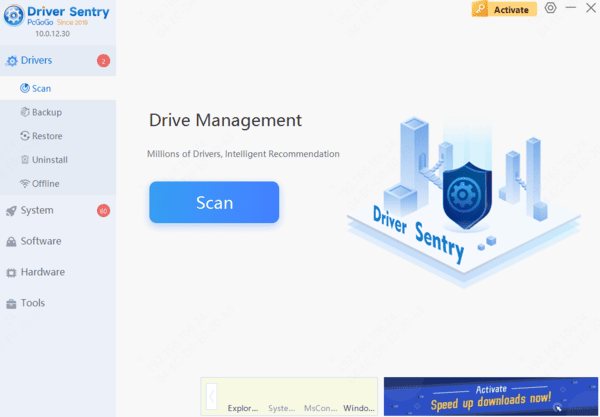
Driver Sentry will automatically detect outdated, missing, or corrupted audio drivers, including microphone and sound card drivers.
Update All Problematic Drivers:
The results will show you a list of all drivers that need attention. Select the necessary drivers and click the "Upgrade" or "Repair Now" button.
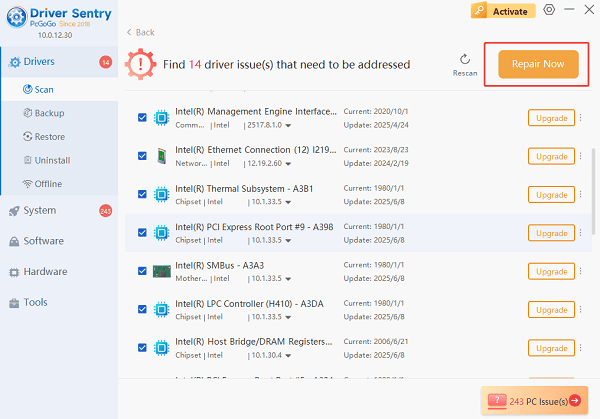
Driver Sentry will download the latest, certified versions specific to your audio hardware, crucial for successful device detection.
Restart Your Computer:
Rebooting ensures the new drivers are applied correctly.
Once the drivers are updated, relaunch Discord and test your microphone again.
Additional Solutions to Fix Discord Error 3002
Driver issues are not the only reason for this error. Try the following methods if the problem persists.
1. Check Microphone Access Permissions
Windows may be blocking Discord from using your microphone.
Open Settings.
Go to "Privacy", select "Microphone".
Enable "Allow apps to access your microphone".
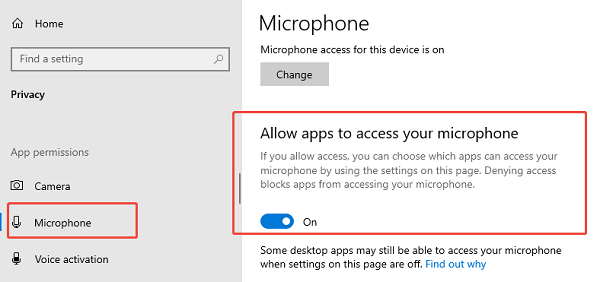
Scroll down and make sure Discord is allowed.
Restart Discord afterward.
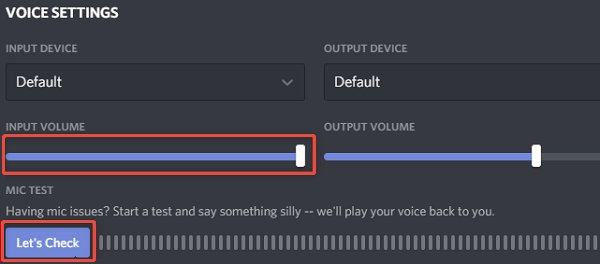
2. Select the Correct Input Device in Discord
Often Discord selects the wrong microphone.
Open Discord.
Go to User Settings, select "Voice & Video".
Under Input Device, choose your active microphone manually.
Set Input Volume to at least 80 percent.
Click "Let's Check".
3. Reset Discord Voice Settings
Corrupted settings can trigger Error 3002.
Go to User Settings.
Select "Voice & Video".
Scroll down and click "Reset Voice Settings".
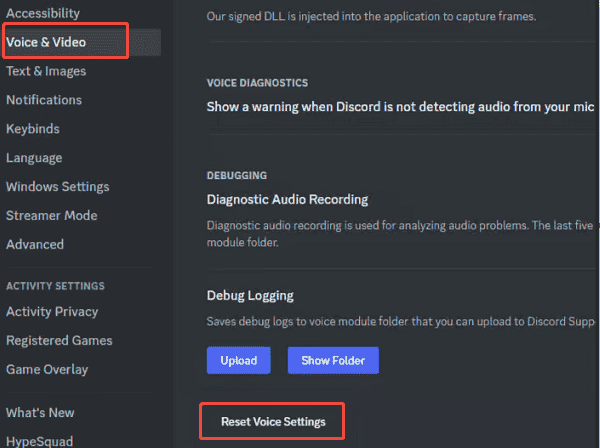
Confirm the reset.
Restart Discord and test your microphone again.
4. Disable Exclusive Mode in Windows Sound Settings
Exclusive mode allows one application to take full control of the microphone and prevent Discord from accessing it.
Right-click the sound icon in the taskbar.
Select Sound Settings.
Under Input, select your microphone.
Click "Device Properties".
Choose "Additional Device Properties".
Go to the "Advanced" tab.
Uncheck the boxes under "Exclusive Mode".
Select "Apply".
5. Restart the Windows Audio Services
Discord relies on Windows audio services to function.
Press Win + R and type "services.msc".
Locate "Windows Audio", right-click and select "Restart".
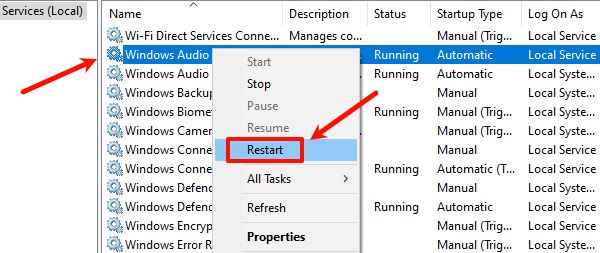
Do the same for Windows Audio Endpoint Builder.
6. Check for Conflicting Software
Some applications can take over your microphone and block Discord.
Common conflicting apps include:
Voicemeeter
Zoom
OBS or Streamlabs
Browser tabs using microphone access
Close unnecessary applications and try again.
7. Reinstall Discord
If the program files are corrupted, reinstalling Discord may fix the issue.
Open Settings, select "Apps".
Go to "Apps & features" , select Discord and uninstall it.
Download the latest version from Discord's official website.
Install and test your microphone.
Final Thoughts
Discord Error 3002 is usually caused by outdated audio drivers, incorrect settings, or software conflicts. Updating your drivers using Driver Sentry is the fastest and most reliable way to fix microphone issues. If the problem continues, follow the additional troubleshooting steps listed above to restore full mic functionality.