





If you've ever tried installing a large game or software and encountered the ISDone.dll unarc.dll error -11, you know how frustrating it can be. This error typically appears during the extraction of large archives, such as FitGirl repacks, causing the installation to halt unexpectedly or crash. The problem arises because the DLL files responsible for unpacking and verifying the archives are missing, corrupted, or blocked by your system. The good news is that this issue is usually fixable without reinstalling Windows. In this guide, we'll walk you through all the actions needed to resolve ISDone.dll unarc.dll error -11 and complete your installation successfully.
What are ISDone.dll and unarc.dll?
ISDone.dll: A dynamic link library used by installers to handle the unpacking of large compressed game or software files
unarc.dll: A companion DLL that manages archive extraction and ensures files are intact
When either of these DLLs is missing or corrupted, the installer cannot complete the extraction, resulting in error -11
Increase Virtual Memory Pagefile
Decompression needs a massive temporary buffer—when physical RAM runs out, Windows uses the pagefile. A smalldefault pagefile causes -11.
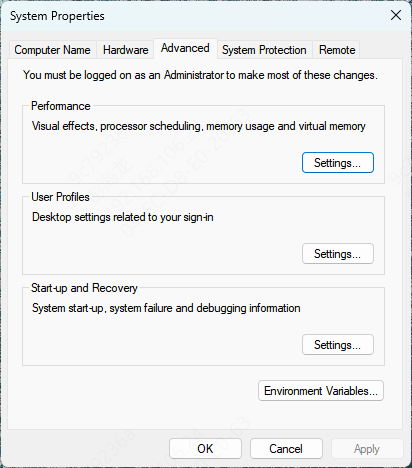
Right-click This PC → Properties → Advanced system settings
Under Performance, click Settings → Advanced tab → Virtual memory → Change
Uncheck "Automatically manage paging file size for all drives"
Select your fastest drive (preferably SSD, not the one with low space)
Choose Custom size: Initial size: 1.5 × your RAM (e.g., 24 GB RAM → 36000 MB). Maximum size: 3× RAM or more (e.g., 72000 MB)
Click Set → OK → restart your PC
After restart, retry the installation. This fixes ~70% of -11 cases
Disable Antivirus Temporarily
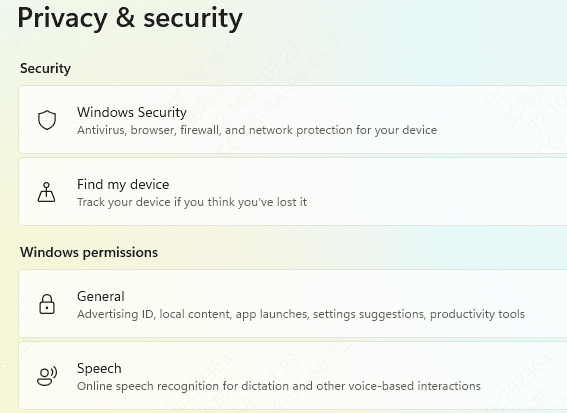
Antivirus software may mistakenly block ISDone.dll or unarc.dll
Temporarily disable your antivirus software and add the installer folder to the antivirus exclusion list
Run the installer again, and re-enable your antivirus after installation
Use System File Checker (SFC)
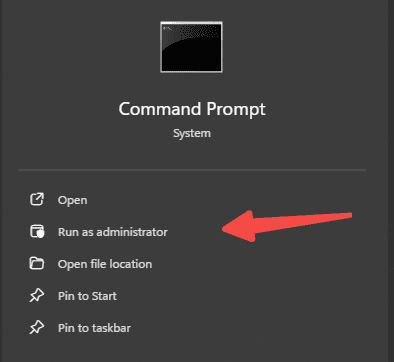
Corrupted system files can prevent DLLs from functioning. Open Command Prompt as Administrator and type:
sfc scannow
Press Enter and wait for the scan to complete
Restart your PC and try installing again
Limit CPU Cores & Prevent ThrottlingOverheating
Modern CPUs (especially 12+ cores) can overheat or throttle during 100% load decompression.
Press Win + R → type msconfig → OK
Go to Boot tab → Advanced options → check "Number of processors" → set to 6–10 cores (not all)
Apply → OK → restart

Alternative (no restart needed)
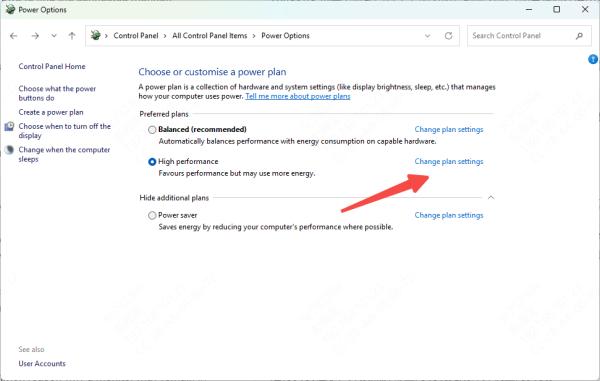
Search Power Options → Change plan settings → Change advanced power settings
Processor power management → Maximum processor state → set to 99% (prevents full turbo boostoverheating)
Use Balanced power plan
Re-register ISDone.dll and unarc.dll
If the DLL files exist but aren't properly registered, re-registering can fix the dll error.
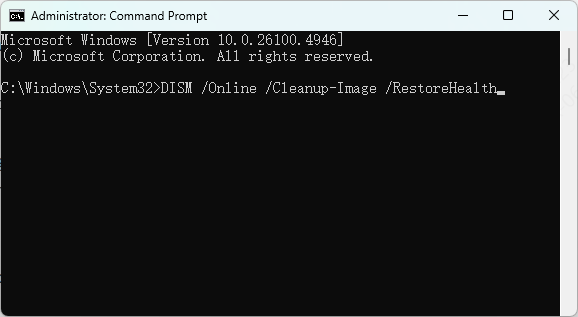
Open Command Prompt as Administrator and run:
regsvr32 ISDone.dll
regsvr32 unarc.dll
Press Enter after each command and restart your PC
Use PcGoGo DLL Fixer
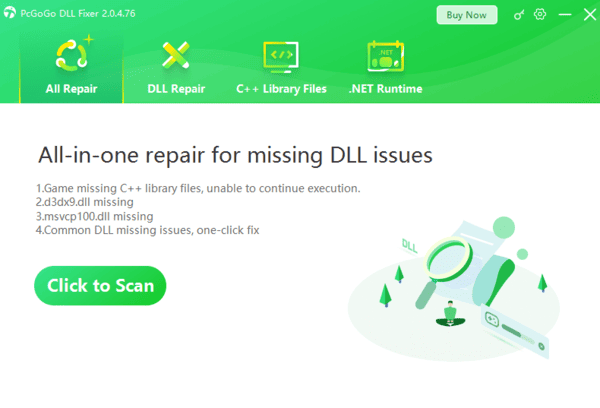
Automated tools like PcGoGo DLL Fixer can detect and repair missing or corrupted DLL files efficiently.
Download and install the tool, launch it, and click Scan to detect DLL errors
Click Repair Now to automatically fix any issues
Restart your PC after the repair is complete
Update Microsoft Visual C++ Redistributables
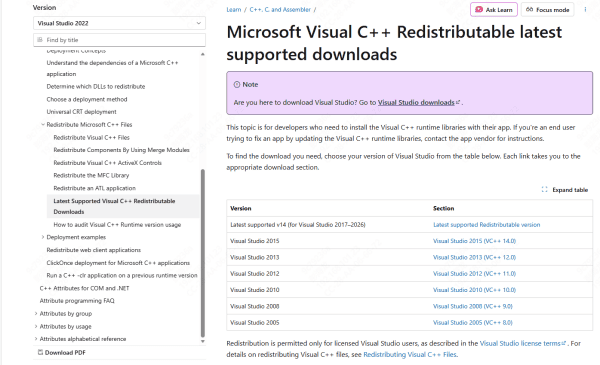
Download latest from Microsoft (search "Visual C++ Redistributable latest")
Install both x86 and x64 versions (2015–2022 packs)
Restart PC
Common Causes of ISDone.dll unarc.dll Error -11
Corrupted or incomplete installation files – often from interrupted downloads or damaged repacks
Insufficient RAM during extraction
Low disk space on the target installation drive
Antivirus software blocking DLL files during installation
Corrupted or outdated Windows system files
Faulty storage devices (HDDSSD) causing extraction errors
Conclusion
The ISDone.dll unarc.dll error -11 is a common hurdle when installing large games or software, especially FitGirl repacks. By verifying archives, freeing up system resources, running installers as Administrator, repairing DLLs, and checking storage integrity, you can successfully fix the error and complete your installation. Following these instructions ensures smooth installations and prevents similar issues in the future.
