
Sound card drivers are essential for enabling communication between your computer's audio hardware and the operating system, ensuring high-quality sound performance. This article will help you manage, update, and troubleshoot sound card drivers to maintain the best possible audio experience on your PC.
Option 1: Using a Driver Management Tool
Without the correct sound card drivers, you may experience degraded audio quality, audio delays, or even no sound at all. We recommend using Driver Sentry to automatically detect and update drivers, saving time and avoiding the risks associated with downloading or installing incorrect drivers.
1). Click the download button to get the latest version of Driver Sentry. Once installed, open the software and click "Scan".
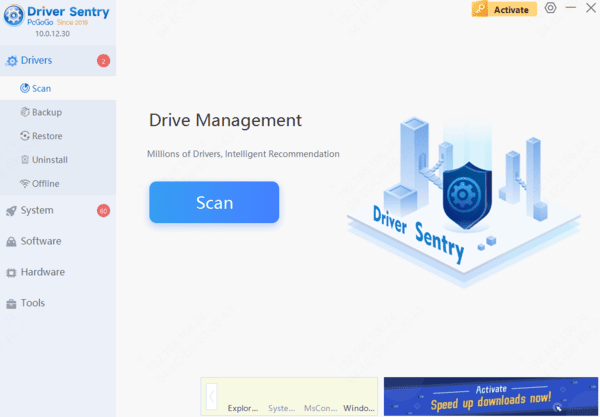
2). After the scan is complete, it will display which drivers are missing or need updating. Find the sound card driver in the results list and click the "Update" button.
3). After updating, it's recommended to restart your computer to ensure the updated drivers are properly applied.
Option 2: Downloading from the Official Website
Step 1: Identify Your Sound Card Model
Press Win + X and select "Device Manager".
In Device Manager, expand the "Sound, video and game controllers" section.
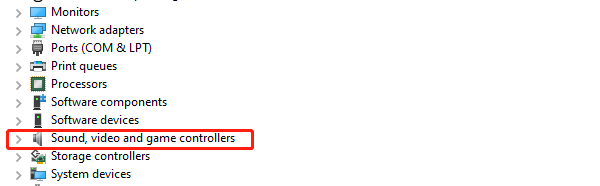
Locate the sound card name, which typically appears as Realtek, Conexant, Creative, or similar brands.
If you have the purchase documentation or packaging for your computer, check the specifications section to find out the sound card model.
Step 2: Visit the Manufacturer's Website
Open your browser and go to the website of your sound card manufacturer.
Find the "Support" or "Downloads" section on the website. These pages typically provide driver downloads and FAQs.
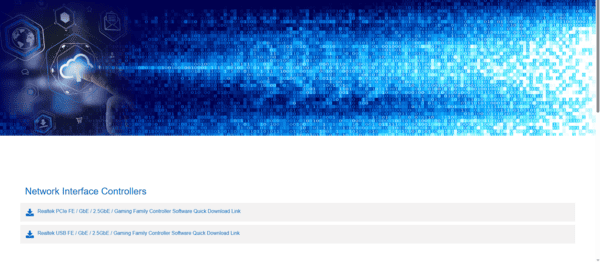
Enter the model of your sound card in the search bar on the download page.
Choose the appropriate driver version for your operating system.
Step 3: Download and Install the Driver
Click the download link, select a path to save the file, and wait for the download to complete.
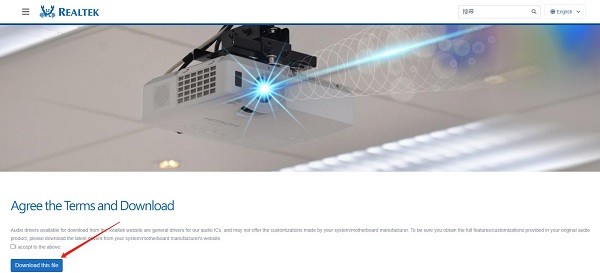
Double-click the downloaded driver installation file (usually a ".exe" or ".zip" file).
Follow the installation wizard's instructions, and you may need to agree to the terms and conditions.
During installation, it's advisable to choose the "Full Installation" option to ensure all necessary drivers and software are installed.
Once the installation is complete, restart your computer to apply the new drivers.
Step 4: Verify Successful Driver Installation
Open "Device Manager" and expand "Sound, video and game controllers" again.
Ensure the sound card displays correctly, with no yellow exclamation marks or error codes.
Test the audio output by playing an audio file or visiting YouTube.

Ensure the audio is clear, with no interference or noise.
Frequently Asked Questions
What if there is no sound after installing the driver?
Ensure speakers or headphones are correctly connected.
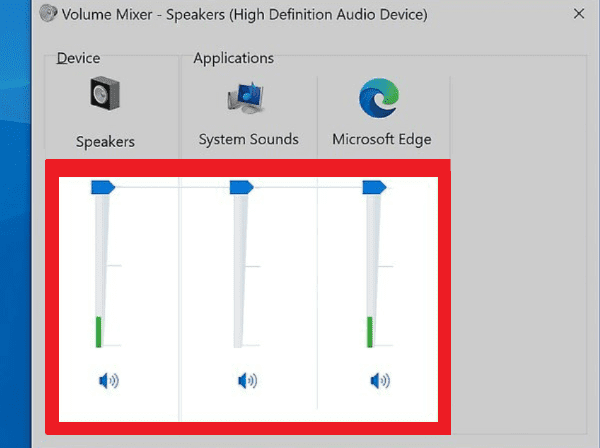
Check the system volume settings and the physical volume control on your speakers.
Restart your computer and check Device Manager again for any errors.
How do I handle sound card drivers that are incompatible with the operating system?
If you encounter compatibility issues, try uninstalling the current sound card driver, then re-download and install an older version of the driver.
Update your operating system to ensure it supports the latest driver versions.
Why should I update my sound card drivers?
Driver updates often include bug fixes, performance improvements, and support for new features. Updating sound card drivers can enhance audio quality and device compatibility.
Installing and updating sound card drivers is crucial for maintaining audio quality. Follow these steps to download and install drivers, ensuring optimal sound. Regular updates prevent issues and enhance your computing experience.
See also:
Top 7 Easy Ways to Fix a Mouse Cursor Moving on Its Own
AMD Radeon Graphics Drivers 24.7.1 WHQL Released