





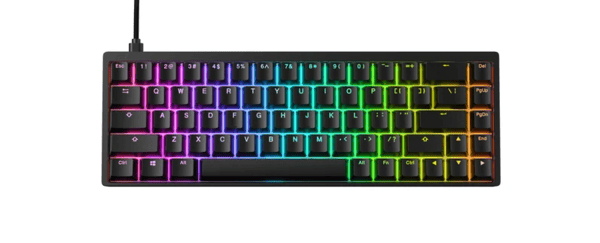
The Endgame Gear KB65HE is a compact gaming keyboard designed for responsive inputs, precise control, and customizable performance. Featuring Hall Effect magnetic switches, adjustable actuation points, and Rapid Trigger technology, it offers advanced features for competitive gaming and everyday typing. However, setting up a new gaming keyboard involves more than simply connecting it to your computer. To take advantage of its customization features, you may need to install the appropriate software, configure keyboard settings, and check for firmware updates.
This guide explains how to complete the Endgame Gear KB65HE keyboard setup on Windows 10 and Windows 11, customize its gaming features, and troubleshoot common connection or driver problems.
Step 1: Connect the Endgame Gear KB65HE to Windows
1. Check the keyboard and cable
2. Connect the keyboard
3. Wait for Windows detection
4. Test basic keyboard functions
Step 2: Install Endgame Gear KB65HE Configuration Software
Download the Official Software
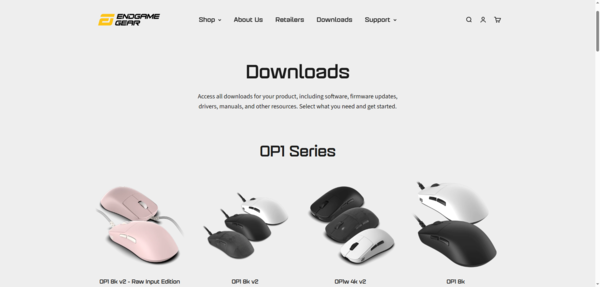
Visit the official Endgame Gear website.
Open the KB65HE downloads page.
Find the configuration software for your exact keyboard model.
Download the compatible Windows package.
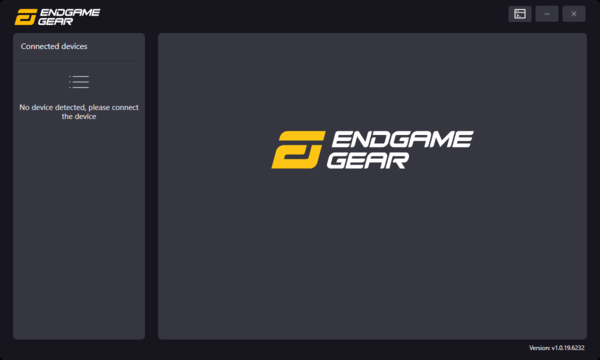
After opening the configuration utility, verify that the keyboard is recognized.
If the software does not detect the device, reconnect the keyboard directly to another USB port and restart the application.
Step 3: Configure the KB65HE Actuation Point
Open the Endgame Gear configuration software.
Locate the actuation or key sensitivity settings.
Select the keys you want to adjust.
Choose the desired actuation distance.
Apply the settings.
Step 4: Enable Rapid Trigger on the KB65HE
Launch the KB65HE configuration software.
Find the Rapid Trigger settings.
Select the keys you want to configure.
Enable Rapid Trigger.
Adjust the available sensitivity settings.
Apply your changes and test the keyboard.
Step 5: Update Endgame Gear KB65HE Keyboard Drivers
Most KB65HE keyboards use Windows' built-in HID keyboard drivers for basic functionality.
However, if Windows does not recognize the keyboard correctly, checking the driver may help.
Method 1: Update the Keyboard Driver Through Device Manager
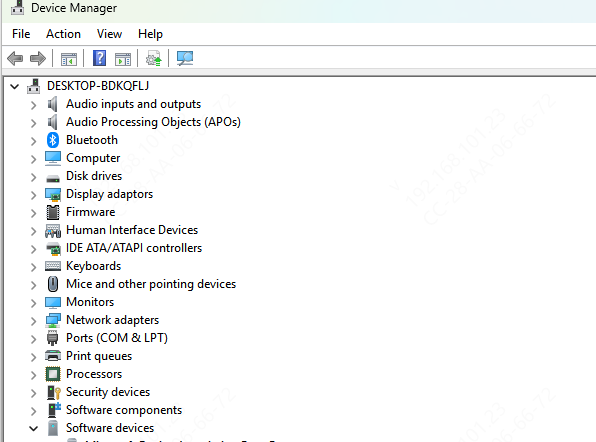
Press Windows + X and select Device Manager.
Expand Keyboards.
Find the relevant HID Keyboard Device entry.
Right-click it and select Update driver.
Choose Search automatically for drivers.
Follow the instructions displayed by Windows.
Restart your computer if necessary.
Method 2: Check Drivers with Driver Sentry
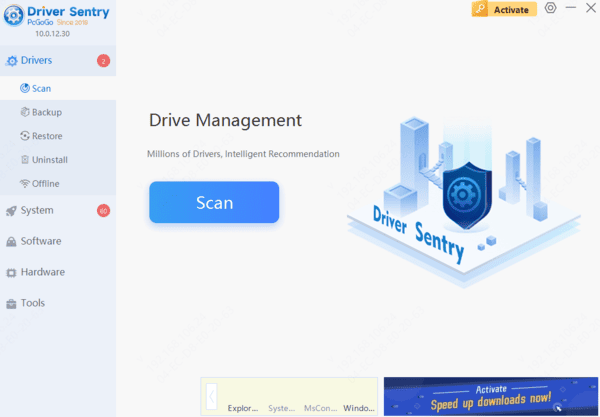
If your computer experiences multiple driver-related problems, Driver Sentry can help check for supported driver updates and repair options.
Download Driver Sentry
Install and launch the software.
Run a driver scan.
Review any detected driver issues.
Apply relevant updates or repairs if available.
Restart your computer if required.
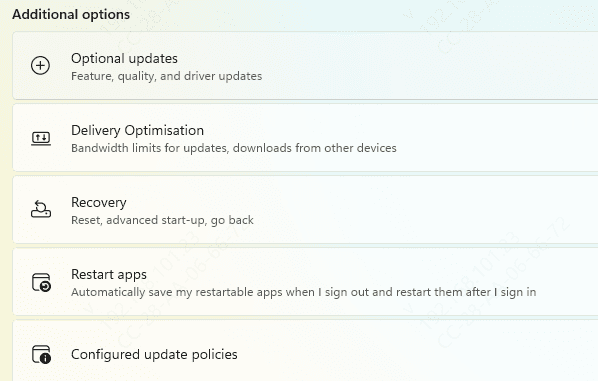
Method 3: Check Windows Update
Open Settings > Update & Security.
Select Windows Update.
Click Check for updates.
Install relevant updates and restart Windows.
After restarting, test whether your keyboard functions correctly.
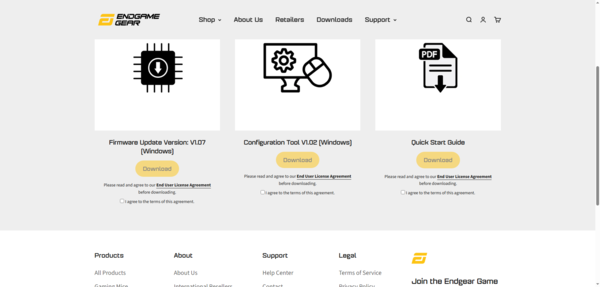
Step 6: Update Endgame Gear KB65HE Firmware
Visit the official KB65HE downloads page.
Download the compatible configuration software.
Connect the keyboard directly to your computer.
Open the configuration utility.
Check whether a firmware update is available.
Follow the on-screen instructions to complete the update.
Conclusion
Setting up the Endgame Gear KB65HE keyboard on Windows 10 or Windows 11 is straightforward. Connect the keyboard using its USB cable, confirm that Windows recognizes it, and install the official configuration software to access supported gaming features.
If you encounter problems, check the USB connection, update relevant Windows drivers, and verify that the configuration software and firmware are compatible with your exact model. Driver Sentry may also help identify supported Windows driver issues.
With the correct setup and configuration, the Endgame Gear KB65HE can provide responsive, customizable performance for both competitive gaming and everyday typing.




