






Encountering the "BCM20702A0 Driver Unavailable" error on Windows 10 or Windows 11? This common Bluetooth driver issue can prevent your computer from detecting Bluetooth devices, connecting wireless headphones, keyboards, or mice, and maintaining stable wireless connections. The problem is often caused by outdated, missing, or corrupted Broadcom Bluetooth drivers, disabled Bluetooth services, system compatibility issues, or hardware malfunctions. Fortunately, there are several effective ways to restore Bluetooth functionality. This guide covers six practical solutions, including updating Bluetooth drivers with Driver Sentry, restarting Bluetooth services, reinstalling the BCM20702A0 driver, running the Windows Bluetooth troubleshooter, and checking for hardware issues to help you get your Bluetooth devices working properly again.
1. Check Bluetooth Service Status
Press Win + R, type "services.msc", and press Enter.
Locate the following Bluetooth-related services in the list and ensure they are running:
Bluetooth Support Service
Bluetooth Audio Gateway Service
Bluetooth User Support Service
Start the Services:
Right-click the service name and select "Start".
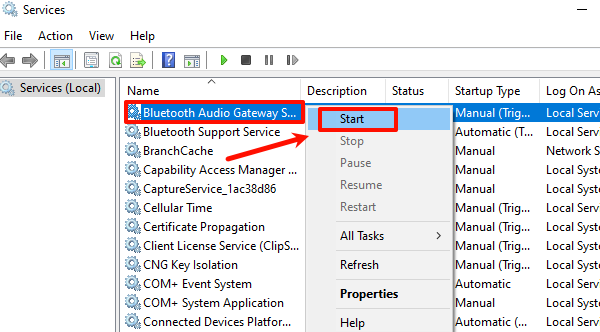
Right-click and select "Properties", then set the startup type to "Automatic".
Restart the Services:
For services already running, right-click and select "Restart" to ensure they are functioning correctly.
2. Reinstall the Bluetooth Driver
Uninstall the Driver:
Press Win + X and select "Device Manager".
Expand the Bluetooth category, right-click BCM20702A0, and select "Uninstall Device".
Check Delete the driver software for this device and click "Uninstall".
Download and Reinstall:
Visit your device manufacturer's website or Broadcom's official website to download the latest driver compatible with your device.
Run the downloaded installer and follow the on-screen instructions to complete the installation.
After installation, restart your computer and check if the issue is resolved.
3. Update Device Drivers
Outdated or corrupted drivers are one of the main causes of the "BCM20702A0 Driver Unavailable" issue. Updating the Bluetooth driver can effectively resolve this problem. Using Driver Sentry is recommended for automatically detecting and updating drivers, saving time and avoiding errors when downloading or installing incorrect drivers.
Click the download button to get the latest version of Driver Sentry. After installation, open the software and click "Scan".
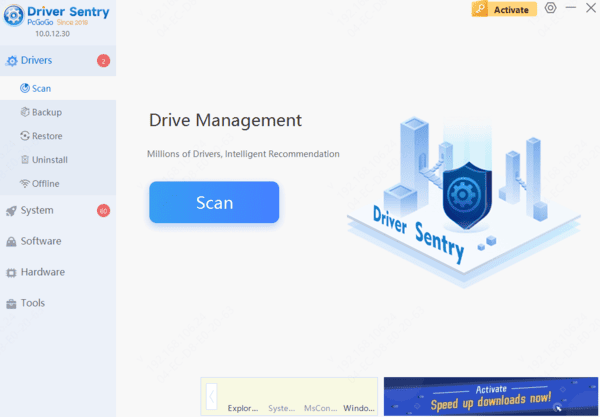
Once the scan is complete, a list of uninstalled or outdated drivers will appear. Locate the Bluetooth driver in the list and click the "Upgrade" button.
After updating, restart your computer to ensure the updated driver functions properly.
4. Run Bluetooth Troubleshooter
Press Win + I to open Settings, and navigate to "Update & Security" > "Troubleshoot".
Under "Additional Troubleshooters", find "Bluetooth" and click "Run the Troubleshooter".
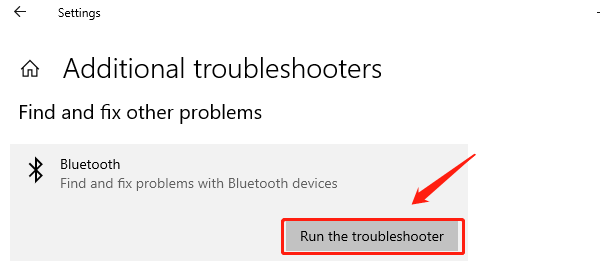
The system will automatically detect and fix common Bluetooth driver and configuration issues.
After the troubleshooting process, try reconnecting your Bluetooth device to confirm if the issue is resolved.
5. Perform a System Restore
Press Win + S, type "Create a Restore Point", and open the corresponding option.
In the "System Protection" tab, click "System Restore".
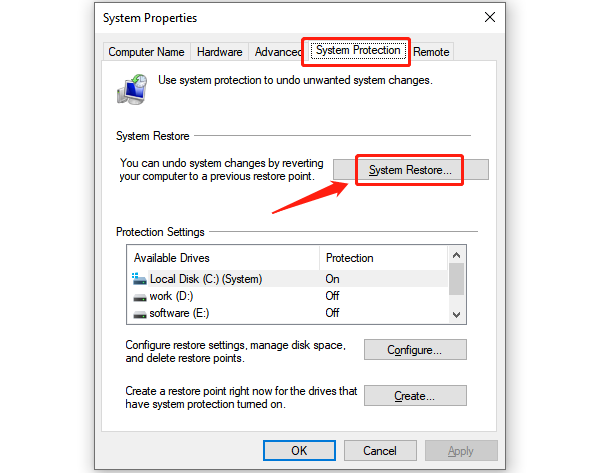
Follow the prompts and select a restore point from before the issue occurred.
Click "Next" and confirm to perform the system restore.
After the restore process is complete, restart your computer and check if the Bluetooth driver issue is resolved.
6. Check for Hardware Faults
Test Bluetooth Devices:
Connect your Bluetooth device to another computer to confirm if it works properly.
Connect other Bluetooth devices to your computer to verify functionality.
Inspect Physical Hardware:
For desktop PCs or devices with user-replaceable modules, check if the Bluetooth module is securely installed.
Ensure that shared antennas for wireless networks and Bluetooth are correctly connected.
By following the steps above, you can effectively resolve the BCM20702A0 Driver Unavailable issue. If the problem persists, it is recommended to seek assistance from a professional.
See also:
6 Ways to Fix "No Audio Device Installed" on Windows 10
Fix Bluetooth Audio Delay on Windows PC




