






Experiencing a locked keyboard on your Dell laptop after updating to Windows 11 can be frustrating, especially when you depend on it for daily work. This issue is often caused by driver conflicts, system setting changes, or temporary hardware glitches triggered by the update. In most cases, it is not a serious hardware failure and can be fixed with a few simple troubleshooting steps. This guide walks you through effective solutions to restore your keyboard functionality on Windows 11.
Basic Troubleshooting Steps
Restart Your Laptop
Sometimes, a simple restart can solve temporary software glitches
Restarting your system after the update might restore normal keyboard functionality
Check for External Devices
Ensure that no external devices, such as a USB keyboard or mouse, are connected to your laptop
These devices may interfere with the internal keyboard, causing it to lock
Check Keyboard Lock Feature
Dell laptops often come with a keyboard lock feature that can be accidentally enabled
Keys like Num Lock, Fn, or the Windows + L key combination may inadvertently lock the keyboard
Unlock the Keyboard
Press the Fn key + F6 (or the appropriate function key based on your laptop model) to unlock the keyboard
Press Num Lock to toggle the keyboard back to its normal mode
If the keyboard is locked by a software setting, disabling these keys should fix the issue
Try Dell SupportAssit
Use Dell SupportAssit to diagnose your keyboard

Update Keyboard Drivers
Outdated or corrupted drivers are common causes of keyboard issues after a system update. Updating the keyboard drivers can often resolve the issue.
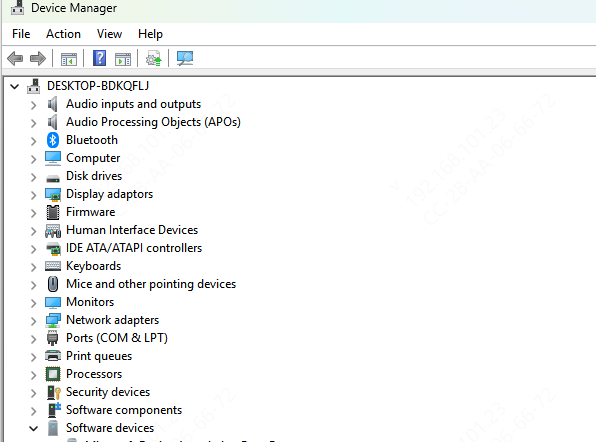
Open Device Manager
Right-click the Start button and select Device Manager
Expand the Keyboards section, right-click on your keyboard, and select Update Driver
Choose Search automatically for updated driver software
Follow the prompts to install the updated driver, if available
Restart the laptop to apply changes
Update Dell Keyboard Drivers with Driver Sentry
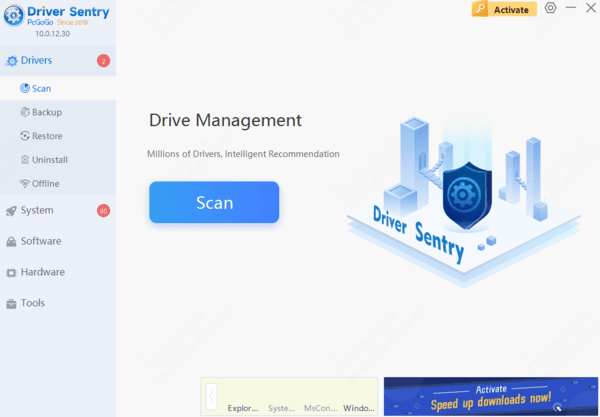
Outdated or incompatible drivers are often the cause of a locked keyboard on Dell laptops after a Windows 11 update. Driver Sentry can help resolve this by automatically updating the necessary drivers.
Download and install Driver Sentry on your Dell laptop
Open Driver Sentry and go to Drivers > Scan
Once the scan is complete, select the drivers to update and click Repair Now
Allow the installation to complete, then restart your laptop to apply the changes
This simple process should restore full keyboard functionality and fix the lock issue caused by the Windows 11 update
Check Windows 11 Settings
Sometimes, keyboard-related settings may change after an update. Features like Sticky Keys or Filter Keys can disable the keyboard functionality.
Go to Settings > Ease of Access > Keyboard
Make sure that Sticky Keys, Filter Keys, and Toggle Keys are turned off
Restart your laptop to see if the keyboard issue is resolved
Check for Windows Updates
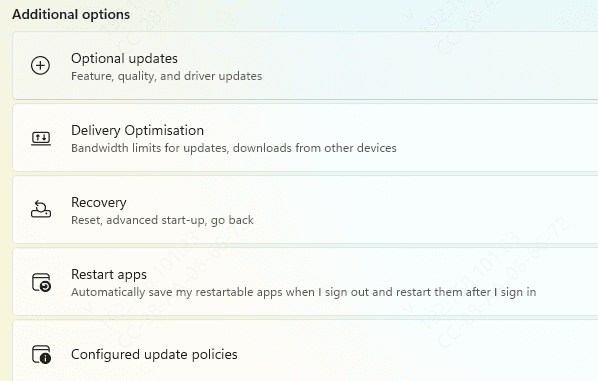
Go to Settings > Windows Update
Click Check for Updates to ensure all updates have been installed
Sometimes, a second round of updates might include fixes for keyboard issues
Perform a System Restore
If the problem began after the Windows 11 update, you might want to restore your laptop to a point before the update. This will undo any changes made during the update that might have caused the keyboard issue.
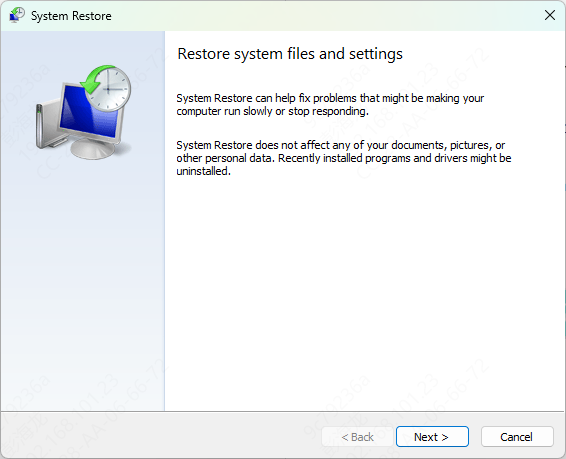
Open the Start menu and type "System Restore"
Select Create a restore point, then click System Restore
Choose a restore point that dates back before the update and follow the on-screen instructions
Test Keyboard in Safe Mode
To rule out any third-party applications or software causing the issue, you can boot your Dell laptop into Safe Mode.
Restart the laptop and press Shift + Restart from the login screen
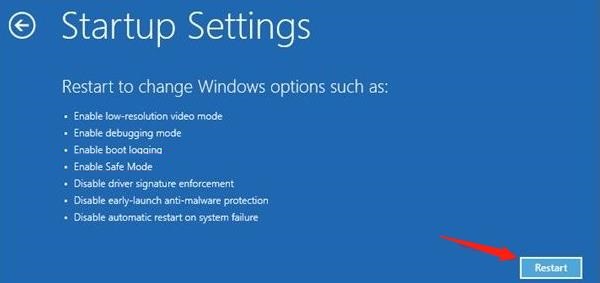
In the Choose an option screen, select Troubleshoot > Advanced options > Startup Settings
Click Restart and then press 4 to start in Safe Mode
Check if the keyboard works in Safe Mode. If it does, the issue may be related to software conflicts or third-party applications
Run Windows Troubleshooter
Windows 11 includes a Keyboard Troubleshooter that can automatically detect and fix keyboard issues.
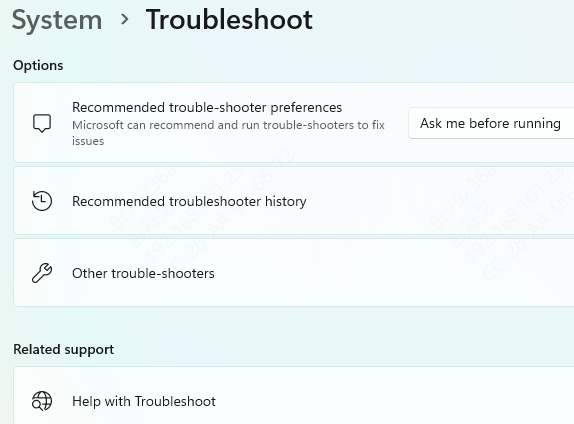
Open Settings and go to System > Troubleshoot
Select Other troubleshooters and run the Keyboard Troubleshooter
Follow the on-screen prompts to allow Windows to diagnose and resolve any keyboard-related issues
Additional Solutions
Use an External Keyboard
As a temporary solution, you can use an external USB or Bluetooth keyboard until the internal keyboard issue is resolved
Check for BIOS Issues
Sometimes, the BIOS can interfere with hardware functionality
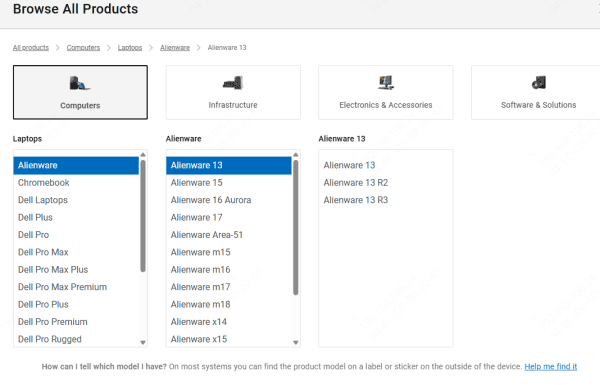
Check for BIOS updates on the Dell Support website and update it if necessary
Conclusion
If your Dell laptop's keyboard is locked after the Windows 11 update, there are multiple ways to troubleshoot and fix the issue. By following these simple steps — from restarting your laptop and updating drivers to checking Windows settings or running diagnostics — users can restore their keyboard functionality. If the problem persists, contacting Dell Support may be necessary to address any underlying hardware issues.




