Discord Error 3002 can interrupt voice chats, streaming, or microphone and speaker output by preventing the app from using Windows audio devices correctly. The problem may be related to incorrect input or output selection, disabled audio devices, corrupted or outdated drivers, Discord noise-processing settings, or damaged application files. This guide explains several practical ways to fix Discord Audio Issue: Error 3002.
1. Check Audio Device Settings
Open Discord and click on "User Settings" (⚙️ icon).
Navigate to the "Voice & Video" section.
In the "Input Device" and "Output Device" dropdown menus, select the correct microphone and speaker/headset.
Adjust the "Input Volume" and "Output Volume" to ensure the sound level is sufficient.
Close the settings and test the voice call.
2. Re-enable Audio Devices
Right-click the volume icon in the taskbar and select "Open Sound Settings".
Under "Output Device" and "Input Device", ensure the correct devices are enabled.
If the device is disabled, click "Manage Sound Devices", find the relevant device, and click "Enable".
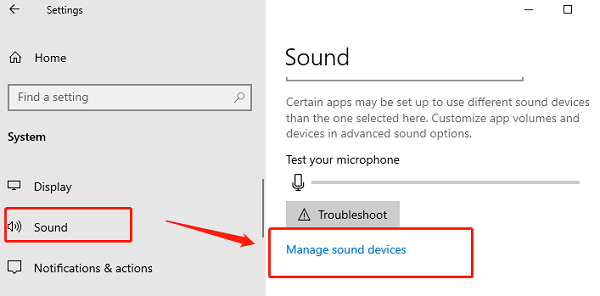
Reopen Discord and check if the audio is working properly.
3. Disable Discord's Noise Suppression
Open Discord.
In the User Settings, click the "Voice & Video" tab.
Scroll down to the Noise Suppression section and select "None" to fully disable noise suppression.
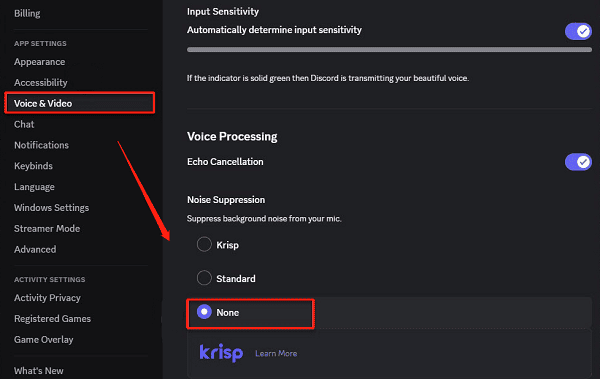
Restart Discord and check if the voice function works normally.
4. Run Windows Audio Troubleshooter
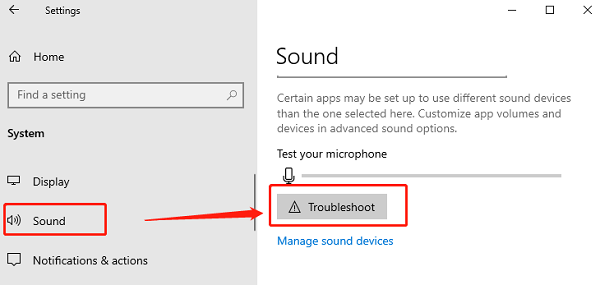
Press Win + I to open Settings, then go to "System" > "Sound".
Under Output Device or Input Device, click "Troubleshoot".
Follow the on-screen instructions to allow Windows to automatically detect and fix audio issues.
After troubleshooting, restart your computer and test Discord audio.
5. Update Audio Drivers
Outdated or corrupted drivers can cause Discord Error 3002. Updating your audio drivers is an effective way to fix the issue. Using Driver Sentry is recommended for automatically detecting and updating drivers, saving time, and avoiding incorrect driver installations.
Click the download button to get the latest version of Driver Sentry, install and open the software, then click "Scan".
After scanning, the software will display uninstalled or outdated drivers. Locate the audio driver in the results and click the "Upgrade" button.
After the update, restart your computer to ensure the new drivers take effect.

Frequently Asked Questions
Why does Discord audio fail while sound works in other applications?
Discord may be using the wrong input or output device or lack microphone permission. Select the devices manually under Voice & Video and verify Windows privacy permissions.
Will resetting Discord voice settings help?
Yes. Open User Settings, select Voice & Video, scroll down, and choose Reset Voice Settings. You will need to select your preferred devices and configure voice options again.
What should I do if updating the audio driver does not work?
Restart Windows Audio services, reinstall Discord, disable exclusive audio control, and test another headset or microphone. If the device fails in every application, it may have a hardware problem.
By following these solutions, you should be able to successfully fix Discord Audio Issue: Error 3002. If none of the methods work, it could be a hardware problem, and you may need to replace your audio device or contact Discord Support for further assistance.