






If you see an sx32w.dll error saying it's missing, not found, or failed to load, it usually means a program cannot start because one of its required files isn't working. The software may fail to open or crash when loading a plugin, effect, or feature. Although it looks like a simple missing file issue, the cause is often more complex: a damaged installation, blocked file, missing dependency, system corruption, or a version mismatch with Windows. The safest fix is to repair or reinstall the program and its dependencies rather than downloading sx32w.dll from an unknown source.
Reinstall the affected program
A damaged or incomplete installation is one of the most common causes of sx32w.dll errors. If the software was installed incorrectly, interrupted during setup, or updated badly, the DLL file or its related components may no longer be in the correct location
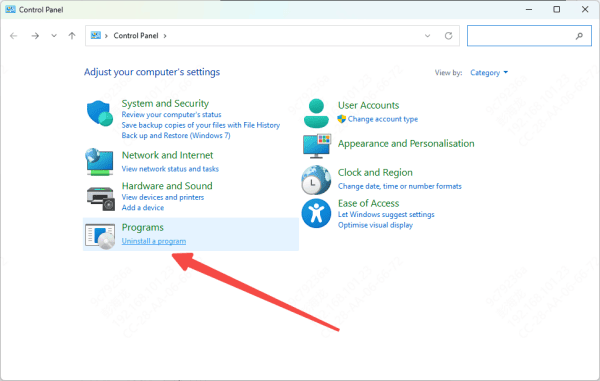
Uninstall the affected application fully, restart the PC, and then reinstall it from the official source. If possible, remove leftover files from the installation folder before reinstalling. This helps make sure damaged files are not reused
Check antivirus and Windows Security
Security software sometimes blocks DLL files by mistake. This happens more often with plugin-based apps, editing tools, older utilities, or programs that load extra modules during startup. If sx32w.dll or one of its related files was quarantined, the software may fail to start and show a missing DLL message
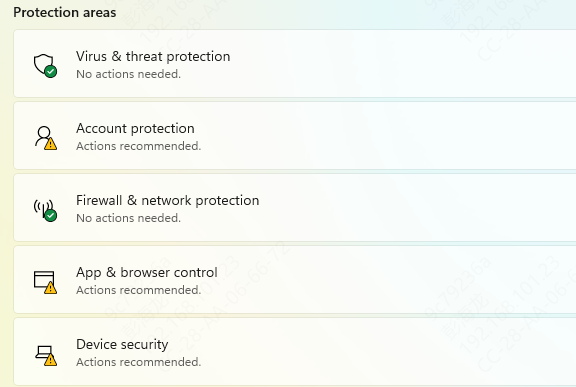
Open Windows Security and check Protection History. If you use another antivirus program, review its quarantine section too. If a file connected to the affected software was removed, restore it only if the software came from a legitimate and trusted source. After that, test the app again
Install or repair Microsoft Visual C++ Redistributables
Many Windows apps depend on Microsoft Visual C++ runtime packages. If these runtimes are missing or broken, sx32w.dll may fail to load even though the file itself is present. That is because the DLL may rely on other shared Microsoft components to work correctly
Install or repair the latest supported Microsoft Visual C++ Redistributables. In many cases, installing both x64 and x86 versions is a good idea, because some programs still use 32-bit components even on 64-bit systems. After installation, restart the computer and test the program again

Remove older or conflicting files
Older versions of the same software can sometimes leave behind files that conflict with the current build. Duplicate DLLs, legacy plugin files, or mixed-version components may cause Windows to load the wrong file or fail during startup
If you recently upgraded the software, remove older versions completely before reinstalling the newest release. This is especially important for plugin-based programs and tools that integrate with host applications
Repair Windows system files
If more than one program on your computer is showing DLL errors, Windows itself may have corrupted files. In that case, built-in repair tools can help.
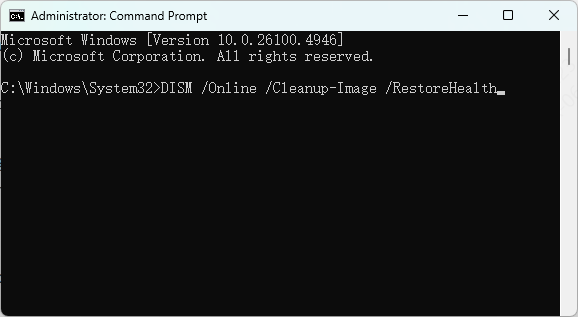
Open Command Prompt as administrator and run:
sfc /scannow
After that, run:
DISM /Online /Cleanup-Image /RestoreHealth
Use a repair tool if the PC has broader DLL issues
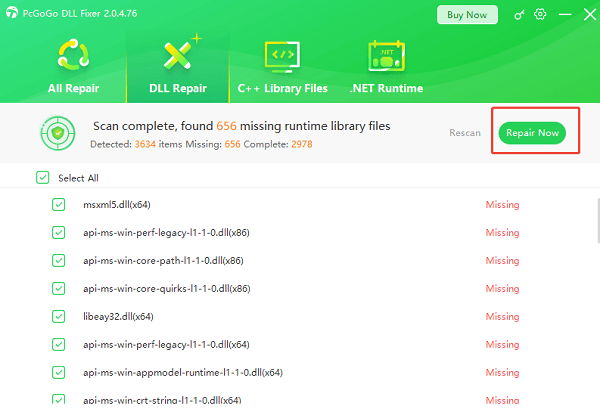
If your computer is showing repeated DLL errors in multiple applications, there may be deeper runtime or registry-related problems. In that situation, a repair tool such as PcGoGo DLL Fixer may help scan the PC for missing or damaged DLL-related components and repair them automatically.
Final thoughts
The sx32w.dll missing or not loading error is usually caused by a damaged installation, blocked files, missing dependencies, broken Visual C++ runtimes, conflicting old files, or Windows corruption. The most effective fixes are to restart the PC, reinstall the affected program, check antivirus quarantine, repair Microsoft runtime packages, and run SFC and DISM if the problem appears across multiple apps.
If the error only affects one program, focus on that installation first. If many apps show similar DLL problems, the issue is more likely tied to Windows or shared runtime components. In either case, avoid random DLL downloads and solve the root cause instead. That is the safest and most reliable way to get the software working again.




