The Logitech G432 is a popular gaming headset, but mic issues can still happen. You may hear game audio normally, while others can't hear you in Discord, Steam, Zoom, or in-game chat. In most cases, the microphone not working is not due to hardware failure. Common causes include incorrect input settings, disabled microphone permissions, loose connections, outdated audio drivers, or conflicts in apps like Discord or Logitech G Hub. These issues can usually be fixed on Windows without replacing the headset.
Start With the Physical Connection
Make sure the headset cable is fully plugged in. If you are using the USB DAC adapter, reconnect it and try a different USB port. If you are using the 3.5 mm jack, verify that it is inserted completely into the correct microphone and headphone ports, or into the correct combo audio port on your laptop
Also check the microphone boom itself. The Logitech G432 uses a flip-to-mute microphone design. If the mic arm is raised, the microphone may be muted. Lower the mic fully into the speaking position and test again
Set Logitech G432 as the Default Input Device
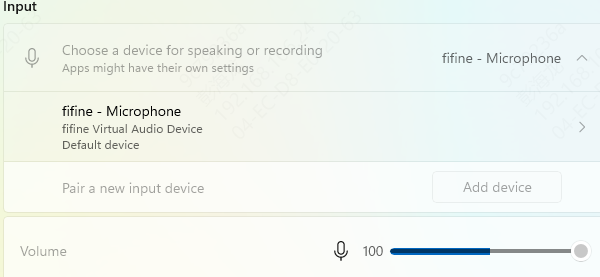
Open Windows Settings, go to System, then Sound. Under Input, choose the Logitech G432 microphone as your active input device. Speak into the mic and watch the input level meter. If the meter moves, Windows is receiving sound
If you do not see the headset mic listed properly, reconnect the device and refresh the sound settings page. You can also open the classic sound panel and check the Recording tab to confirm the Logitech microphone is enabled
Check Microphone Privacy Permissions
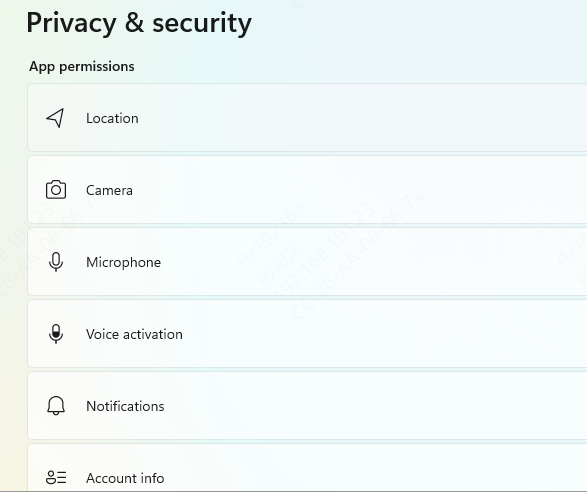
Windows can block microphone access at the system level, even when the headset is connected correctly. If privacy settings are disabled, apps like Discord, Teams, and Zoom may not be able to use your Logitech G432 mic at all
Open Settings, then Privacy and Security, then Microphone. Make sure microphone access is turned on. Also make sure desktop apps and the specific apps you use for voice chat are allowed to access the microphone
Raise the Input Volume
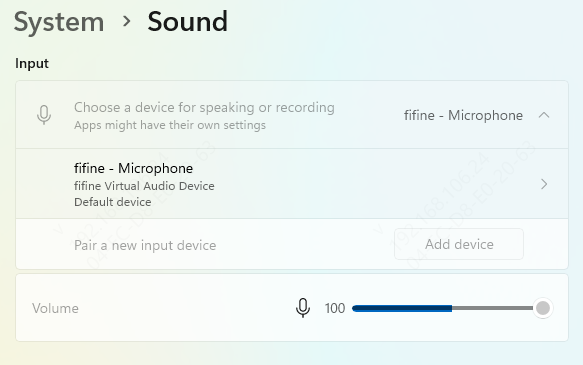
Sometimes the mic is technically working, but the input level is too low to be useful. This can make it seem like the Logitech G432 microphone is dead when the real issue is just low capture volume
In Windows Sound settings, open the microphone properties for the headset and raise the input volume. Then speak at a normal distance and check whether the input meter responds. If the level barely moves, increase it further and test in Voice Recorder or your preferred chat app
Turn Off Exclusive Mode
Windows has an audio setting called Exclusive Mode that allows one app to take full control of an audio device. This can sometimes cause the Logitech G432 mic to work in one app while failing in another
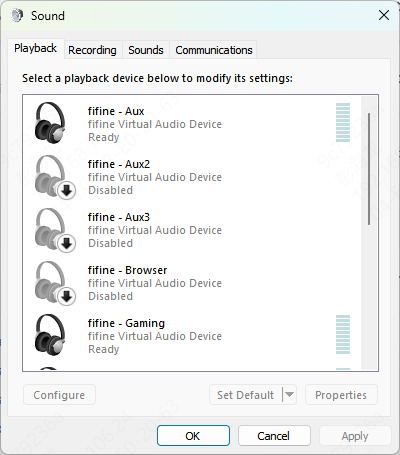
Right-click the speaker icon, open the sound control panel, go to the Recording tab, select the Logitech microphone, and open Properties. Under the Advanced tab, uncheck the option that allows applications to take exclusive control of the device
Restart Windows Audio Services
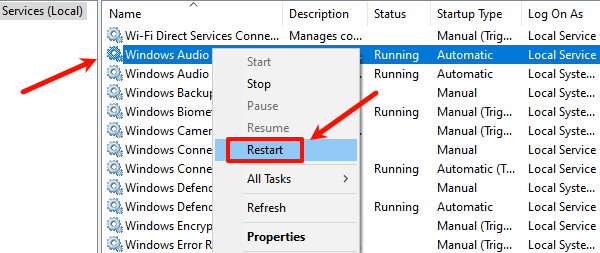
Press Win + R, type services.msc, and open the Services window. Find Windows Audio and Windows Audio Endpoint Builder. Restart both services and make sure their startup type is set to Automatic
After that, reconnect the headset and test the microphone again. This step is useful when sound devices randomly disappear or stop responding after sleep mode, a Windows update, or repeated USB reconnects
Update Audio Drivers Drivers
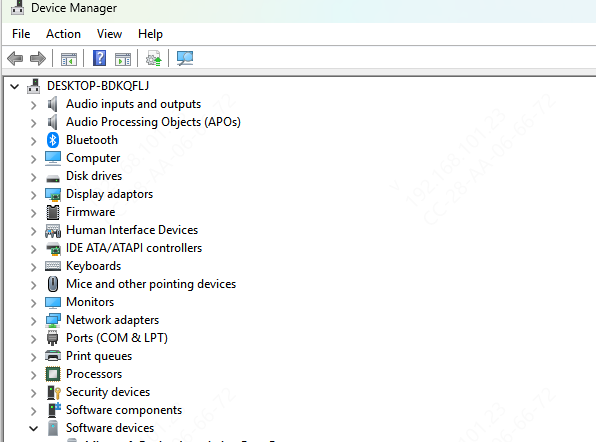
You can update drivers manually through Device Manager and your PC manufacturer's support page.
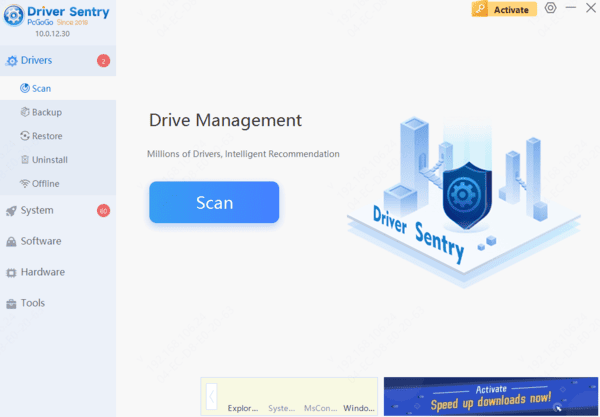
If you want a faster method, Driver Sentry can scan your system and identify outdated or damaged audio, USB, and chipset drivers that may be affecting the headset. This is often the most efficient option when the microphone is not recognized properly or keeps disconnecting. After updating the drivers, restart your PC and test the Logitech G432 mic again.
Update Logitech G Hub
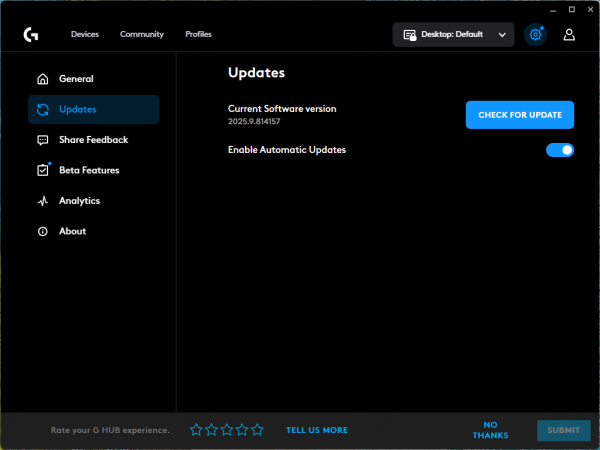
If you use Logitech G Hub, make sure it is fully updated. An outdated or glitchy G Hub installation can sometimes interfere with headset settings or device detection
Open G Hub, check whether the headset is recognized, and install any available updates. If the software behaves strangely, uninstall it, restart the PC, and reinstall the latest version. Then reconnect the headset and test the microphone again
Final Thoughts
If your Logitech G432 gaming headset mic is not working, the issue is usually caused by settings, permissions, drivers, or app conflicts rather than hardware failure. The most effective fix order is simple: check the physical connection, lower the microphone into the active position, set the correct input device in Windows, allow microphone access, raise the input volume, disable exclusive mode, and review the settings inside Discord or other voice apps.
If the problem continues, restart Windows audio services, update G Hub, and update your audio and USB drivers. In most cases, those steps are enough to get the Logitech G432 microphone working again and restore clear voice chat for gaming, streaming, and meetings.