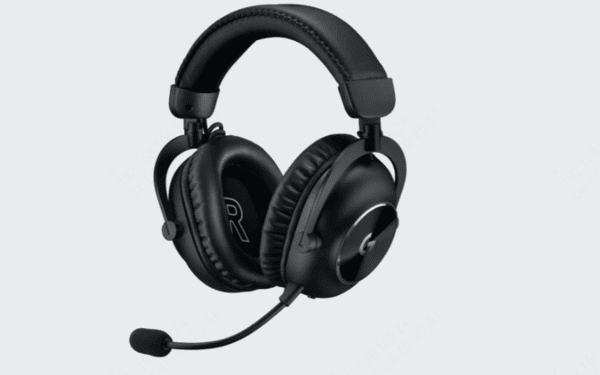
If your Logitech headset is not working, produces no sound, fails to connect, or is missing from Windows audio settings, the problem may be related to a loose connection, outdated audio drivers, incorrect output settings, temporary system glitches, or headset hardware issues. This guide explains several practical ways to restore normal headset functionality, including checking wired, USB, or Bluetooth connections, updating audio drivers with Driver Sentry, restarting the device, selecting the correct playback output, running the Windows audio troubleshooter, and testing the Logitech headset on another device to determine whether the issue is software- or hardware-related.
1. Check the headset Connection
Ensure that the headset plug is fully inserted into the computer or device's audio jack to avoid poor contact.
Know the type of your headset plug (3.5mm, USB, or Bluetooth) and ensure it is plugged into the correct jack.
If there is dust or debris in the headset plug or jack, it may cause poor connection. Use a clean cotton swab or compressed air to gently clean it.
For wired headset, check if the headset cable is worn or broken, and replace the headset for testing if necessary.
2. Restart the Device
Long press the power button and select "Shut down" or "Restart".
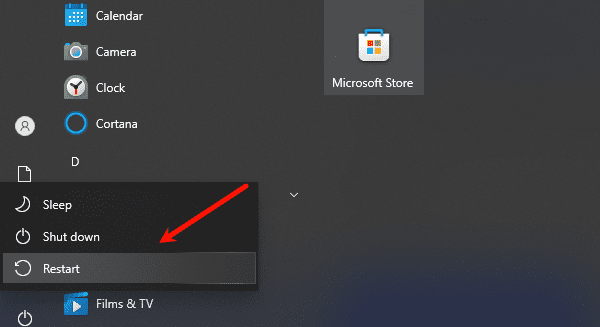
After the device is completely turned off, wait about 10 seconds, and then turn it back on. This helps clear the cache and temporary faults.
After booting, reconnect the headset or re-pair the wireless headset to check if they are working normally.
3. Adjust Sound Settings
Right-click the volume icon in the lower right corner of the taskbar.
Select "Sound Settings" from the pop-up menu to open the settings window.
In the "Output" section, ensure that the correct headset are selected as the default device. If the headset are not displayed, click "Manage audio devices" to see if they are disabled.
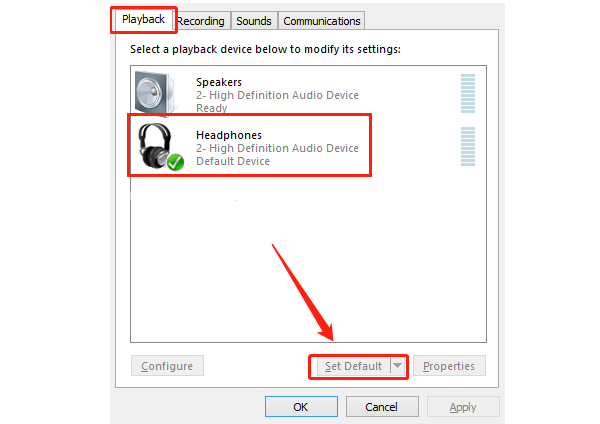
Ensure the volume level is appropriate and not muted. If there are multiple audio devices, check the volume for each device one by one.
4. Run Troubleshooter
Click the Start menu and select "Settings".
In the settings interface, find and click "Update & Security".
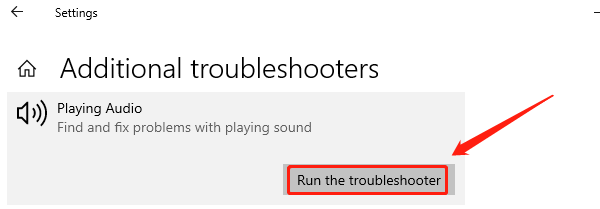
In the left menu, click "Troubleshoot", then select "Additional troubleshooters".
Find the "Playing Audio" option, click "Run the troubleshooter", and the system will automatically detect and attempt to fix audio issues.
5. Update Audio Drivers
If the headset still do not work, it may be due to outdated audio drivers. Timely updating the audio driver ensures compatibility with the system, restoring normal audio output. It is recommended to use Driver Sentry to automatically detect and update drivers, saving time and avoiding the risk of downloading or installing incorrect drivers.
Click the download button to get the latest version of Driver Sentry, install it, and open the software, then click "Scan".
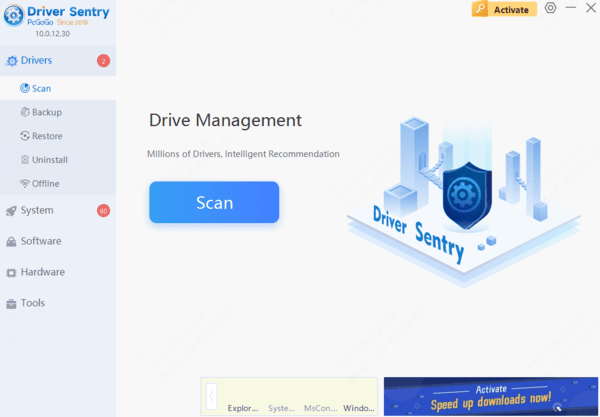
After scanning, it will display which drivers are not installed or need updates; find the audio driver in the results list and click the "Upgrade" button.
After the update is complete, it is advisable to restart the computer to ensure the updated drivers function properly.
6. Test on Other Devices
Connect the headset to other devices (such as a phone, tablet, or another computer) to test whether the headset work normally.
If the headset work fine on other devices, the issue may lie with the audio settings or drivers of the original device.
If you have a spare pair of headset, try connecting them to the original device to confirm whether the issue is with the headset themselves.
If your Logitech headset aren't working, follow the steps above to troubleshoot. Keeping your headset and software updated and regularly cleaning them can help prevent issues. If the problem continues, contact Logitech support for help.