
In our busy daily lives, computers have become essential tools for work and entertainment. Whether it's watching HD movies, listening to music, attending video calls, or recording audio content, sound plays a crucial role. But what if the sound suddenly becomes too quiet? Here are some solutions you can try.
Fix 1: Check the Volume Settings
The first and easiest step is to check your computer's volume settings. Sometimes, we may accidentally lower the volume or mute certain applications. Here's how to adjust the volume:
1. System Tray Volume Icon
In the bottom-right corner of your screen, click on the volume icon in the system tray and drag the slider to increase the volume.
2. Keyboard Shortcuts
Most laptops allow you to quickly adjust the volume using the "Fn" key combined with the volume up key (usually marked with a "+" symbol).
3. Sound Settings Panel
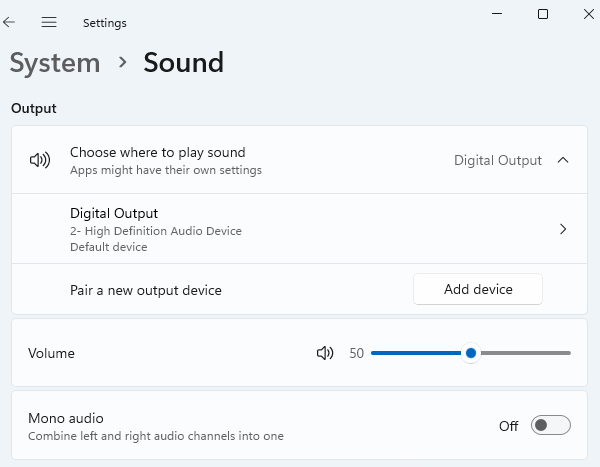
Go to Windows settings, click on "System", then "Sound". Here, you'll find detailed volume control options. Make sure the volume is set to an appropriate level for all your audio devices.
Fix 2: Check the Speakers or Headphones
If the volume settings are correct, the next step is to check your speakers or headphones.
1. Physical Volume Control
Many external speakers and headphones have their own volume control buttons or dials. Make sure they aren't turned all the way down.
2. Connection Status
Ensure that your audio device is properly connected to the computer, whether it's via USB, 3.5mm jack, or Bluetooth. Loose or faulty connections can sometimes cause sound issues.
3. Test with Different Equipment
Try using a different pair of headphones or speakers to see if the problem persists. This can help you determine whether the issue lies with the device or the computer's settings.

Fix 3: Check the Audio Driver
If the volume settings and hardware are fine, but the sound is still too quiet, the problem could be with your audio driver. Audio drivers act as the bridge between your computer and audio hardware, and outdated or corrupted drivers can cause sound problems.
To quickly identify and fix any driver issues, you can use Driver Sentry. This tool helps detect and repair problematic drivers, including your sound card driver.
Here's how to use Driver Sentry to fix the problem:
1. Download and install Driver Sentry. It will automatically detect your current sound card driver version and find the latest driver updates for you.
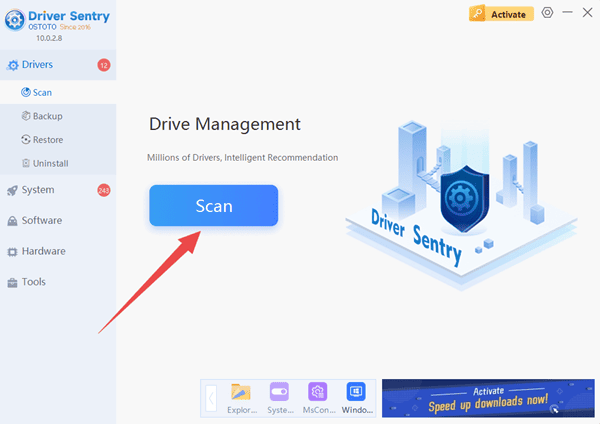
2. Launch Driver Sentry and click "Scan" to start the driver scan.
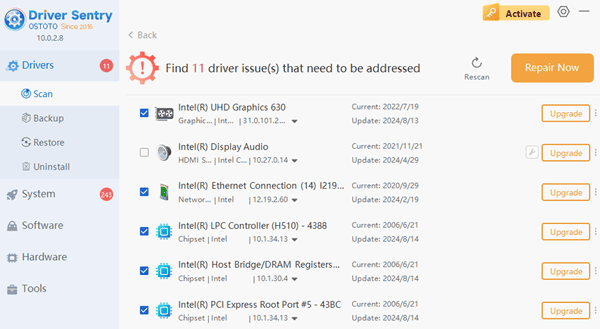
3. If outdated sound drivers are detected, click "Upgrade". If other hardware drivers need updating, click "Repair Now" to update them at once.
4. Once the drivers are updated, restart your computer to apply the changes.
By following these steps, you should be able to resolve the low sound issue on your Windows 11 computer. If you run into any driver-related problems, Driver Sentry can help you quickly detect and fix them.
See also:
4 Ways to Open Sound Card Drivers
What to do if your laptop has no sound
How to Fix Bluetooth Speaker No Sound Issue
Fix No Sound After Upgrading Sound Card Driver on Computer