






Getting a "MSVCR110D.dll is missing" error when launching an app or game? This guide explains what causes this debug-only DLL error and covers 6 fixes — reinstalling Visual C++ 2012 Redistributable, copying the DLL from a Visual Studio installation, using PcGoGo DLL Fixer for automatic repair, reinstalling the affected program, running SFC and DISM, and performing a System Restore — to resolve the error fast.
What Causes MSVCR110D.dll to Go Missing
The D suffix in MSVCR110D.dll stands for Debug. Microsoft does not distribute this file through Windows Update or the standard Visual C++ 2012 Redistributable package because it is intended only for development environments. This means the file is legitimately absent on most end-user systems and must either come with the software itself or be restored through Visual Studio
Other causes include accidental deletion by overly aggressive antivirus software, corruption during a Windows update, incomplete uninstallation of a previous Visual Studio version, or malware that targets system runtime files
Reinstall Microsoft Visual C++ 2012 Redistributable
The standard Visual C++ 2012 Redistributable restores release-mode runtime files and may resolve related dependency issues even when the debug DLL itself is not included
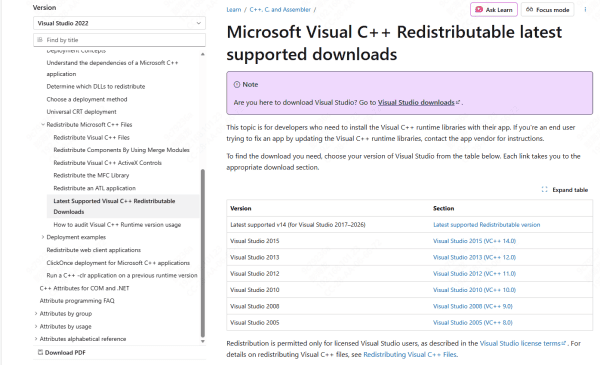
Visit the Microsoft Download Center and search for "Visual C++ Redistributable for Visual Studio 2012". Download both the x86 and x64 versions regardless of your system architecture, because 32-bit programs can run on 64-bit Windows and require the x86 package. Run each installer and follow the prompts. After installation completes, restart your PC and test the affected application
If the error persists after reinstalling the redistributable, the software was explicitly compiled in Debug mode and the release runtime alone will not satisfy its dependency
Copy MSVCR110D.dll from a Visual Studio 2012 Installation
On a working Visual Studio 2012 installation, navigate to the VC runtime directory
For a default installation, this is typically located at C:\Program Files (x86)\Microsoft Visual Studio 11.0\VC\redist\Debug_NonRedist\x86\Microsoft.VC110.DebugCRT for 32-bit or the x64 subfolder for 64-bit
Copy MSVCR110D.dll to the folder where the affected application is installed. If the application still fails to load, also place a copy in C:\Windows\System32 for 32-bit programs or C:\Windows\SysWOW64 for 64-bit programs
Use PcGoGo DLL Fixer to Scan and Repair Automatically
If you are not a developer and just need to get a specific application running, an automated DLL repair tool is the fastest path. PcGoGo DLL Fixer scans your system for missing or mismatched runtime files and restores them from a verified library.
Download and install PcGoGo DLL Fixer from the official site. Open the program after installation and click Scan
The tool will identify missing or corrupted DLL files across your system, including MSVCR110D.dll. When the scan completes, locate MSVCR110D.dll in the results list and click Repair Now
The correct file version will be downloaded and placed in the appropriate directory. Restart your computer and launch the affected program again to confirm the error is gone
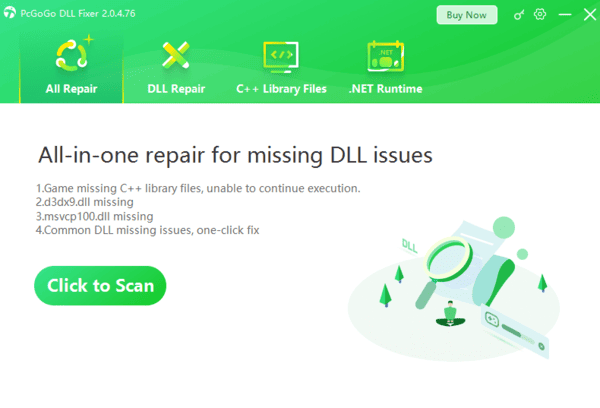
This method is recommended for non-developers or cases where the manual steps below do not apply.
Reinstall the Affected Program
Some programs bundle MSVCR110D.dll in their own installation package. Reinstalling ensures all distributed files are written correctly
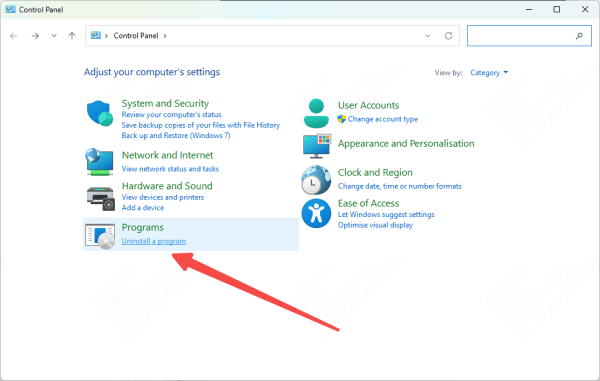
Open Control Panel and go to Programs and Features. Find the application that shows the error, select it, and click Uninstall
Restart your computer after uninstallation is complete
Download the latest version of the application from its official source and run a fresh installation. Launch the program and check if the DLL error is resolved
Run SFC and DISM to Repair System Files
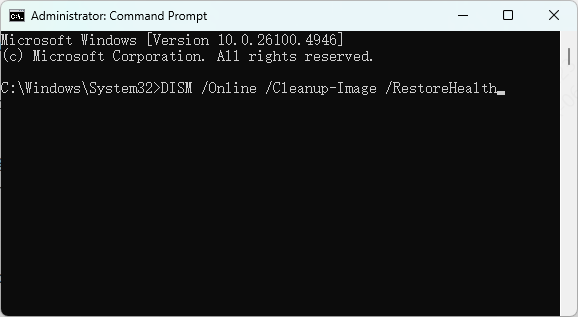
Open Command Prompt as administrator by pressing Windows and S, typing cmd, right-clicking Command Prompt, and selecting Run as administrator
Type sfc /scannow and press Enter. System File Checker will scan protected system files and attempt to repair any corruption. Wait for the scan to finish completely, then restart your PC
If SFC reports that it found corrupt files but could not fix them all, run DISM next. Open Command Prompt as administrator again and type DISM /Online /Cleanup-Image /RestoreHealth and press Enter. This command contacts Windows Update to download replacement files for damaged system components
The process can take 15 to 30 minutes depending on your connection speed. Restart after it completes, then run sfc /scannow one more time to confirm the repairs took effect
Scan for Malware
Malware sometimes targets runtime DLLs to prevent security tools or diagnostic software from launching
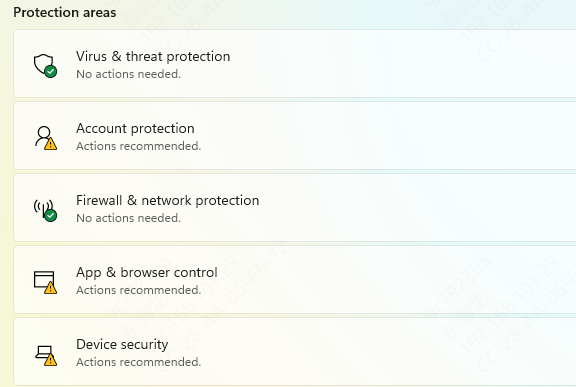
Open Windows Security, navigate to Virus and threat protection, and run a Full Scan
If threats are detected, allow Windows Security to remove them. After the scan completes, run SFC again to restore any files the malware may have deleted or modified
Perform a System Restore
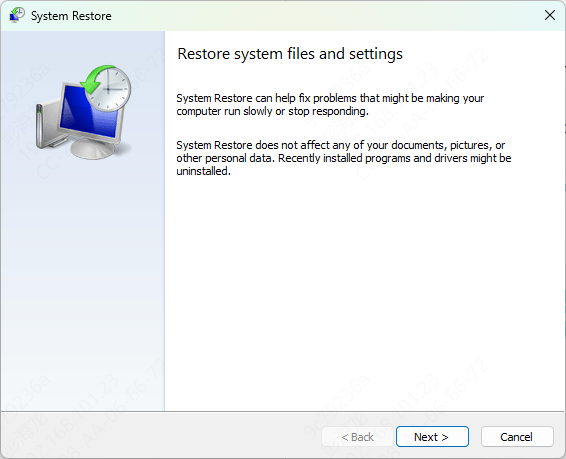
If the error appeared suddenly after a system change such as a Windws update, driver installation, or software uninstall, System Restore can roll your system back to a point when the DLL was intact
Press Windows and R together, type rstrui, and press Enter. Choose a restore point dated before the error first appeared. Follow the prompts to complete the restore process. Your personal files will not be affected, but any software installed after that restore point will need to be reinstalled
Frequently Asked Questions
Is MSVCR110D.dll safe to download from third-party sites?
No. MSVCR110D.dll is a debug-only file that Microsoft does not distribute publicly. Files offered on DLL download sites cannot be verified and may carry malware. Use Visual Studio, PcGoGo DLL Fixer, or official Microsoft packages to obtain the correct file.
Why does only one application trigger this error while others work fine?
MSVCR110D.dll is only required by programs compiled in Visual Studio 2012 debug mode. Applications built in release mode or using a different Visual Studio version use a different runtime. Only the specific program that was compiled with this dependency will trigger the error.
Conclusion
The MSVCR110D.dll error is almost always tied to software compiled in Visual Studio 2012 debug mode. Because Microsoft does not include this file in public redistributable packages, the most reliable solutions are to use an automated repair tool like PcGoGo DLL Fixer, copy the file from an existing Visual Studio 2012 installation, or reinstall the application that depends on it. If system corruption is involved, SFC and DISM provide a clean path to restoring the Windows runtime environment. Follow the methods in the order listed above and the error should be resolved after completing the relevant step.




