





The "VCRUNTIME140.dll is missing" error prevents affected apps from launching. This DLL is part of the Microsoft Visual C++ Redistributable, which many Windows programs and games require. Common causes include a damaged Visual C++ installation, corrupted system files, a broken app install, malware, or an incomplete Windows update. The safest fix is to repair or reinstall the proper Microsoft components—downloading random DLLs from third-party sites is risky and unnecessary.
Why the VCRUNTIME140.dll Error Happens
Sometimes the problem appears right after installing a new program, updating Windows, restoring a backup, or removing software that shared the same runtime components
If only one app shows the error, the problem may be limited to that app or its required redistributable package. If several apps fail with the same message, Windows runtime files or system components may be damaged more broadly
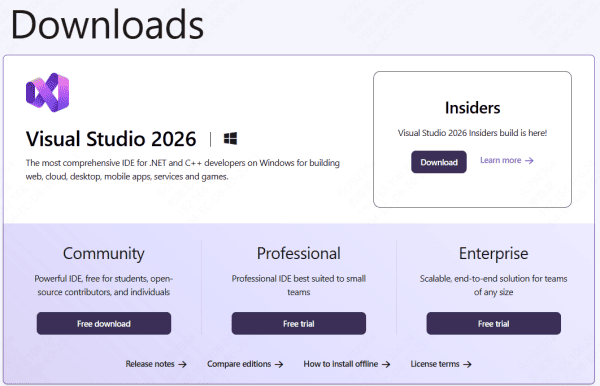
Reinstall Microsoft Visual C++ Redistributable
Download the correct Visual C++ Redistributable package from Microsoft, install it, and restart your PC. On 64-bit systems, some programs may require both x64 and x86 versions, so it is often worth installing both if the affected software is unclear about its requirements. After installation, try opening the program again.
Repair the App That Shows the Error
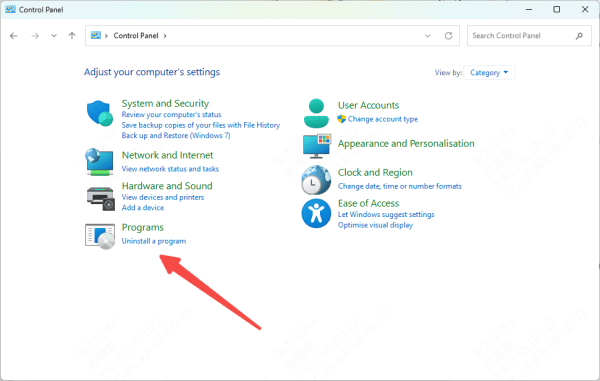
If the error appears in only one specific program, the app itself may be damaged. In that case, uninstall the program, restart the computer, and install it again from an official source. If it is a game launcher app, use the built-in file verification or repair function before doing a full reinstall
A broken installation can fail to register or detect the Visual C++ runtime correctly, even when Windows is otherwise working fine. Reinstalling the software can restore the missing dependencies and fix launch issues quickly
Run SFC to Repair System Files
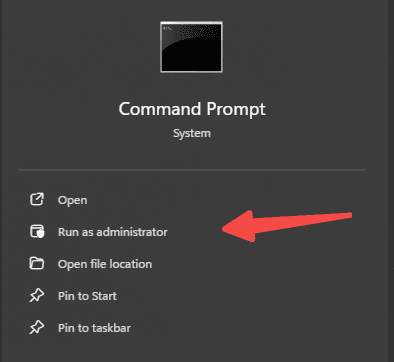
Open Command Prompt as administrator and use:
sfc /scannow
This tool scans protected Windows files and replaces corrupted versions automatically
Use DISM for Deeper Windows Repair
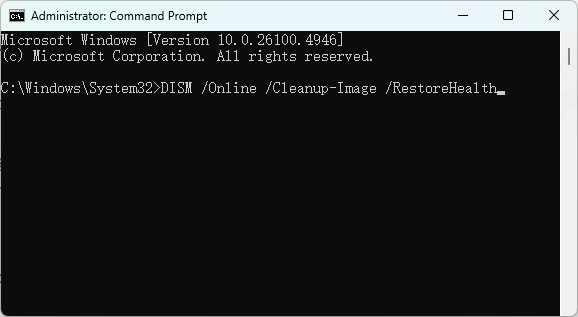
If SFC reports problems it cannot fully repair, use DISM next. Open Command Prompt as administrator and run:
DISM /Online /Cleanup-Image /RestoreHealth
DISM repairs the Windows component store, which SFC relies on to replace damaged files
Use an PcGoGo DLL Fixer
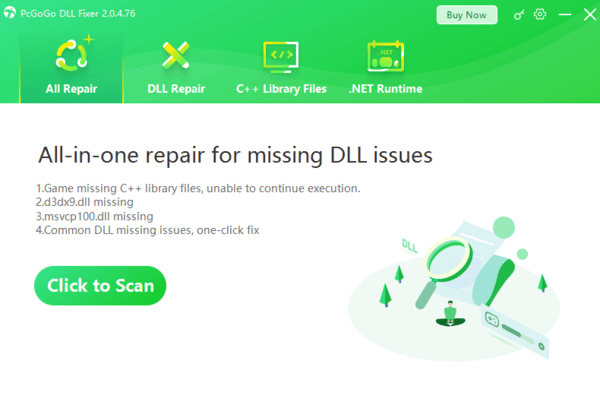
If the error continues after reinstalling Visual C++ and repairing Windows, your system may have deeper DLL registration issues, missing runtime entries, or broader corruption.
In that case, PcGoGo DLL Fixer can be used to scan the system for broken DLL files and repair them automatically
This can be useful when the VCRUNTIME140.dll error appears along with other DLL errors or when manual repair steps do not fully restore system stability. After scanning and repairing, restart the PC and test the affected application again
Check for Malware
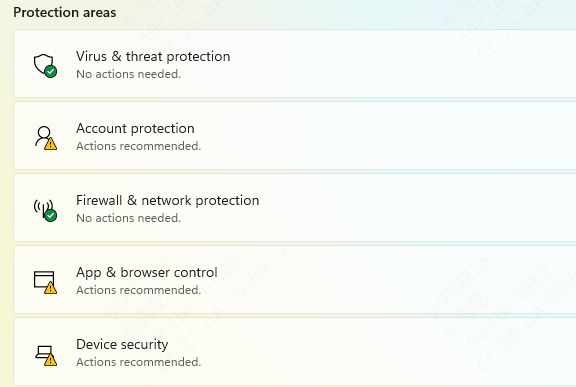
Malware can damage or delete runtime files, interfere with app launches, or replace legitimate system files. If the error appeared suddenly together with other unusual behavior, run a full malware scan using Windows Security or another trusted antivirus solution
Once the scan is complete, run SFC and DISM again if any threats were found. That helps repair the system damage left behind after malware removal
Update Windows
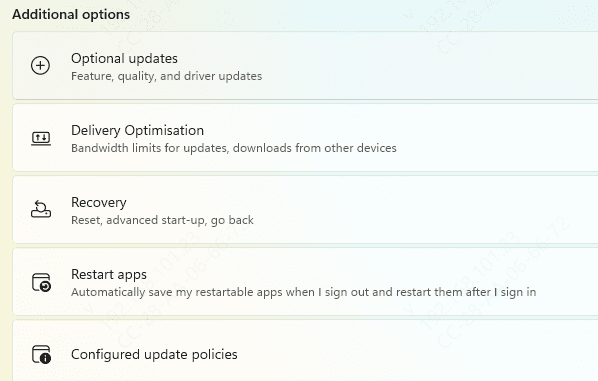
Keeping Windows updated is also important because Microsoft frequently delivers runtime fixes, compatibility improvements, and component repairs through Windows Update
If your system is behind on updates, install the latest available patches and restart the computer
How to Prevent the Error in the Future
To reduce the chance of seeing this error again, keep Windows up to date, avoid uninstalling Visual C++ packages unless necessary, install software only from trusted sources, and run regular malware scansIt is also wise to be careful with registry cleaners and aggressive system optimization tools, since they sometimes remove shared runtime components that other apps still need
If you often install games, creative tools, or older desktop software, keeping both 32-bit and 64-bit Visual C++ runtimes properly installed can also help prevent future compatibility problems
Conclusion
The VCRUNTIME140.dll error is usually caused by a damaged Microsoft Visual C++ Redistributable package, broken system files, a corrupted app installation, or malware. The most effective fixes are to reinstall the Visual C++ Redistributable, repair the affected app, run SFC and DISM, update Windows, and scan for malware. If the problem is tied to wider DLL corruption, PcGoGo DLL Fixer can help repair the system automatically.




