
Some PC players may experience crashes in Red Dead Redemption 2, affecting gameplay. This article offers solutions to help fix the issue and improve your experience.
Method 1: Update Graphics Drivers
Outdated or incompatible graphics drivers are a common cause of game crashes. Regularly updating your graphics drivers can improve performance and resolve crashes. Using Driver Sentry is recommended to automatically detect and update drivers, saving time and avoiding errors.
Download the latest version of Driver Sentry, install, and open the software. Click "Scan".
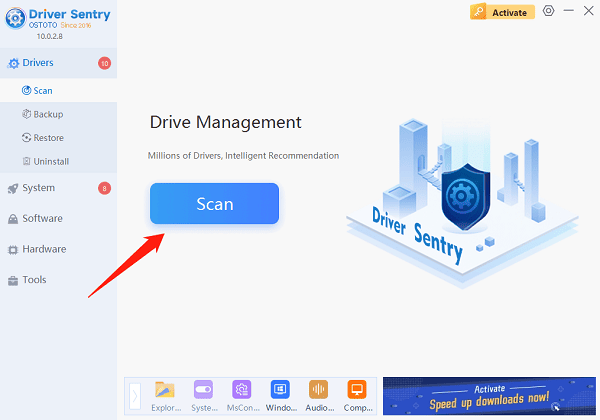
Once the scan is complete, locate the graphics driver in the results list and click the "Upgrade" button.
After updating, restart your computer to ensure the new drivers are applied.
Method 2: Check Minimum System Requirements
OS: Windows 10 - 64-bit
Processor: Intel® Core™ i5-2500K / AMD FX-6300
Memory: 8 GB RAM
Graphics:Nvidia GeForce GTX 770 2GB / AMD Radeon R9 280 3GB
Network: Broadband Internet connection
Storage: 150 GB available space
Sound Card: Direct X Compatible
Method 3: Verify Game File Integrity
Open and log in to the Steam client.
Find "Red Dead Redemption 2", right-click the game icon, and select "Properties".
Under the "Local Files" tab, click "Verify Integrity of Game Files".
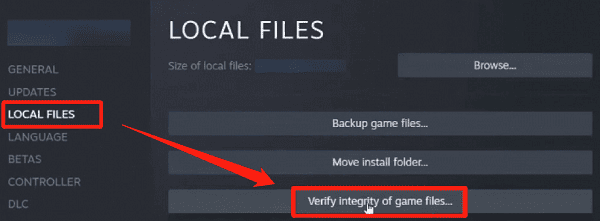
Wait for the system to scan and repair any corrupted files.
Once the process is complete, restart the game and check if the issue persists.
Method 4: Revert to Vulkan API
Press Windows + E to open File Explorer.
Navigate to "This PC" and open the Local Disk (C:) or the location containing your user folder.
Open the Users folder, then your username's folder.
Go to "Documents" > "Rockstar Games" > "Red Dead Redemption 2" > Settings".
Locate and rename the "System.xml" file.
Renaming it will reset the API to Vulkan.
Alternatively, modify the System.xml file:
Open the file with Notepad.
Use Ctrl + F to find <API>kSettingAPI_DX12</API> and change it to <API>kSettingAPI_Vulkan</API>.
Save the changes and launch the game.
Method 5: Perform a Clean Boot
Press Windows + R, type "msconfig", and press Enter.
Navigate to the "Services" tab, check "Hide All Microsoft Services", and click "Disable All".
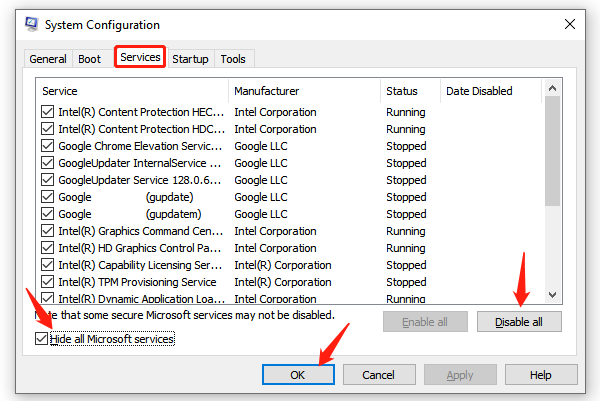
Click "OK" and restart your computer.
Launch Red Dead Redemption 2 to test if the crashes persist.
Method 6: Temporarily Disable Antivirus Software
Open your antivirus software and locate the option to "Pause Protection" or "Disable Real-Time Protection".
Disable the antivirus and close any system-cleaning tools.
Launch "Red Dead Redemption 2" and check if the issue is resolved.
If the game runs smoothly, re-enable the antivirus after playing.
Note: Ensure the game source is reliable before disabling antivirus software, and avoid risky operations during this time.
These methods should help fix crashing issues in Red Dead Redemption 2 on PC. If the problem continues, contact Rockstar support for help.
See also:
Methods to Fix Path of Exile 2 Crashing on PC
How to Fix Fortnite Crashing on PC