






The keyboard layout defines how characters are input, varying by language and region. This article offers steps to quickly change your layout.
Additional Tip:
Outdated or corrupted drivers can cause instability in Windows systems. Regularly checking and updating device drivers is essential for maintaining computer stability. It is recommended to use Driver Sentry for automatic driver detection and updates, saving time and reducing the risk of downloading or installing incorrect drivers.
Download the latest version of Driver Sentry, install it, and open the software. Click "Scan".

After the scan, the results will display drivers that are outdated or missing. Find the required driver in the list and click the "Upgrade" button.
Restart your computer after updating to ensure the new drivers function properly.
1. What is a Keyboard Layout
A keyboard layout refers to the arrangement of keys on the keyboard and their corresponding character or function output. The design varies across countries, regions, and languages. Some common keyboard layouts include:
QWERTY: The most widely used standard layout worldwide.
AZERTY: Primarily used in France and some European countries.
DVORAK: Designed for improved typing efficiency.
Keyboard layouts not only influence key positioning but also determine how characters are input, especially in multi-language environments.
2. Why Change the Keyboard Layout
Input Multiple Languages:
Switching layouts makes it easier to input special characters for languages like Chinese, French, or German.
Adapt to Hardware Devices:
Keyboard hardware from different regions may have layout differences, e.g., US vs. UK keyboards.
Improve Typing Efficiency:
Optimized layouts like DVORAK can increase typing speed or reduce hand fatigue.
Meet Professional Needs:
Specific industries (e.g., programming or data entry) may require unique keyboard layouts.
3. Steps to Change Keyboard Layout
Press Win + I to open the settings menu.
Navigate to "Time & Language" > "Language".
In the "Preferred Languages" list, click the current language and select "Options".
Click "Add a Keyboard" and choose the desired layout from the list, such as "US Keyboard" or "Pinyin Input Method".
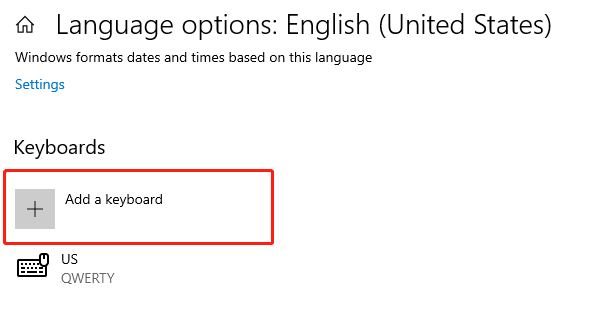
Exit the settings page, and the new layout will take effect.
4. How to Quickly Switch Keyboard Layouts
Using Shortcut Keys:
Press "Win + Space" to cycle through installed keyboard layouts.
Alternatively, use "Alt + Shift" (you can customize this shortcut in the settings).
Using Taskbar Icons:
Locate the language icon (e.g., "ENG" ) in the taskbar at the bottom-right.
Click the icon and select the desired keyboard layout.
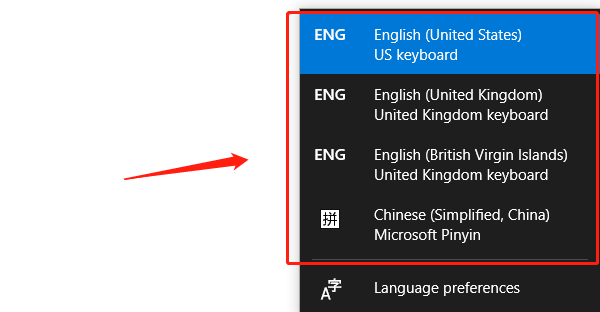
5. Important Notes When Changing Keyboard Layouts
If you can't add a keyboard layout, check whether the relevant language pack is installed.
Incorrect layout selection may result in mismatched input.
Default shortcuts might conflict with other applications; you can customize them in "Settings" > "Time & Language" > "Input Method".
If you frequently switch layouts, set your most-used layouts at the top for easier access.
6. How to Restore the Default Keyboard Layout
Press Win + I, go to "Time & Language" > "Language".
In "Preferred Languages", click the current language and select "Options".
Remove additional keyboard layouts by clicking the "Remove" button, leaving only the default layout.
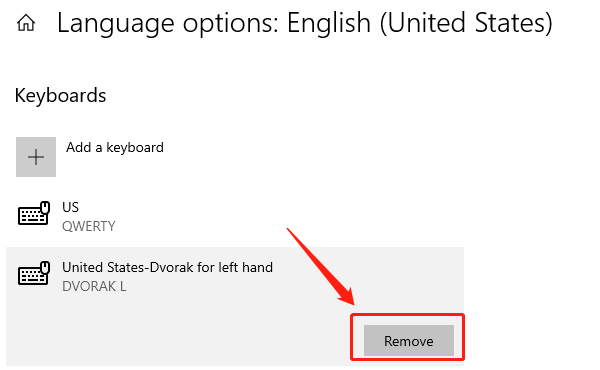
If issues persist, remove the current language and re-add it.
Alternatively, navigate to "Control Panel" > "Clock and Region" > "Language" > "Advanced Settings" and select "Restore Default Settings".
Follow the steps in this article to easily change and manage your keyboard layout. If you face any issues, refer to the guide for troubleshooting.
See also:
How to Fix WiFi Not Connecting to the Internet
6 Methods to Fix Wireless Network Adapter Disabled




