






When installing or updating games on Steam, some users may encounter the "Missing File Privileges" error, which affects Steam's normal operation. This article provides several effective methods to help you successfully install and update games.
Method 1: Check for Driver Updates
Outdated or corrupted drivers can cause system instability, affecting Steam's normal operation. It is recommended to use Driver Sentry to automatically detect and update drivers, saving time and reducing the risk of installing incorrect drivers.
Click the Download button to get the latest version of Driver Sentry. Install and open the software, then click "Scan".
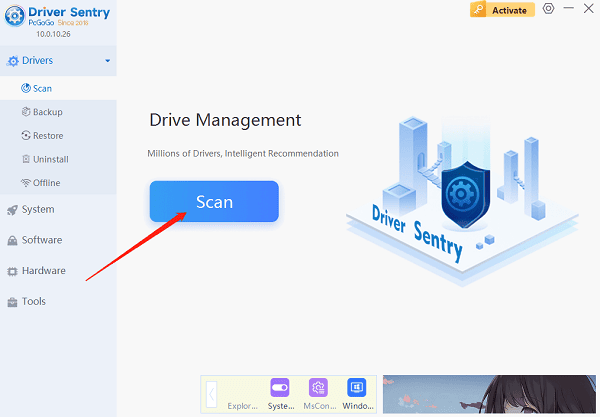
After scanning, the software will display missing or outdated drivers. Locate the drivers that need updating and click "Upgrade".
Once the update is complete, restart your computer to ensure the new drivers take effect.
Method 2: Run Steam as Administrator
Close the Steam client.
Right-click the Steam shortcut and select "Run as administrator".
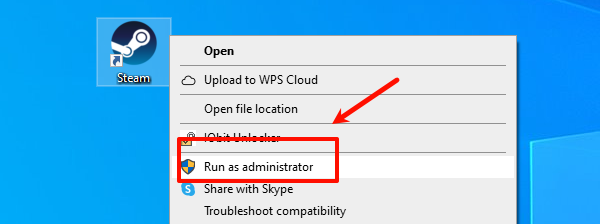
Try downloading or updating the game again to check if the issue is resolved.
If this method does not work, try the additional solutions below.
Method 3: Check for Disk Errors
Press Win + R, type "cmd", and press Ctrl + Shift + Enter to open Command Prompt in administrator mode.
Run the disk check command: chkdsk C: /f /r
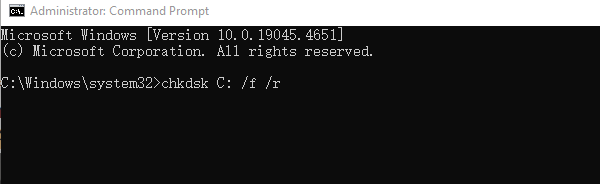
C: represents the drive where Steam and game files are installed. If Steam is installed on another drive (e.g., D:), replace C: with the corresponding drive letter.
/f fixes disk errors.
/r detects and repairs damaged sectors.
If the system prompts "The disk is in use", type "Y", then restart your computer. The disk check will run at startup.
Once the disk repair is complete, open Steam and try updating or installing the game again.
Method 4: Manually Change File Permissions
Open File Explorer and navigate to the Steam installation directory (default: C:\Program Files (x86)\Steam\steamapps\common\)
Locate the game folder causing the issue, right-click it, and select "Properties".
Switch to the "Security" tab and click "Edit".
Select "Users", check "Full Control", then click "Apply" and "OK".
Restart Steam and try downloading or updating the game again.
Method 5: Verify Game File Integrity
Open Steam and go to the Library.
Right-click the problematic game and select "Properties".
In the left panel, select "Installed Files", then click "Verify integrity of game files".
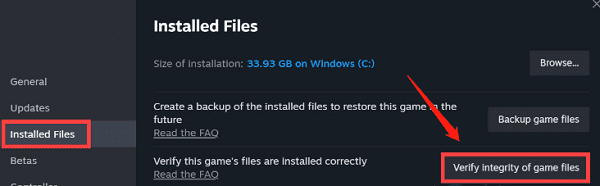
Wait for Steam to scan and repair files. Once complete, restart Steam and try launching the game.
Method 6: Change Steam Download Region
Open Steam and click Settings.
In the left menu, select "Downloads".
Under Download Region, choose a different server (preferably another nearby country or city).
Click "OK", restart Steam, and try downloading the game again.
By following these methods, you should be able to resolve the "Missing File Privileges" error and restore normal gameplay. If the issue persists, consider reinstalling Steam or contacting Steam Support for further assistance.
See also:
Resolve the Mouse Keeps Disconnecting Issue on Windows 10
How to Fix Mouse Scroll Wheel Jumping Issue




