






Seeing the "This driver does not seem to support OpenGL" error when launching a game or graphics application on Windows 10 or Windows 11? This message usually indicates that the program cannot access the OpenGL features it requires, often because of outdated graphics drivers, incorrect GPU selection, or hardware compatibility limitations. As a result, games may fail to launch, 3D applications may crash, or graphics features may become unavailable. This guide explains how to fix OpenGL driver compatibility errors by updating graphics drivers with Driver Sentry, adjusting Windows graphics settings, selecting a dedicated GPU, checking application requirements, and troubleshooting related software components.
1. Adjust Windows Graphics Settings
Enable High-Performance GPU Mode:
Press Win + I to open Settings.
Navigate to "System" > "Display" > "Graphics".
Under Graphics Preferences, locate your OpenGL application and set it to "High Performance" mode.
Disable Windows Graphics Isolation:
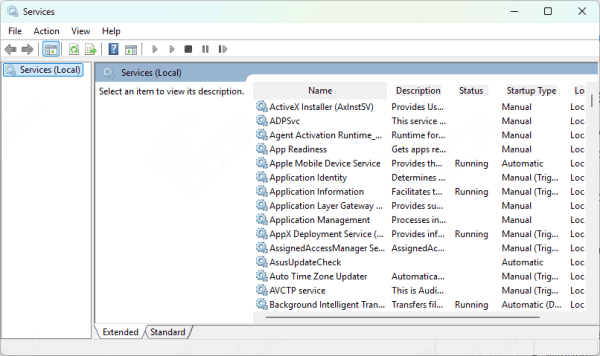
Press Win + R, type "services.msc", and press Enter.
In the Services list, find "Windows Graphics Isolation" or "Graphics Performance Monitor".
Right-click and select "Stop", then set it to "Disabled".
Restart your computer and check if OpenGL is functioning properly.
2. Check OpenGL Compatibility for Games or Software
Modify Startup Parameters:
Some games support OpenGL debugging mode. Try adding "-opengl" or "--force-opengl" in the launch options.
Run in Compatibility Mode:
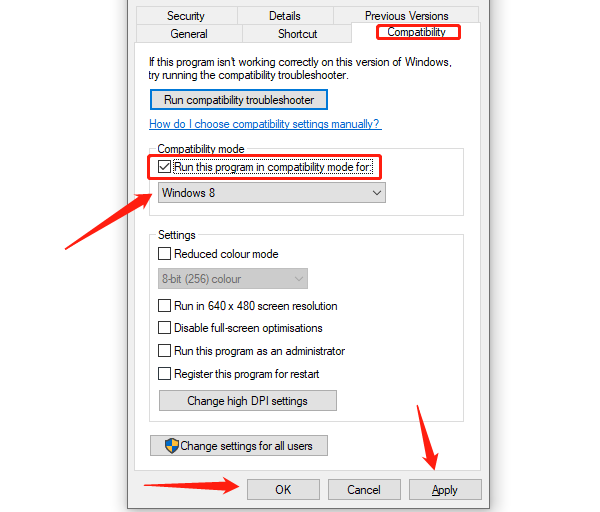
Right-click on the game or software icon, select "Properties" > "Compatibility", check "Run this program in compatibility mode for", and choose an older version of Windows before running it again.
Switch to DirectX Mode:
Some applications support both DirectX and OpenGL. If available, switch to DirectX in the settings.
3. Check for Graphics Driver Updates
Outdated or corrupted graphics drivers can cause the "This driver does not seem to support OpenGL" error when running certain software. Checking and updating your graphics drivers in a timely manner is an effective way to resolve this issue. It is recommended to use Driver Sentry to automatically detect and update drivers, saving time and reducing the risk of downloading or installing incorrect drivers.
Click the download button to get the latest version of Driver Sentry, install the software, and open it. Then, click "Scan".
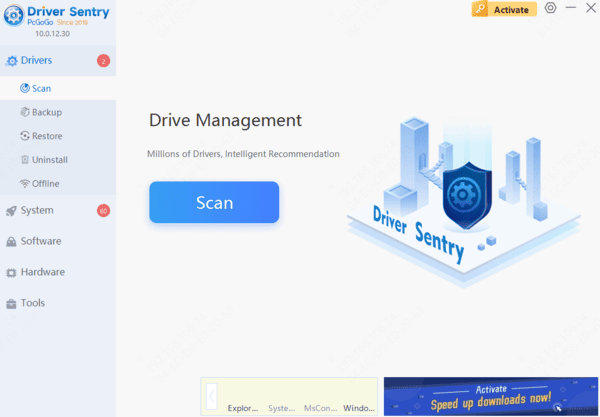
After the scan is complete, a list of missing or outdated drivers will be displayed. Locate the graphics driver in the results and click the "Upgrade" button.
Once the update is complete, restart your computer to ensure the new driver takes effect.
4. Switch to a Dedicated GPU
For NVIDIA Graphics Cards:
Right-click on the "desktop" > Select "NVIDIA Control Panel".
Navigate to "Manage 3D Settings" > "Global Settings".
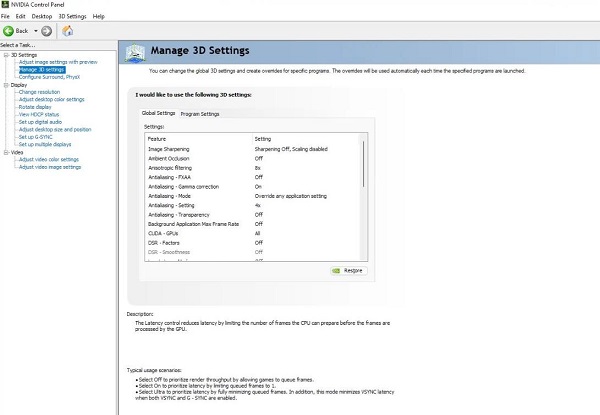
Select "OpenGL Rendering GPU", then click "Apply" to save the settings.
For AMD Graphics Cards:
Right-click on the desktop > Select "AMD Radeon Settings".
Go to "Global Settings" > "Switchable Graphics".
Locate your OpenGL application and set it to "High Performance".
5. Reinstall OpenGL Runtime Libraries
Press Win + R, type "appwiz.cpl", and press Enter to open Programs and Features.
Locate Microsoft Visual C++ Redistributable and any OpenGL-related components (such as OpenGL Extensions Viewer) in the list, then click "Uninstall".
After uninstalling, go to the official Microsoft website and download the latest version.
Install the downloaded files, restart your computer, and check if the issue is resolved.
By following the above methods, you should be able to successfully resolve the "This driver does not seem to support OpenGL" issue. If the problem persists, consider contacting your graphics card manufacturer or upgrading your hardware for better OpenGL compatibility.
See also:
Solutions to Fix the Windows 11 Unidentified Network Issue
Solutions to Fix WiFi Connected but No Internet Issue




