When audio suddenly stops working in Windows 11, your speakers or headphones may appear connected but produce no sound, or the audio device may disappear from the system completely. The problem can occur after a Windows update, driver change, hardware connection issue, or unexpected system conflict. Incorrect output settings, disabled audio services, faulty enhancements, and corrupted audio drivers are also common causes. This guide provides practical ways to fix Windows 11 audio problems, including checking sound devices and volume settings, restarting audio services, troubleshooting drivers, and installing available Windows updates.
1. Check Audio Connections and Devices
Ensure that the audio cable is correctly connected to the computer's audio jack. For wired headphones, make sure the plug is fully inserted into the correct jack. For external speakers or headphones, verify they're connected to the right port on the computer.
If you're using USB headphones or speakers, ensure the USB port is working properly and isn't loose.
For external sound systems, check that the power is on and the volume is set to an appropriate level.
For wireless headphones, ensure they're charged and powered on.
2. Restart the Device
Audio issues may stem from temporary system errors or resource conflicts.
Restarting the computer can clear these temporary issues and reload the audio drivers.
If using external speakers or headphones, turn them off, wait a few minutes, and turn them back on. This may resolve connection issues between devices.
3. Disable Audio Enhancements
Open "Settings" and go to "System" > "Sound". Under "Related settings", click "Sound Control Panel" and select your playback device (speaker or headphones).
In the device properties window, click the "Enhancements" tab, and check "Disable all enhancements".
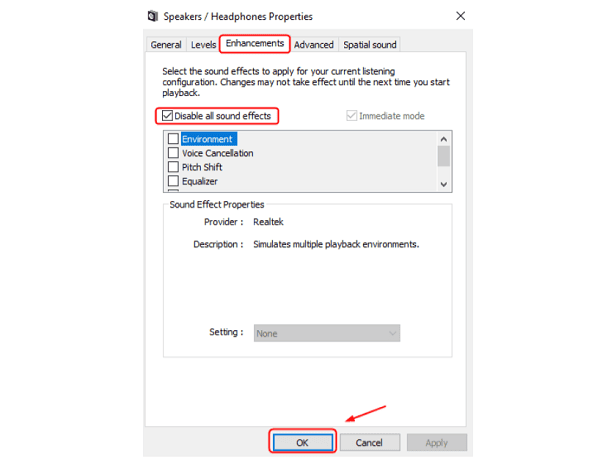
After disabling enhancements, click "OK" to save the settings.
Then, try playing audio or video content to see if the issue is resolved. If so, you may re-enable individual enhancements to identify which enhancement caused the conflict.
4. Check Audio Driver Updates
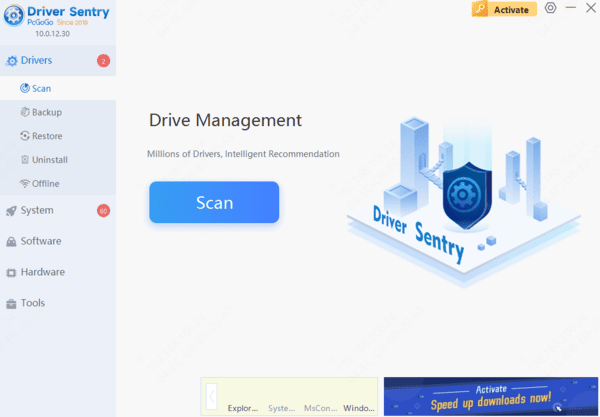
Outdated or faulty audio drivers can cause headphones or speakers to malfunction. Regular driver updates are essential to avoid such issues. Driver Sentry can automatically detect and update drivers, saving time and reducing the risk of incorrect installations.
5. Check Volume Settings and Unmute
Click the volume icon in the taskbar to ensure the volume isn't muted and is set at an appropriate level.
Ensure the volume icon appears normal, with no mute or low-volume indicators.
In Windows 11, each app has its own volume control. Right-click the volume icon in the taskbar and select "Open Volume Mixer" to ensure all relevant apps are set to a suitable volume and not muted.
In "Sound Settings", confirm that the audio output device (like speakers or headphones) is not set to a low volume or muted.
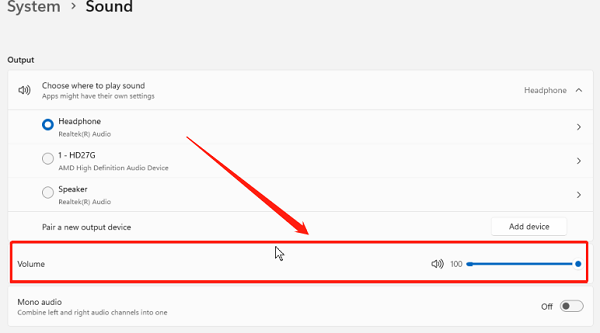
6. Restart Windows Audio Services
Press "Win + R", type "services.msc", and press Enter to open the Services Manager.
In the list of services, find "Windows Audio". Right-click and select "Restart". If the service isn't running, right-click and select "Start".
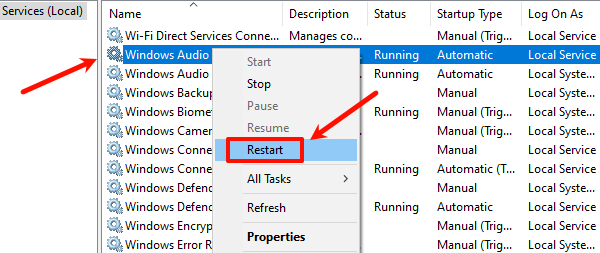
Right-click "Windows Audio" and select "Properties". Make sure the startup type is set to "Automatic", so the service loads automatically at startup.
In the Services Manager, also check that "Windows Audio Endpoint Builder" and other audio-related services are running. If not, right-click the service and select "Start".
7. Run Audio Troubleshooter
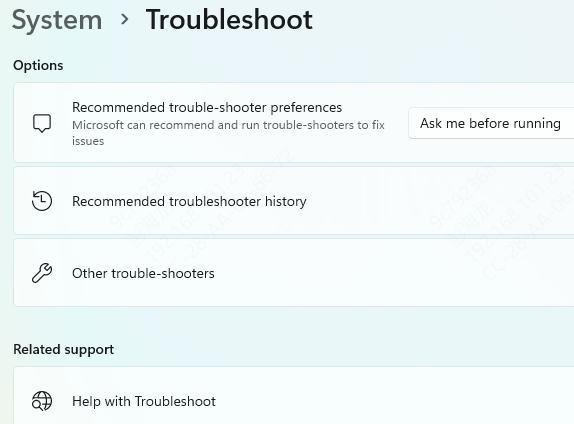
Open "Settings" and go to "System" > "Troubleshoot" > "Other Troubleshooters".
Find "Audio" in the list and click "Run".
Windows will automatically detect audio issues and provide solutions. If a problem is found, the system will attempt an automatic fix or guide you through further steps.
8. Check for Windows Updates
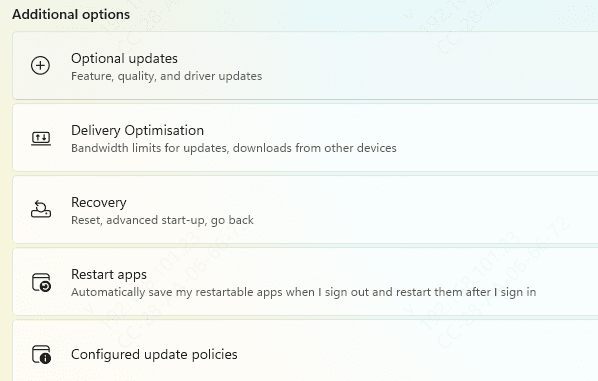
Open "Settings" and go to "Update & Security" > "Windows Update" and click "Check for updates".
If updates are available, download and install them. After updating, restart your computer.
Following these steps should resolve audio issues in Windows. If the problem persists, consider restoring the system to an earlier point or contacting technical support for further assistance.