This article provides simple and effective solutions to help you troubleshoot audio problems and quickly restore sound on your computer.
Solution 1: Check Hardware Connections
Make sure headphone or speaker plugs are fully inserted into the computer's audio port. For Bluetooth devices, verify they are properly paired and connected.
Plug wired headphones or speakers into different audio ports. Try connecting them to another computer to ensure they are working.
Ensure external speakers are powered on and fully charged. If they have separate volume controls, set them to an appropriate level.
Solution 2: Update Audio Drivers
Outdated or corrupted audio drivers can cause no sound issues on Windows 11. It is recommended to use Driver Sentry to automatically detect and update drivers, saving time and avoiding the risk of downloading or installing incorrect drivers.
Click the download button to get the latest version of Driver Sentry. After installation, open the software and click "Scan".
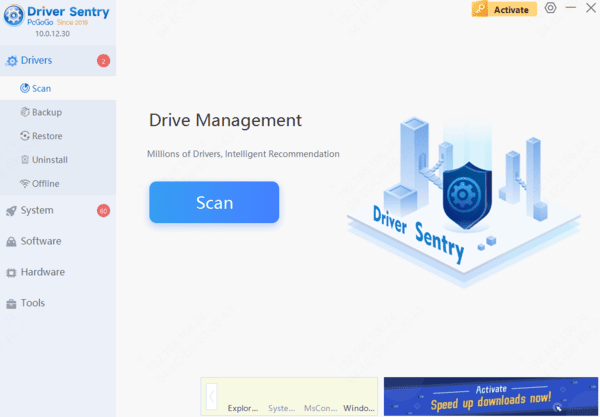
After scanning, it will display which drivers are missing or need updates. Find the sound card driver in the results list and click the "Update" button.
After the update is complete, restart your computer to ensure the updated drivers are functioning correctly.
Solution 3: Check Volume Settings
Find the speaker icon in the lower-right corner of the taskbar and click it to check the volume slider. If the volume is too low or muted, adjust the slider to increase the volume or click to unmute.
Right-click the speaker icon on the taskbar and select "Open Volume Mixer" to check the volume settings for individual applications. Ensure that no applications are set to mute.
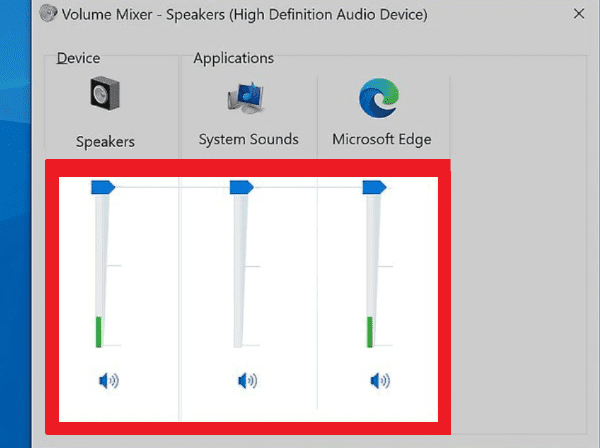
Many laptops and desktops have volume control keys. Press the volume up key to ensure the volume is high enough. Also, check if the mute key was accidentally pressed, and if so, press it again to unmute.
Solution 4: Confirm Output Device
Right-click the speaker icon on the taskbar and select "Sound settings".
In the Sound settings page, under the "Choose your output device" section, you can see all connected audio devices. If multiple devices are connected, such as headphones, speakers, or Bluetooth devices, make sure the correct device is selected for output.
Click the test button next to the output device to ensure sound is coming from the selected device. If there is no sound, try selecting another device and retest.
Solution 5: Run Audio Troubleshooter
Press Win + I to open Settings, then click on "System".
In the System page, find and click "Troubleshoot", then select "Other troubleshooters".
Locate the "Playing Audio" option and click the "Run the troubleshooter" button next to it to start the troubleshooter.
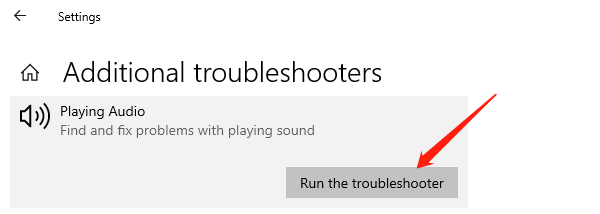
The troubleshooter will automatically detect and offer solutions for audio issues. Follow the on-screen instructions to see if it can automatically resolve the no-sound problem. If the tool does not resolve the issue, it may provide further suggestions.
Solution 6: Check Audio Services
Press Win + R to open the Run dialog, type "services.msc", and press Enter to open the Services Manager window.
Find the "Windows Audio" service in the list. This service handles the computer's audio output, if it is not running properly, it can cause no sound issues.
Ensure that the Windows Audio service is running. If not, right-click the service and select "Start". If the service is running, you can try right-clicking it and selecting "Restart" to see if this resolves the issue.
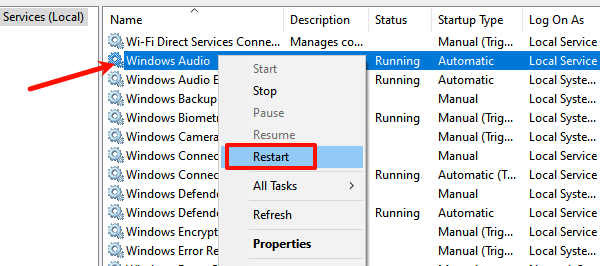
Also, check related services such as "Windows Audio Endpoint Builder" to ensure these dependent services are also running.
Solution 7: Roll Back System Updates
Open Settings and click on "Windows Update". On this page, you can view the recent update history.
Click "Update history" and find the most recent Windows update. If you suspect the no-sound issue began after a particular update, click "Uninstall updates".
In the uninstall updates page, select the most recent update and click "Uninstall". After completing this, restart your computer and check if the sound has been restored. If the issue is resolved, consider postponing or blocking the reinstallation of that update.
By following these methods, you should be able to quickly fix no-sound issues on your Windows 11 computer and restore normal audio output. If the problem persists, it is advisable to contact professional technical support or consider the possibility of a hardware fault.
See also:
How to Connect Wireless Bluetooth Headphones to a Computer
Brother Printer Driver Download Step-by-Step Guide