If Windows 11 cannot find an audio output device, your speakers, headphones, or Bluetooth audio devices may stop working completely. This problem is often caused by loose connections, outdated or incompatible audio drivers, incorrect sound settings, disabled audio services, or system update issues. This guide covers several practical methods to help Windows detect your output device again, including checking connections, updating audio drivers, restarting audio services, running the troubleshooter, and installing available Windows updates.
Method 1: Check Audio Device Connection
Ensure that the power of your headphones or speakers is turned on; Bluetooth devices should be charged and functioning properly.
For wired devices, check that the audio cable is plugged into the correct port (usually the green audio output port).
If multiple audio devices are connected, try plugging them into different ports to confirm they are working properly.
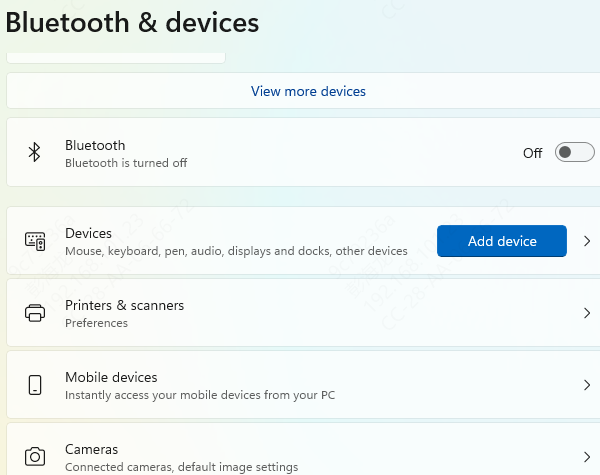
Verify that the Bluetooth device is paired with Windows 11 by going to "Settings" > "Bluetooth & other devices" to check the connection status.
Method 2: Check Audio Settings
Right-click the volume icon on the taskbar and select "Sound settings".
In the "Output" section, ensure the audio device you want to use is selected.
Make sure the volume slider is not muted and adjust it to an appropriate level.
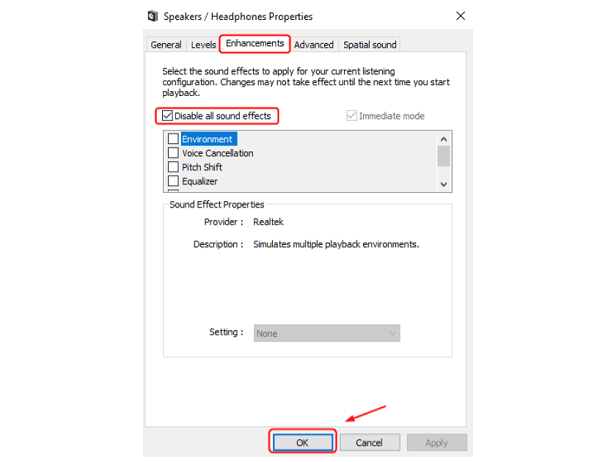
Click "Device properties" and check the "Enhancements" tab for any enabled enhancements that may affect audio output.
Method 2: Update Audio Drivers
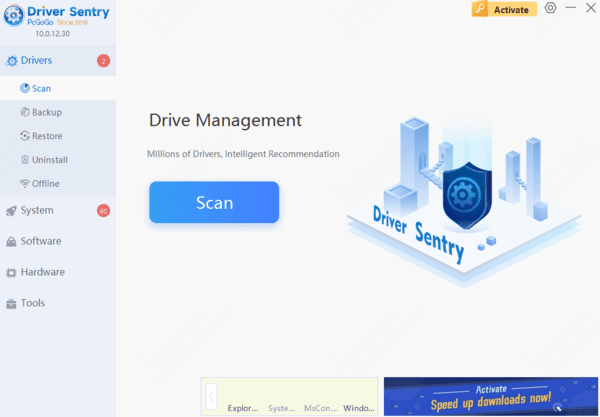
Outdated or incompatible audio drivers can prevent devices from being recognized. Updating the drivers usually resolves this issue. It's recommended to use Driver Sentry to automatically detect driver updates, saving time and avoiding the risk of downloading incorrect drivers.
Method 4: Reset Audio Services
Press "Windows + R", type "services.msc", and press Enter.
Scroll down the list of services to find "Windows Audio".
Right-click "Windows Audio" and select "Restart". If the service is not running, choose "Start".
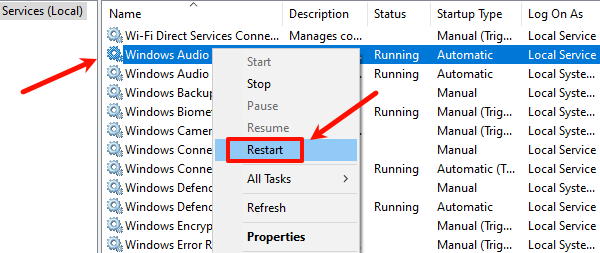
Ensure that the "Windows Audio Endpoint Builder" service is also running if it relies on the audio service.
Method 5: Run Audio Troubleshooter
Click the "Start" button, select "Settings", and find "System".
Click "Troubleshoot", then find "Other troubleshooters".
Select "Audio" and click "Run".
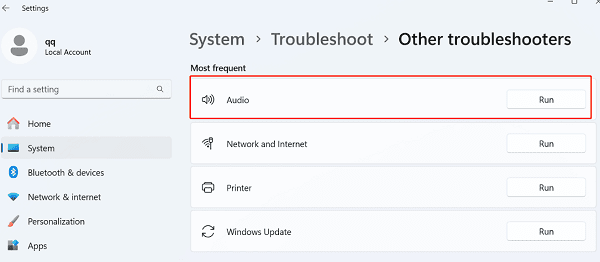
Follow the prompts to run the troubleshooter, which will automatically detect and attempt to fix the problem.
Method 6: Check Windows Updates
Click the "Start" button, select "Settings", and choose "Update & Security".
In the "Windows Update" section, click "Check for updates". The system will automatically search for available updates.
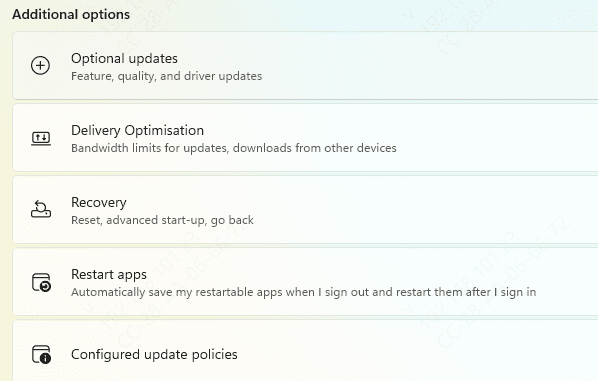
If updates are found, click "Download and install", then follow the prompts to restart your computer to apply the updates.
Frequently Asked Questions
Why does Windows 11 say "No audio device is installed"?
Windows may be unable to detect the sound hardware because the audio driver is missing, the device is disabled, required audio services are stopped, or onboard audio is disabled in BIOS.
Why are my headphones connected but not listed as an output device?
The headphones may be connected to the wrong port, paired incorrectly through Bluetooth, or hidden in sound settings. Reconnect them and enable disabled devices in the Sound Control Panel.
What should I do if the output device disappeared after a Windows update?
Restart the computer, reinstall or roll back the audio driver through Device Manager, and check Optional updates for a compatible driver from the device manufacturer.