






When the winmm.dll file is missing or corrupted, Windows may fail to run certain games, multimedia applications, or programs that depend on audio and system media functions. This error is usually caused by damaged system files, failed updates, software conflicts, driver issues, or accidental file removal rather than a serious hardware problem. In most cases, the issue can be resolved by repairing Windows components, updating related drivers, reinstalling affected applications, or restoring the damaged DLL through safe system repair methods. This guide provides practical solutions to help you fix winmm.dll missing errors and restore normal program operation.
Restart and Check Recent Changes
Before trying advanced fixes, restart your PC once. A restart can complete pending updates and reload system components correctly
You should also think about whether the error started after a Windows update, driver installation, system cleanup, or software removal. That can help narrow down the cause more quickly
Update Windows
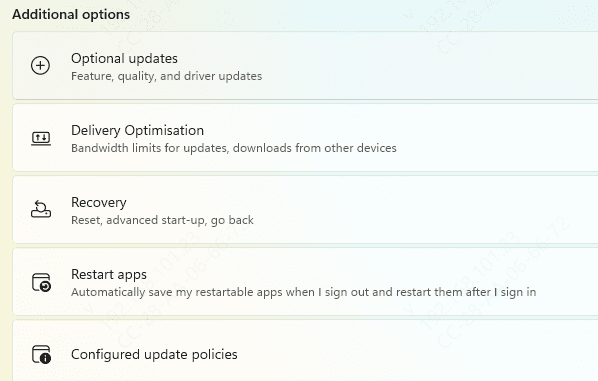
Because winmm.dll is connected to Windows system functions, updating Windows should be your first repair step. Open Windows Update, check for available updates, install everything relevant, and restart your computer
In some cases, Microsoft replaces damaged or missing system files during the update process, which can solve the issue without any extra work
Run SFC to Repair System Files
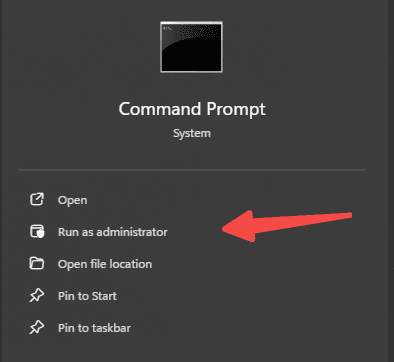
If the problem continues, use the System File Checker tool. Open Command Prompt as administrator and run:
sfc /scannow
This scan checks protected Windows files and repairs corrupted versions automatically. Wait until the process finishes, then restart the PC and test the affected program again. If the issue was caused by a damaged system file, this step may fix it
Use DISM for a Deeper Repair
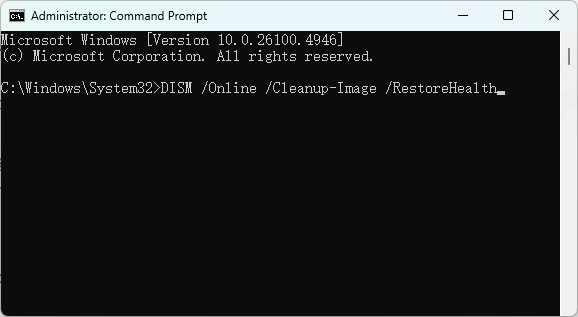
If SFC cannot fully repair the system, the next step is to run DISM. Open Command Prompt as administrator and run:
DISM /Online /Cleanup-Image /RestoreHealth
This tool repairs the Windows component store, which SFC depends on. After DISM finishes, restart your computer and run sfc /scannow again. This two-step repair method is often effective for stubborn DLL-related system errors
Repair DLL Problems Automatically
If your computer shows multiple DLL errors or deeper system issues, manual repair may not be enough
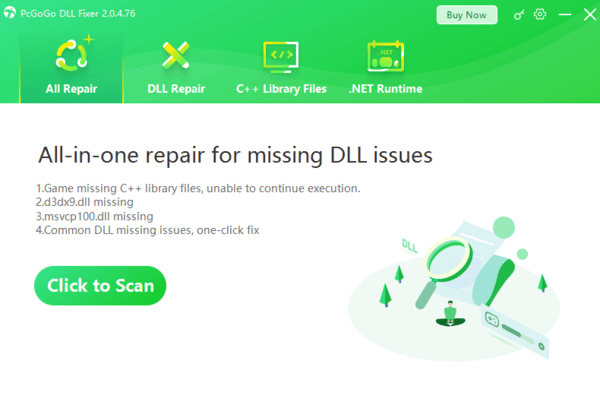
In that case, PcGoGo DLL Fixer can be a practical option. It can scan for missing, damaged, or incorrectly registered DLL files and repair them automatically. If winmm.dll is part of a wider DLL problem, using a repair tool may save time and reduce the risk of missing related issues
Reinstall the Affected Program
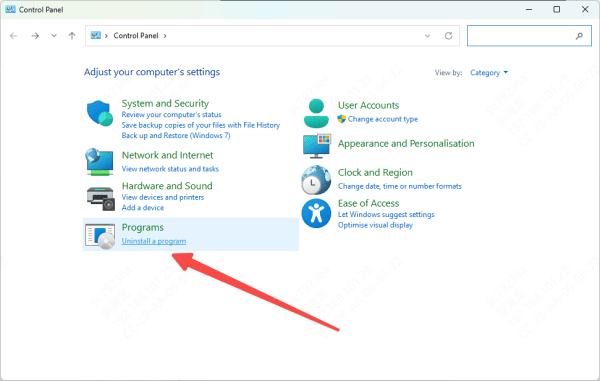
If only one game or application reports the winmm.dll error, the installation files for that program may be broken. Uninstall the software, restart your PC, and install it again from an official source
If the program is managed through a launcher, use the file verification or repair feature first if available. A clean reinstall often restores missing dependencies and fixes startup errors
Check Audio Drivers
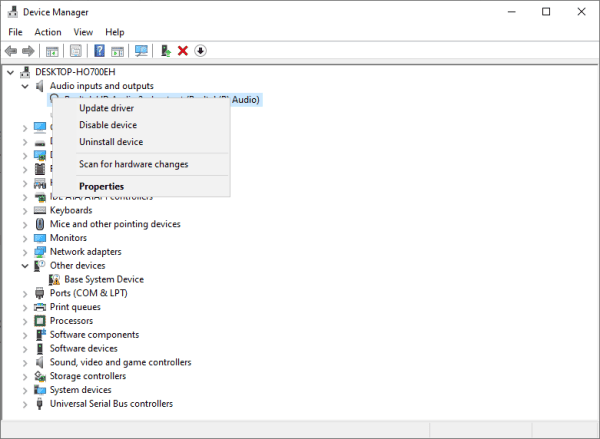
Winmm.dll is tied to multimedia features, so audio driver problems may also contribute to the error. Open Device Manager and check the sound device section. Update the audio driver to the latest stable version
If the issue started after a driver update, try reinstalling the driver instead. A damaged or incompatible audio driver can sometimes interfere with multimedia-related system functions
Scan for Malware
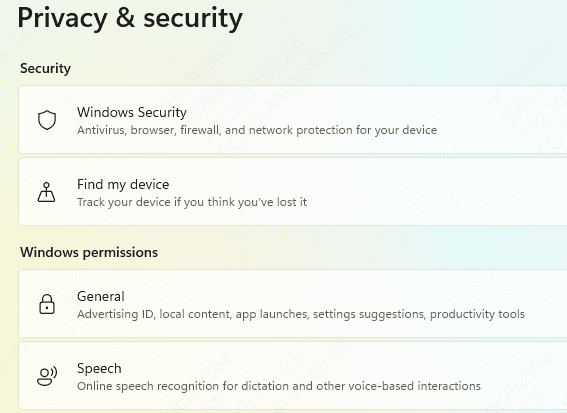
Malware can damage or remove system DLL files, which makes a full security scan important. Open Windows Security and run a full scan. Remove any threats that are found
After that, run SFC and DISM again to repair any system damage left behind. If malware is the real cause, repairing the DLL without removing the infection first usually will not solve the problem for long
Try System Restore
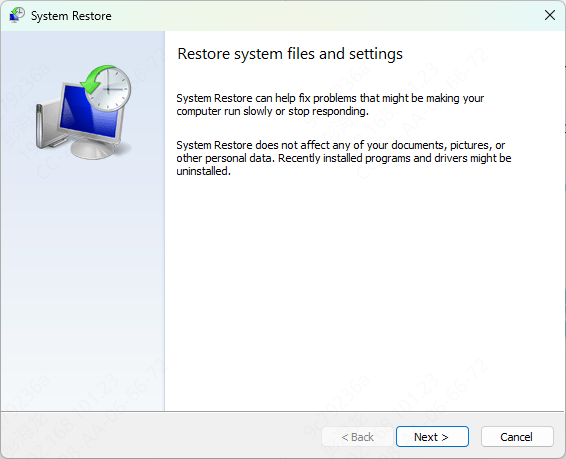
If the error appeared recently after a system change, System Restore may be the fastest fix. Choose a restore point from a time when the system was working normally, then complete the restore process
This can undo harmful changes to drivers, system files, or settings without requiring a full reinstall of Windows
Do Not Download Winmm.dll from Random Websites
A common mistake is downloading a standalone winmm.dll file from an unknown DLL site. That is risky and often ineffective. The file may be outdated, modified, or incompatible with your version of Windows. Even if it seems to fix the error at first, it can create more system problems later. It is much safer to restore the correct file through Windows repair tools, proper software reinstallation, or a trusted repair utility.
Final Thoughts
The winmm.dll missing error is usually linked to damaged system files, broken software installations, driver issues, or malware. The safest way to fix it is to start with Windows Update, then run SFC and DISM, reinstall the affected program if needed, and check for driver or malware problems. If the issue is part of a larger DLL failure, PcGoGo DLL Fixer can help repair the system more efficiently. Using the right repair steps is safer and more reliable than downloading DLL files manually from unknown sources.




