
If Windows 11 keeps crashing, freezing, restarting, or showing blue screen errors, the cause may be corrupted system files, unstable drivers, failing storage or memory, overheating, software conflicts, malware, or incomplete Windows updates. Because repeated crashes can come from both software and hardware problems, troubleshooting works best when you check each area systematically. This guide explains seven practical ways to fix Windows 11 crashes, including updating drivers with Driver Sentry, running SFC and DISM, testing the hard drive and RAM, installing Windows updates, performing a clean boot, monitoring hardware temperatures, and scanning for malware.
Run SFC and DISM Scans
Use SFC (System File Checker) Scan:
Press Win + S, type "Command Prompt", right-click, and select "Run as Administrator".
In the Command Prompt, enter the following command and press Enter: sfc /scannow
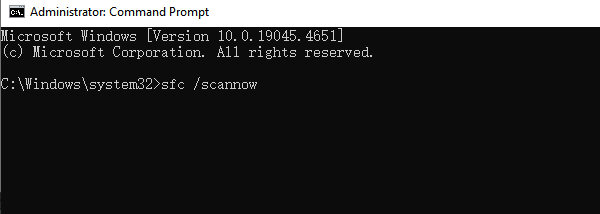
The system will start scanning and attempt to repair corrupted system files. This process can take several minutes to half an hour. If the repair is successful, restart the computer.
Use DISM Tool to Repair System Image:
Continue in the Command Prompt and run the following commands:
DISM /Online /Cleanup-Image /ScanHealth
DISM /Online /Cleanup-Image /RestoreHealth
This process may take some time. Once the repair is complete, restart your computer to apply the changes.
Check Hard Drive and Memory
Run Disk Check Tool:
Open Command Prompt (run as administrator).
Enter the following command and press Enter: chkdsk C: /f /r
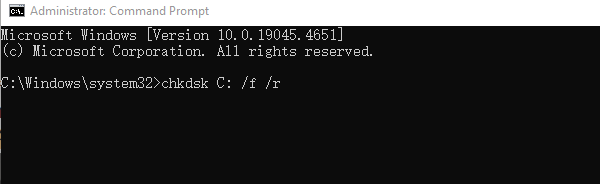
If prompted to restart, type Y and press Enter.
The system will check the hard drive and attempt to fix any errors upon reboot.
Run Windows Memory Diagnostic Tool:
Press Win + S, search for "Windows Memory Diagnostic", and click to open.
Select "Restart now and check for problems".
The computer will automatically restart and check for memory issues. The results will be displayed after completion.
Update Drivers
Outdated or corrupted hardware drivers are one of the common causes of system crashes. First, ensure that all your drivers are updated to the latest versions. We recommend using Driver Sentry for automatic driver updates, saving time and avoiding the risk of downloading or installing incorrect drivers.
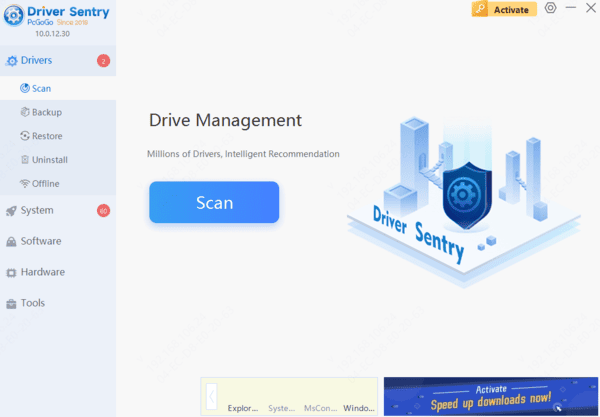
After the scan is complete, it will show which drivers are missing or need updates. Find the drivers to update in the list and click the "Upgrade" button.
After the update is complete, it is recommended to restart the computer to ensure the updated drivers take effect.
Check for System Updates
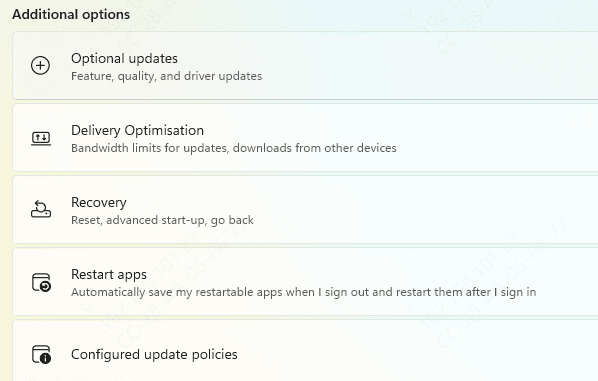
Press Win + I to open "Settings".
Go to "Update & Security" > "Windows Update".
Click "Check for Updates" to see if any new updates are available.
Perform a Clean Boot
Press Win + R, type "msconfig", and press Enter.
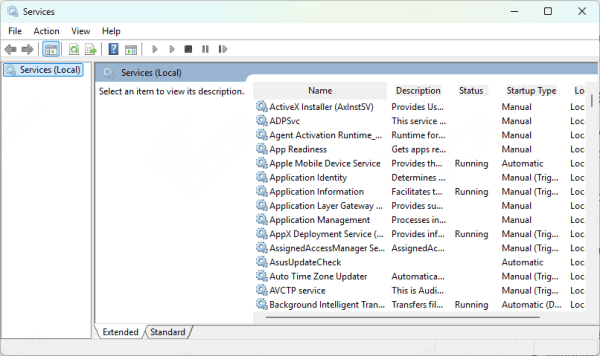
In the "Services" tab, check "Hide all Microsoft services", then click "Disable All".
Switch to the "Startup" tab and click "Open Task Manager".
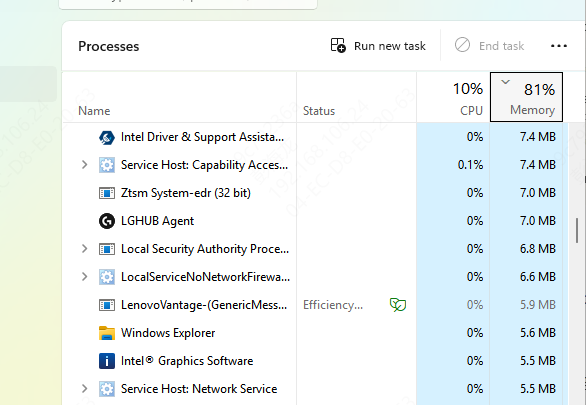
In Task Manager, disable all unnecessary startup items.
Click "OK", then restart the computer.
Take Cooling Measures:
Clean dust from the computer.
Ensure that heat sinks and fans are working properly.
If necessary, replace thermal paste or add additional cooling devices.
Remove Viruses and Malware
Use Windows Built-in Antivirus Tool:
Open "Settings", go to "Update & Security" > "Windows Security".
Click "Virus & Threat Protection", then choose "Quick Scan" or "Full Scan".
Use Third-Party Antivirus Software:
Open your third-party antivirus software and run a deep scan to find and remove potential viruses or malware.
Ensure that the real-time protection feature is enabled to prevent future malware infections.
Frequently Asked Questions
How can I identify which driver is causing Windows 11 to crash?
Review Device Manager for warning icons and check crash information in Reliability Monitor or minidump files. Drivers updated shortly before the crashes began should be rolled back or reinstalled first.
Does Windows Memory Diagnostic detect every RAM problem?
No. It can detect many common memory errors, but intermittent faults may require a longer test with MemTest86. If errors appear, test each RAM module separately at default BIOS settings.
What should I do if Windows 11 still crashes after these fixes?
Back up important files, restore BIOS settings to default, and perform an in-place Windows repair installation. If crashes continue, test the SSD, RAM, power supply, and cooling hardware.
Conclusion
Frequent Windows 11 crashes can result from corrupted system files, unstable drivers, faulty storage or memory, overheating, malware, or software conflicts. Start by reviewing recent changes, updating or rolling back problematic drivers, and running SFC and DISM. Next, test the drive and RAM, install Windows updates, and perform a clean boot. If crashes continue after these steps, back up your files and investigate the SSD, RAM, cooling system, power supply, and other hardware components.