


Is your headset mic not working on PC even though you can hear sound through the headphones? You may be able to listen to music, play games, or join online meetings, but your microphone fails to capture your voice. This guide explains how to fix a headset mic not working on Windows 10 and Windows 11.
Make Sure the Microphone Is Not Muted
Press Windows + I.
Open System > Sound.
Locate the Input section.
Select your headset microphone.
Use the available microphone test.
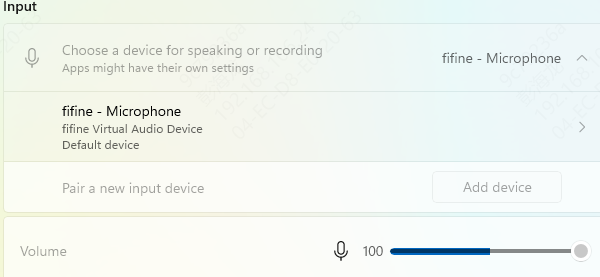
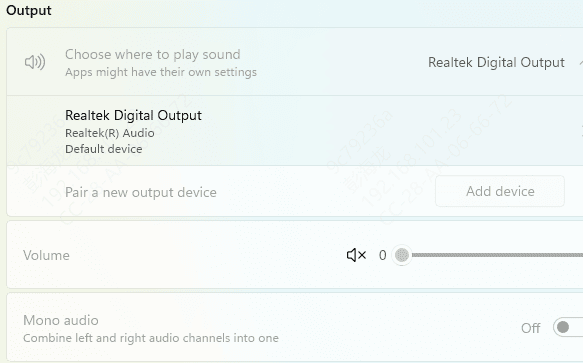
Fix 1: Select the Correct Microphone Input Device
Open Settings.
Select System > Sound.
Find the Input section.
Review the available microphones.
Select your headset microphone.
Fix 2: Enable Microphone Access Permissions
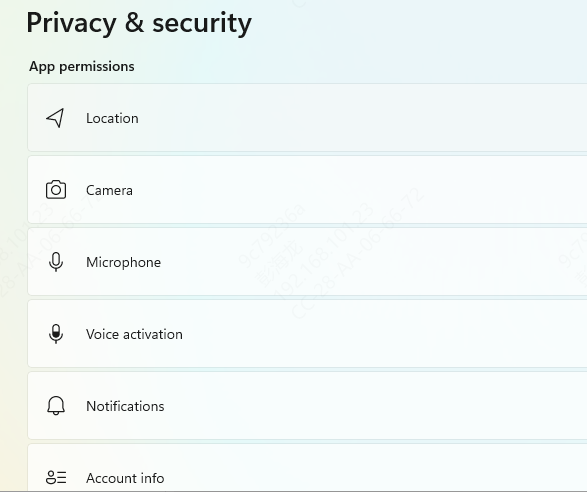
On Windows 11
Open Settings.
Select Privacy & security.
Click Microphone.
Enable Microphone access.
Enable Let apps access your microphone for supported applications.
Enable Let desktop apps access your microphone if necessary.
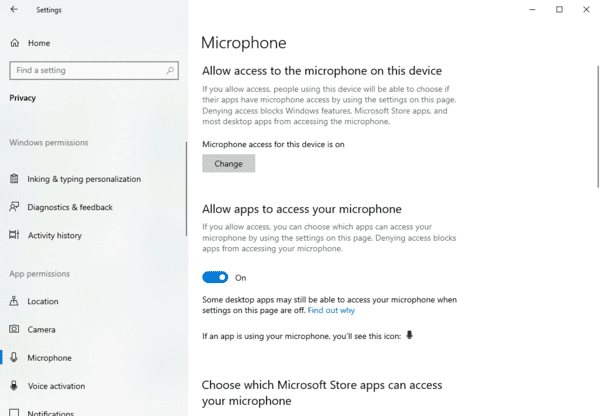
On Windows 10
Open Settings.
Select Privacy.
Click Microphone.
Enable microphone access for the device.
Review application permissions.
Fix 3: Update Audio Drivers
Audio drivers allow Windows to communicate with sound cards, microphones, and other audio devices.
If the installed audio driver becomes corrupted or incompatible, Windows may fail to recognize your headset microphone or process its input correctly.
Updating the relevant driver can help when the problem appears after a Windows update or affects multiple recording applications.
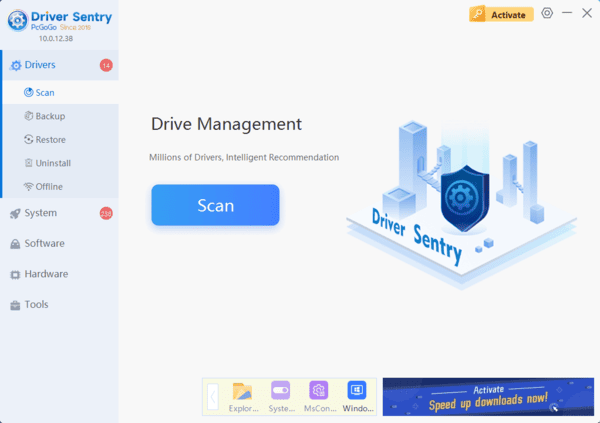
Update Audio Drivers with Driver Sentry
Driver Sentry is a Windows driver management utility that can identify supported missing, outdated, or problematic drivers.
It provides an additional way to check audio driver issues on compatible Windows computers.
Download Driver Sentry.
Install and launch the application.
Click Scan to examine your computer.
Review any detected audio driver issues.
Install appropriate compatible updates if available.
Restart Windows.
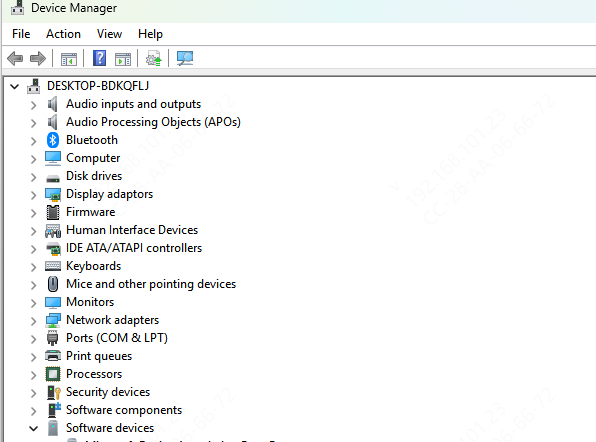
Update Audio Drivers Manually
Press Windows + X.
Select Device Manager.
Expand Sound, video and game controllers.
Identify the relevant audio device.
Right-click it and select Update driver.
Choose Search automatically for drivers.
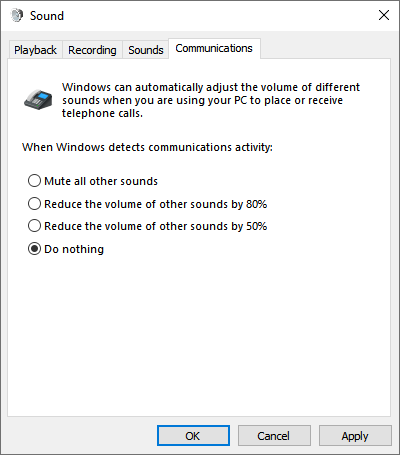
Fix 4: Enable the Headset Microphone in Sound Settings
Press Windows + R.
Type mmsys.cpl.
Press Enter.
Open the Recording tab.
Right-click an empty area.
Select Show Disabled Devices if available.
Locate your headset microphone.
Right-click it and select Enable if necessary.
Fix 5: Adjust Microphone Volume and Input Levels
Open Settings > System > Sound.
Select your headset microphone.
Locate the input volume setting.
Increase the volume gradually.
Use the microphone test to check the result.
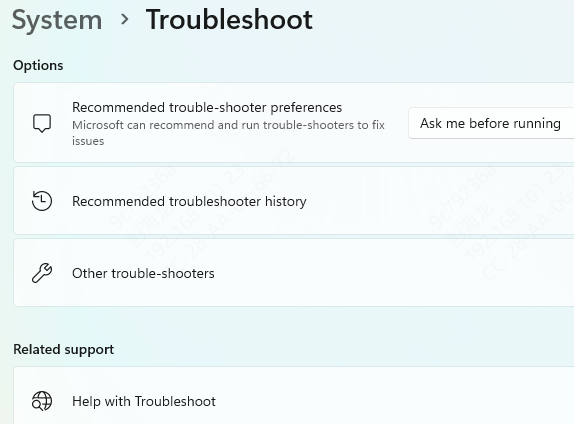
Fix 6: Run Windows Audio Troubleshooting
Open Settings.
Navigate to System > Sound.
Find the available input troubleshooting option.
Start the diagnostic process.
Follow the on-screen instructions.
Apply any recommended fixes.
Fix 7: Check Audio Jack and Headset Compatibility
Check whether your headset uses one or two audio connectors.
Identify the microphone and headphone ports on your PC.
Use a compatible splitter when required.
Reconnect the headset securely.
Test the microphone again.
Fix 8: Fix USB or Bluetooth Headset Microphone Problems
USB Headset Microphone Not Working
Disconnect the headset
Try another USB port.
Avoid unstable or unpowered USB hubs.
Reconnect the device.
Check whether Windows detects the microphone.
Review relevant USB audio drivers if necessary.
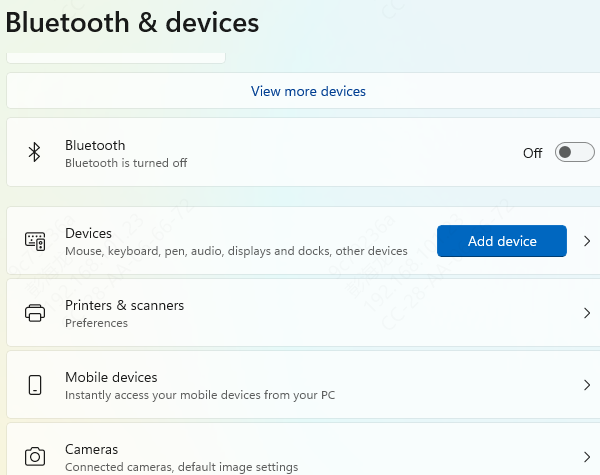
Bluetooth Headset Microphone Not Working
Open Settings > Bluetooth & devices on Windows 11.
Confirm that the headset is connected.
Disconnect and reconnect the device.
Remove and pair the headset again if necessary.
Check whether the correct microphone input is selected.
Review compatible Bluetooth drivers.
Fix 9: Check Application-Specific Microphone Settings
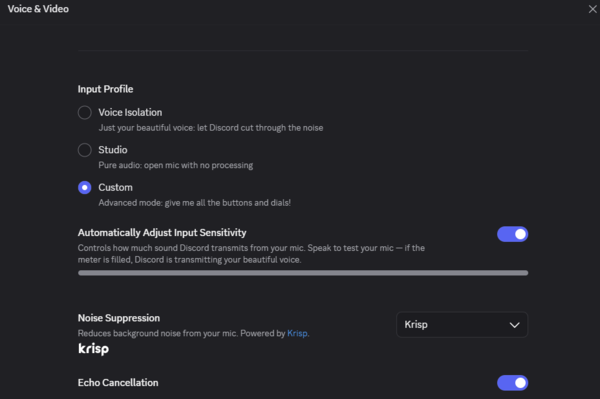
For Discord
Open User Settings.
Select Voice & Video.
Choose your headset under Input Device.
Check the input volume.
Headset Microphone FAQs
Why Can I Hear Audio but My Headset Mic Doesn't Work?
Audio playback and microphone recording use different signal paths.
Your headphones may work normally while the microphone is disabled, disconnected, incorrectly configured, or blocked by application permissions.
How Do I Enable My Headset Microphone on Windows 11?
Open Settings > System > Sound and select your headset microphone under Input. Then check Privacy & security > Microphone to confirm that microphone access is enabled
Do I Need a Driver for My Headset Microphone?
Many basic wired headsets use the computer's existing audio driver. USB and wireless headsets may rely on standard Windows drivers or manufacturer-specific software.
If your headset microphone is not detected, check the relevant audio or device drivers.
How Do I Know If My Headset Mic Is Broken?
Connect the headset to another compatible device and record a short voice sample.
If the microphone fails on multiple devices despite correct connections and settings, the headset hardware may be damaged.
Following these troubleshooting methods can help restore microphone functionality on Windows 10 and Windows 11.