






Getting a "XINPUT1_3.dll not found" error that prevents games or programs from launching? This guide covers 4 fixes — using PcGoGo DLL Fixer to automatically repair missing DLL files, reinstalling DirectX via the Microsoft End-User Runtime installer, running SFC and DISM to repair corrupted system files, and reinstalling the affected game or software — to resolve the error fast.
Reinstall or Update DirectX
Since XINPUT1_3.dll is part of DirectX, reinstalling or updating it often fixes the problem.
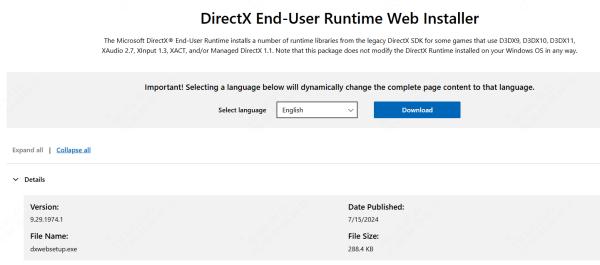
Visit the official Microsoft DirectX download page
Download the DirectX End-User Runtime Web Installer
Run the installer and follow the on-screen instructions
Restart your PC and check if the error is resolved
This method automatically replaces missing or corrupted DirectX components.
Repair Files
Corrupted system files can also trigger XINPUT1_3.dll errors. Use Windows built-in tools to repair them.
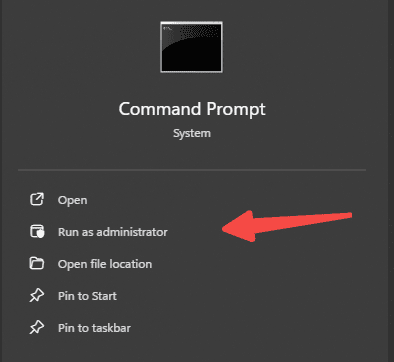
Press Windows + S, type cmd, right-click Command Prompt, and select Run as administrator
Type the following command and press Enter
sfc /scannow
Wait for the scan to complete; Windows will automatically repair corrupted system files
Next, run the following command to repair the system image
DISM /Online /Cleanup-Image /RestoreHealth
Restart your PC and test the program again
Repair the XINPUT1_3.dll File Automatically
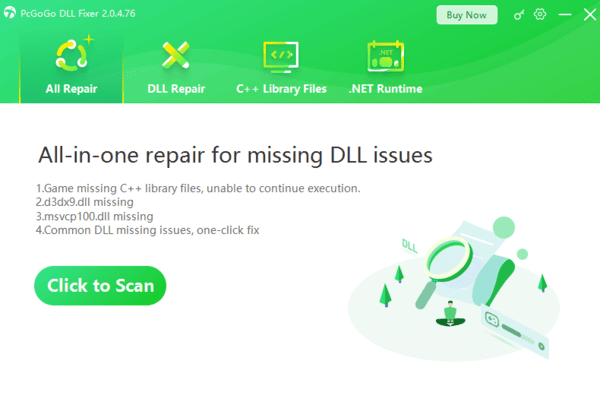
If the XINPUT1_3.dll error still appears after reinstalling DirectX or updating your system, it may indicate deeper issues, such as corrupted DLL entries or damaged registry settings. In this case, using a dedicated repair tool like PcGoGo DLL Fixer can automatically detect and restore missing or broken DLL files—including XINPUT1_3.dll—and fix related system problems.

Reinstall the Affected Game or Software
If the error occurs only with one program, its installation may be corrupted.
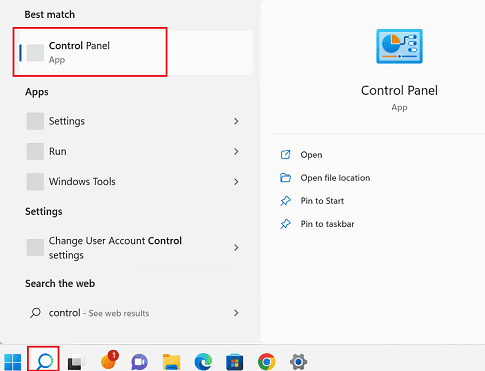
Open Control Panel → Programs and Features
Uninstall the program showing the error
Restart your PC
Reinstall the program from an official source
For Steam games, use Verify integrity of game files to ensure all components are complete.
Preventive Tips
To reduce the risk of XINPUT1_3.dll errors in the future:
Keep Windows, DirectX, and drivers updated
Avoid downloading DLLs from untrusted websites
Install games and software from official stores only
Run regular malware scans
Maintain system backups to quickly recover from issues
Conclusion
The XINPUT1_3.dll not found error occurs when DirectX components, system files, or drivers are missing or corrupted, preventing programs and games from running; it can be resolved by reinstalling or updating DirectX, repairing system files, reinstalling affected software, or using a DLL repair tool, and can be prevented by keeping Windows, drivers, and software up to date and maintaining regular backups.




