






Accidentally deleting important files, formatting a storage device, or experiencing unexpected system failures can result in serious data loss. However, deleted files are not always permanently removed. In many cases, the original data remains on the storage device until it is overwritten by new information. By using the right recovery method and acting quickly, you can restore lost documents, photos, videos, and other files. This guide explains how deleted file recovery works and how to recover lost data safely with PcGoGo Data Recovery, including scanning, previewing, and restoring files from hard drives, SSDs, USB drives, and other storage devices.
Data Recovery Basics
When you delete a file in Windows or format a drive, the operating system typically doesn't immediately erase the actual data from the storage device
Instead, it marks the space occupied by that file as "available for new data"
The original file contents remain on the disk until that space is overwritten by new files
However, it also underscores the critical importance of acting quickly and minimizing disk activity on the affected drive to prevent overwriting your lost data
Step-by-Step Guide to Recover Deleted Files
Recovering deleted files with PcGoGo Data Recovery is straightforward and beginner-friendly. Follow these steps to recover your deleted files:
Download and Install PcGoGo Data Recovery
Visit the official PcGoGo Data Recovery website to get the installation package
Crucially, install the software on a different drive or computer than the one containing your lost files to avoid any risk of overwriting data
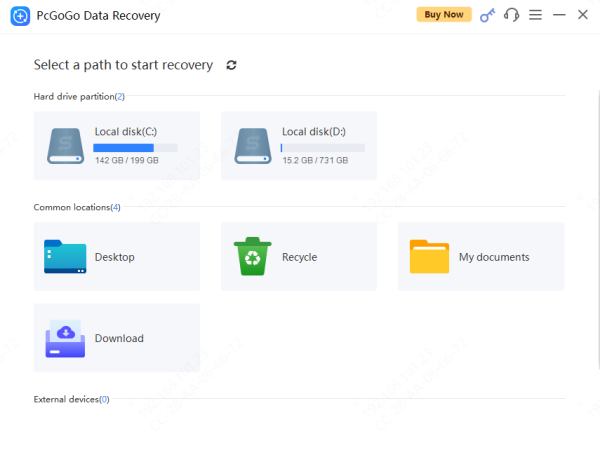
Select a Path
Choose the drive or partition where your lost files were originally stored
If your files were on external storage—like an SD card, USB drive, or external HDD/SSD—ensure the device is properly connected and recognized by Windows before proceeding
Initiate the Scan
Click the "Scan" button
You can also use filters (like file type or name) during or after the scan to narrow down results
Preview Files
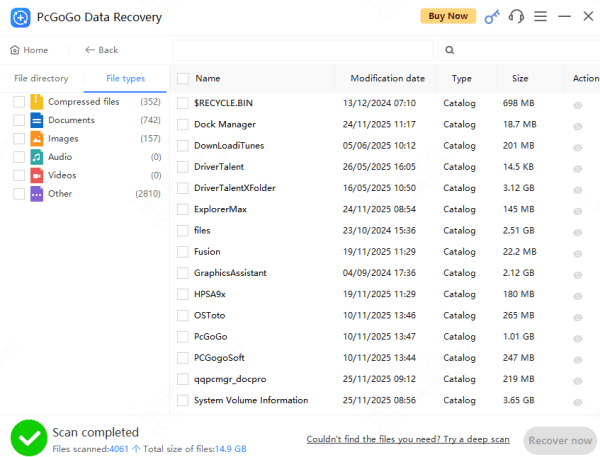
After the scan, browse the recoverable files using the categorized folders (by file type, path, etc)
Use the built-in preview feature on the right panel to confirm the integrity and content of your files (works for photos, documents, videos, etc)
This allows you to verify the correct files before final recovery
Recover and Save Your Files
Check the boxes next to the files and folders you wish to restore
Click the "Recover" button
Essential Tips to Increase Recovery Success
Act Immediately: The moment you realize data is lost, stop using the affected drive. Do not save new files, install software, or download anything to it
Avoid the Source Drive: Do not install the recovery software on the same drive that contains the lost data
Destination is Key: Always save recovered files to a separate, healthy disk or external storage
Conclusion
Data loss can happen at any time, but recovery doesn't have to be difficult or hopeless. With tools like PcGoGo Data Recovery, you can restore deleted files efficiently, safely, and reliably. By understanding the basics, acting quickly, and following the correct steps—especially the critical rule of saving recovered data to a different location—you can significantly increase your chances of getting your valuable photos, documents, and files back without unnecessary stress. Remember, prevention through regular backups is always the best strategy.




