






Common Causes of USB Drive Data Loss
Several issues can lead to losing data from a USB flash drive, including:
Accidental deletion of files or folders
Formatting the USB drive by mistake
File system corruption caused by improper ejection or power failures
Virus or malware attacks that hide or delete files
Physical wear or bad sectors due to aging drives
Interrupted file transfers, leading to incomplete or corrupted data
Understanding the cause helps you choose the right recovery method.
Why Choose PcGoGo Data Recovery
PcGoGo Data Recovery provides a powerful yet user-friendly solution for restoring lost USB files. Its key features include:
Fast and deep scanning modes to detect deleted or hidden data
Support for multiple file types, including documents, photos, videos, audio, and more
File preview to verify recoverable files before restoring
Safe, non-destructive scanning that prevents further data loss
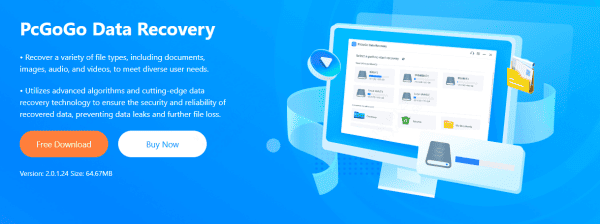
Recover Data
Step 1: Connect the USB Drive to Your Computer
Insert your USB drive into a working USB port
Ensure your computer recognizes the drive
Step 2: Download and Install PcGoGo Data Recovery
Visit the official PcGoGo Data Recovery website and download the latest version
Install and open the program
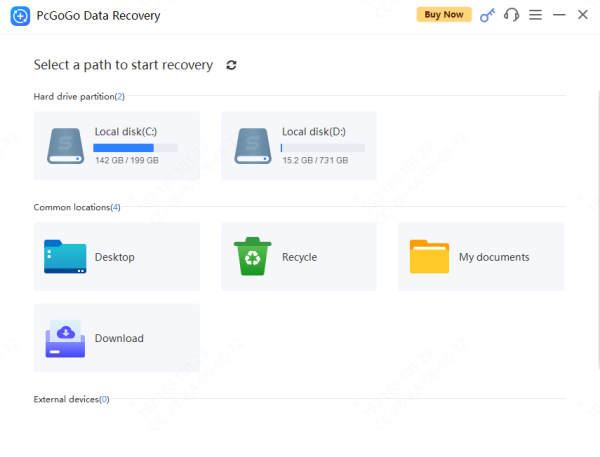
Step 3: Select the USB Drive from the Device List
Find your USB drive under "External Devices"
Double-check that you selected the correct drive
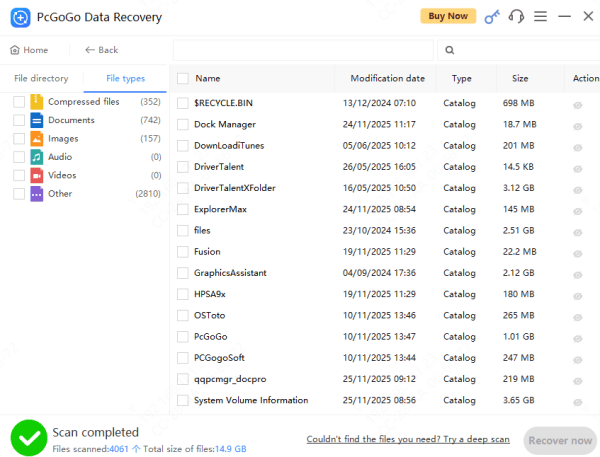
Step 4: Scan for Lost or Deleted Files
Use Quick Scan for recently deleted files
Use Deep Scan for formatted or seriously corrupted USB drives
Apply filters or keywords to find specific file types quickly
Step 5: Preview Recoverable Files
PcGoGo Data Recovery allows you to preview: Photos, Videos, Documents, Audio, and Other file formats
This ensures the files are intact before recovering them
Step 6: Recover and Save Your Files
Select the files you want to restore
Choose a safe storage location on your PC or an external drive
Do not save recovered files back to the same USB drive—you could overwrite the remaining recoverable data.
Signs Your USB Drive May Be Failing
Watch out for these warning signs:
Frequent disconnections
Slow read or write performance
Files becoming corrupted or disappearing
"Please format the drive" messages
Transfer errors during copying
If you notice any of these issues, stop using the drive immediately to prevent further damage.
Recovering lost data from a USB drive is often possible when you take quick action and use a reliable tool like PcGoGo Data Recovery. By following the steps in this guide—scanning, previewing, and restoring your files—you can safely recover important documents, photos, and other data. With good habits such as regular backups and safe removal practices, you can also protect your USB drives and prevent data loss in the future.




