






Losing important files from a solid state drive (SSD) can be stressful, especially when it happens suddenly due to accidental deletion, formatting, system errors, or even firmware corruption. Unlike traditional hard drives, SSDs use a technology called TRIM, which can permanently erase deleted data, making recovery more challenging. However, most lost SSD data is still recoverable if you act quickly and use the right recovery methods. This guide explains the common causes of SSD data loss and shows how to safely recover your files using PcGoGo Data Recovery.
Common Causes of SSD Data Loss
Several factors can result in data loss on an SSD:
Accidental deletion: Removing files unintentionally
Accidental formatting: Formatting the wrong partition or entire drive
Operating system or file system errors: Corruption caused by improper shutdowns or crashes
Virus or malware attacks: Malicious software that hides, deletes, or corrupts files
TRIM-enabled deletion: Automatic SSD cleanup can erase deleted data permanently
Firmware corruption: Issues in the SSD firmware preventing access
Power surges or sudden shutdowns: Abrupt interruptions during data transfer
Understanding the cause of the loss can help you choose the most effective recovery method.
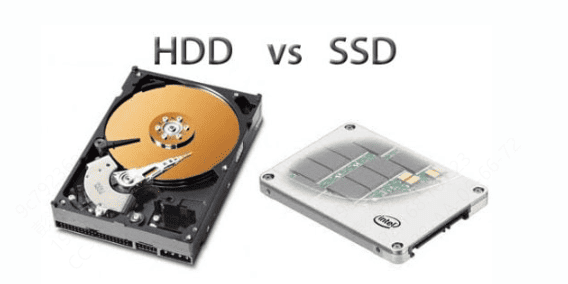
How SSD Data Recovery Differs from HDD Recovery
SSDs differ from traditional HDDs in how they store and manage data:
TRIM Function: When files are deleted, TRIM marks them as free space and may permanently erase them
Overwriting Risk: Once TRIM has cleared the deleted sectors, recovery becomes impossible
Logical Recovery Possible: If the data hasn't been overwritten or TRIM hasn't run, recovery tools can retrieve files
Signs Your SSD Has Lost Data
You might notice the following when SSD data is lost or corrupted:
Missing or inaccessible files
Slow read/write speeds or lagging performance
Drive appearing as "RAW" or showing file system errors
SSD not recognized by BIOS or the operating system
Frequent crashes or errors when opening files
If you observe any of these issues, stop using the SSD immediately to avoid permanent data loss.
Why Use PcGoGo Data Recovery for SSDs
PcGoGo Data Recovery is a reliable tool for restoring lost SSD data safely. Its key features include:
Advanced scanning algorithms: Recover deleted, formatted, or corrupted files efficiently
Wide file type support: Documents, photos, videos, audio files, compressed files, and more
File preview: Verify recoverable files before restoring them
Safe, non-destructive scanning: Prevents further damage to the SSD
High success rate: Works even on formatted or corrupted SSDs
How to Recover Data from SSD Using PcGoGo Data Recovery
Recovering files from an SSD with PcGoGo Data Recovery is simple. Follow these steps:
Download and Install PcGoGo Data Recovery
Connect SSD to a Computer
Download the latest version from the official website and launch the software
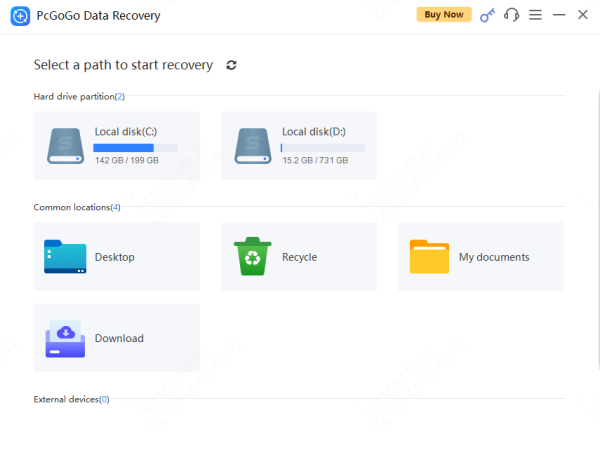
Select the SSD Drive
Identify SSD from the device list
Select your SSD
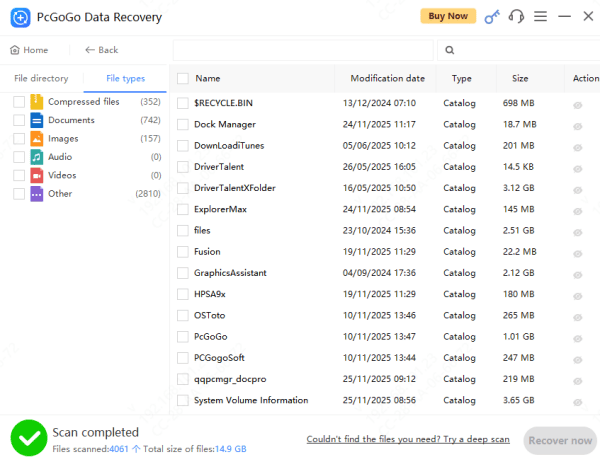
Scan for Lost or Deleted Files
Click Scan
Use filters or keywords to locate specific files faster
Preview and Recover Files
Preview recoverable files including photos, videos, documents, and audio
Select the files you wish to recover
Save them to a different drive to avoid overwriting the remaining data on the SSD
Tips to Maximize SSD Recovery Success
Stop using the SSD immediately after data loss
Avoid saving new files or installing software on the SSD
How to Prevent SSD Data Loss in the Future
To protect your SSD data:
Back up important files regularly to external drives or cloud storage
Use antivirus software to prevent malware attacks
Monitor SSD health using SMART tools
Handle your SSD carefully to avoid firmware or physical damage
Avoid unnecessary formatting and improper shutdowns
Conclusion
Recovering lost data from an SSD is often possible if you act quickly and use the right recovery tool. PcGoGo Data Recovery provides a safe, powerful, and user-friendly solution to restore deleted, formatted, or corrupted files. By following the proper recovery steps and adopting good backup habits, you can successfully recover your important data and prevent future SSD data loss.




