






NVIDIA graphics drivers are essential for ensuring your GPU performs at its best in gaming, creative work, and everyday computing. Outdated or corrupted drivers can lead to crashes, screen flickering, stuttering, low FPS, and missing features in applications. Regularly updating your NVIDIA drivers helps improve performance, enhance system stability, and unlock new features. This guide provides a practical, checklist-based approach to safely updating your NVIDIA drivers on Windows.
Recognizing Driver Problems Early
Display issues: Flickering, black screens, or incorrect resolutions
Performance drops: Reduced FPS or lag during games or GPU-intensive tasks
NVIDIA Control Panel problems: Panel won't open or features are missing
Device Manager warnings: Yellow triangles under Display Adapters
System crashes: Apps or Windows freezing or crashing when the GPU is in use
Preparing for a Safe Driver Update
Confirm GPU Model and Windows Version: Verify that your GPU is NVIDIA and check your Windows version
Backup Important Data: Save documents, game profiles, or project files before updating
Create a System Restore Point: Search "Create a restore point" → enable protection → click Create
Close Unnecessary Applications: Free up system resources to prevent installation errors
Remove Beta or Conflicting Drivers: Uninstall previous beta drivers or unstable versions if necessary
Proper preparation reduces the risk of errors and ensures a clean driver update

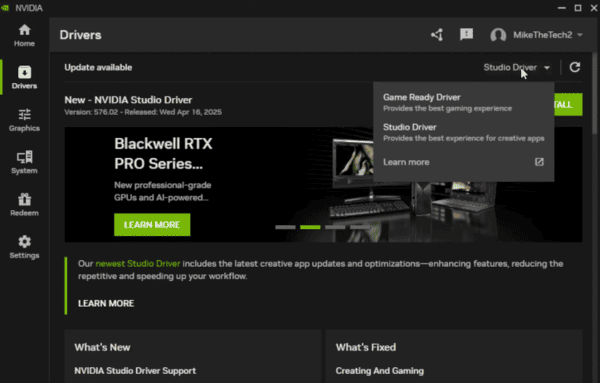
NVIDIA GeForce Experience
Open GeForce Experience → go to the Drivers tab → click Check for Updates
Download the latest driver
Choose Express Install for a quick update or Custom → Clean Install to overwrite existing drivers
Restart your computer to apply changes
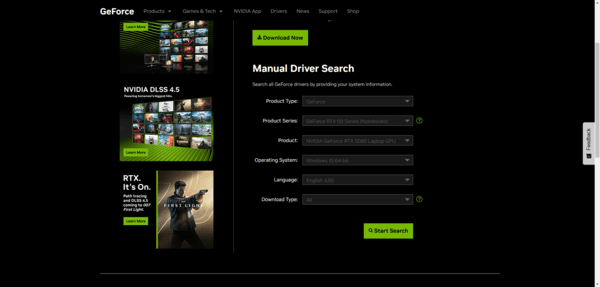
Manual Driver Download from NVIDIA Website
Manual updates give full control over installation:
Visit the NVIDIA Driver Download page
Select your GPU model and Windows version
Download the driver package and run the installer
Choose Custom → Clean Install for a fresh setup
Restart your PC
Manual installation is useful when GeForce Experience doesn't detect updates or when troubleshooting specific issues
Update via Windows Device Manager
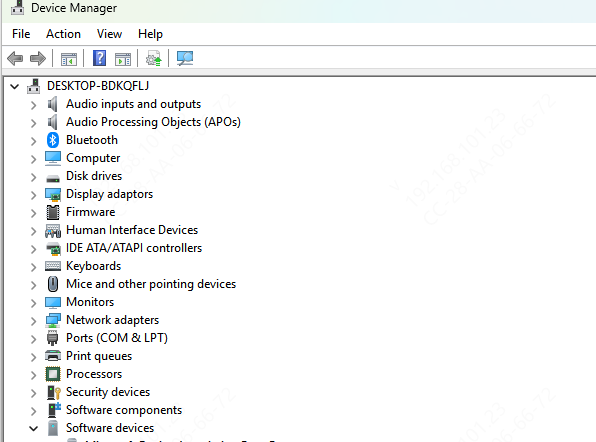
Windows Device Manager can be used to update drivers without additional software:
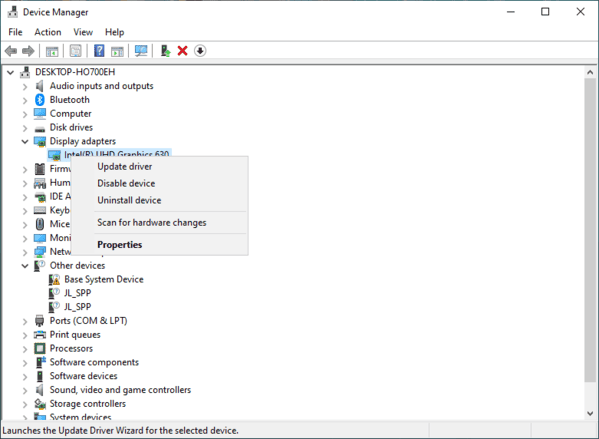
Press Windows + X → Device Manager → Display Adapters → NVIDIA GPU
Right-click → Update Driver → Search automatically for drivers
Follow prompts and restart your system
Device Manager is helpful if you prefer built-in tools or if automated NVIDIA software fails
Windows Optional Updates
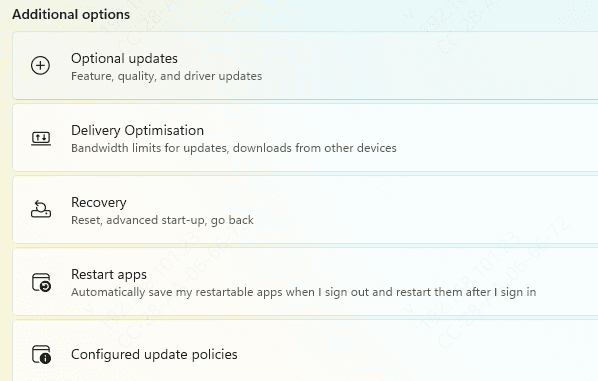
Occasionally, Windows Update provides driver updates:
Go to Settings → Update & Security → Windows Update → Optional Updates → Driver Updates
Look for NVIDIA updates and install them
Restart your computer to apply changes
This method is useful for drivers that Windows detects as necessary for system compatibility
One-Click Driver Repair with Driver Sentry
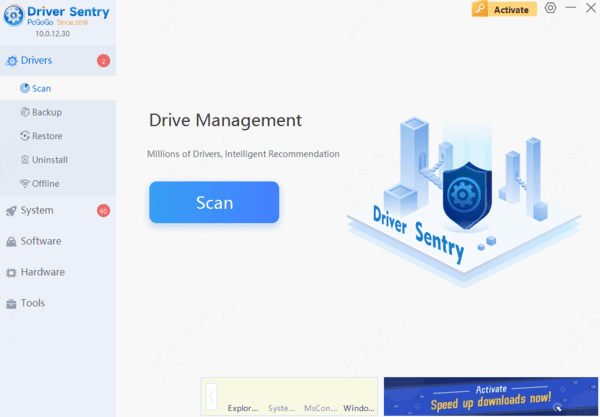
Download and install Driver Sentry from the official website
Open the program → click Scan to detect driver issues
Click Repair/Update All or select NVIDIA drivers specifically
Restart your computer to apply the updates
Benefits
Saves time and reduces errors
Safe for beginners and advanced users
Ensures your GPU runs at full performance with maximum stability
Troubleshooting Persistent Driver Issues
If standard updates fail, try these advanced solutions:
Safe Mode Installation: Boot into Safe Mode and install drivers to bypass conflicts
Driver Rollback: Device Manager → Driver tab → Roll Back Driver to revert to a stable version
Clean Uninstall Using DDU: Display Driver Uninstaller removes corrupted drivers completely before reinstalling
Resolve Conflicts with Integrated Graphics: Disable onboard GPU if interfering with NVIDIA driver
Check BIOS and Firmware: Ensure GPU is recognized properly and compatible with Windows 10
Conclusion
Updating NVIDIA graphics drivers is critical for stable gaming, creative workflows, and smooth PC performance. By using GeForce Experience, manual downloads, Device Manager, Windows optional updates, and one-click repair with Driver Sentry, users can solve driver issues safely and efficiently. Regular maintenance, proactive updates, and the right tools ensure your NVIDIA GPU continues to deliver peak performance with minimal risk of crashes, display glitches, or system instability.




