






Looking to update your Intel Arc graphics drivers? This guide covers 3 methods — downloading manually from Intel's official site, using Intel Driver & Support Assistant, and automatically updating with Driver Sentry — to keep your Intel Arc GPU drivers current for better performance, stability, and compatibility.
Download Intel Arc Drivers Manually
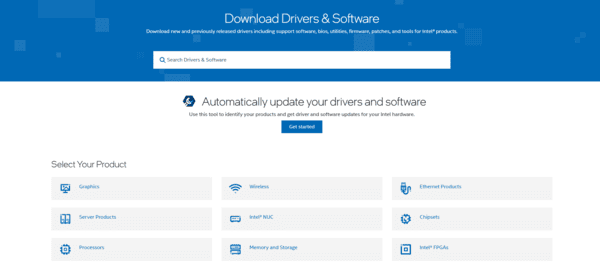
Step 1: Visit Intel's Official Website
Navigate to the Intel Download Center
Use the search bar to enter your Intel Arc GPU model (e.g., Intel Arc A750, A770)
Step 2: Select the Correct Driver
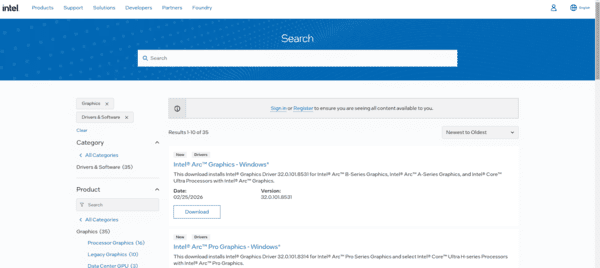
Choose the appropriate driver version for your operating system (Windows 10 or 11)
Read the Release Notes to understand the improvements or bug fixes in the new driver version
Step 3: Download the Driver
Click the Download button and wait for the driver to be downloaded to your system
Step 4: Install the Driver
Once the download is complete, open the installer and follow the on-screen instructions to install the driver
After installation, restart your computer to ensure the changes take effect
Update Drivers Using Driver Sentry
For a seamless driver update experience, try Driver Sentry, a tool that automatically detects, downloads, and installs the latest drivers for your Intel Arc GPU. It's an easy and efficient way to keep your drivers up to date, ensuring that you get the best performance from your system.
Download & Install Driver Sentry
Get the Installer: Visit the official Driver Sentry website to download the installer for your system
Install the Software: Run the installer and follow the on-screen instructions to install Driver Sentry on your laptop or desktop
Click for Outdated or Missing Drivers
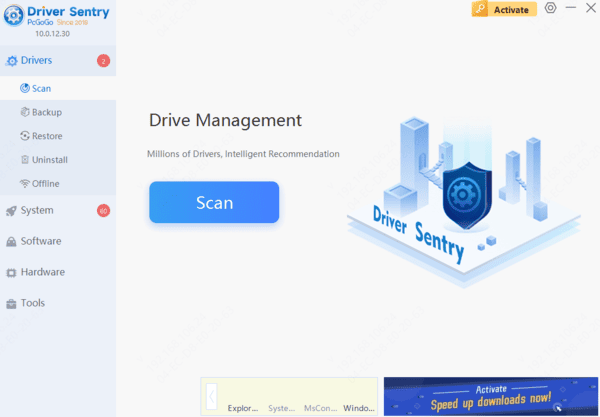
Open Driver Sentry: After installation, open Driver Sentry from your desktop or Start menu
Perform a Scan: Go to the Drivers tab and click on Click to check for outdated, missing, or corrupted drivers, including the Intel Arc Graphics driver
Update Intel Arc Graphics Driver
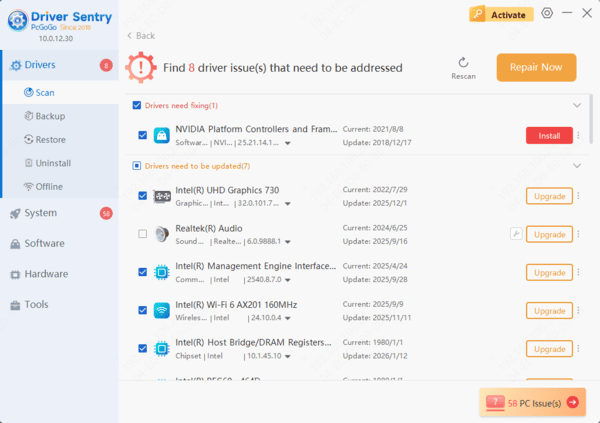
Locate Intel Arc Driver: In the scan results, locate Intel Arc Graphics under the Display Adapters section
Click Repair Now: Select Repair Now to automatically update the Intel Arc driver to the latest version
Restart Your Computer
Apply Changes: After the update process is complete, restart your computer to ensure the new driver is applied correctly and functioning properly
Update Intel Arc Drivers Using Intel Driver & Support Assistant
Step 1: Download Intel DSA
Visit Intel's official support page to download Intel Driver & Support Assistant
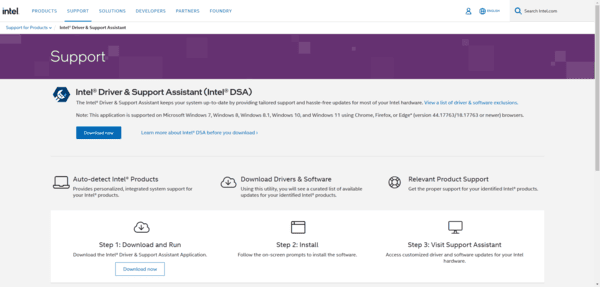
Step 2: Run the Tool
Open the tool, and it will automatically scan your system to detect outdated drivers, including your Intel Arc Graphics driver
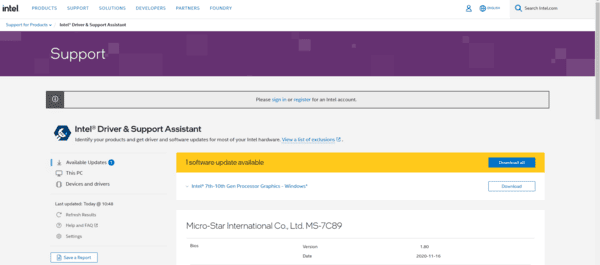
Step 3: Install the Driver
The tool will show you the recommended updates. Click on Download and Install to update your Intel Arc GPU driver
Step 4: Restart Your System
After the update, restart your PC to apply the changes and complete the installation
Using Driver Sentry ensures that your Intel Arc Graphics driver is up-to-date and performing at its best. By automating the update process, you save time and avoid the risks of manually downloading the wrong drivers.
Test Graphics Performance
Verify the Update: Open a game, media editing software, or any graphics-intensive app to verify the improvement in performance
Check for Smooth Graphics: Test for any improvements in frame rates, resolution, or elimination of graphical glitches that you may have previously experienced
Best Practices for Intel Arc Driver Updates
Regular Driver Updates: Set a reminder to check for driver updates every few weeks or use Intel DSA to ensure you're always up to date with the latest drivers
Create a Backup: Before updating your drivers, consider using tools like Driver Sentry to back up your current drivers. This way, you can easily roll back if you encounter issues after an update
Use Stable Releases: While beta drivers may offer early access to new features, stable releases are typically more reliable for general use
Conclusion
Keeping your Intel Arc drivers up to date is vital for ensuring that your graphics card performs at its best. Whether you're gaming, editing media, or using graphics-intensive applications, having the latest driver ensures that your system is stable, secure, and optimized for high performance. Use the methods provided in this guide to download, install, and maintain the latest drivers for your Intel Arc GPU.




