






Hearing a loud laptop fan can be annoying, especially when you're trying to focus on work or enjoy some downtime. In this article, we'll explore the most common reasons for a loud laptop fan and provide actionable solutions.
1. What Causes a Loud Laptop Fan?
A laptop fan's primary role is to regulate the device's temperature by dissipating heat generated by the internal components. If your fan is unusually loud, it might be due to the following reasons:
1) Overheating Components
Overheating is one of the most common reasons for a loud fan. If the laptop gets too hot, the fan works harder and faster to cool the internal components.
Causes of Overheating:
Running resource-heavy applications like video editing software or games.
Blocked air vents caused by dust or dirt.
Poor cooling design in compact laptops.
Solution:
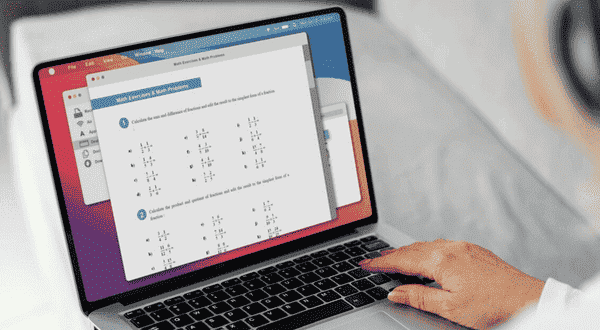
Place your laptop on a hard, flat surface to improve airflow.
Clean the air vents and fans using compressed air to remove dust.
Consider investing in a laptop cooling pad for extra ventilation.
2) High CPU or GPU Usage
If your CPU or GPU is under constant high load, the fan will spin faster to manage the heat. This is common during intensive tasks like gaming, rendering, or multitasking.
How to Identify High Usage:
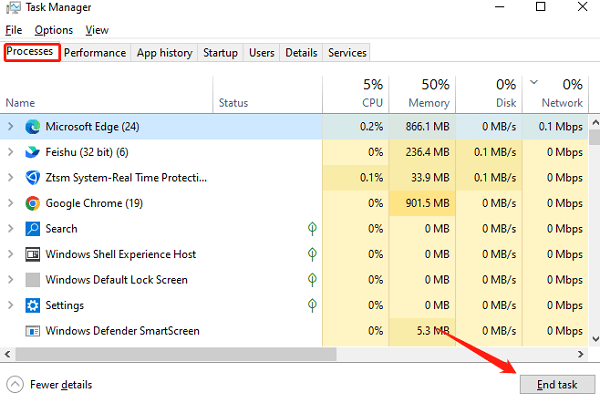
Press Ctrl + Shift + Esc to open Task Manager to monitor CPU and GPU usage.
Look for processes consuming excessive resources.
Solution:
Close unnecessary applications running in the background.
Disable startup programs that automatically launch when you boot your laptop.
Use lightweight versions of software to reduce strain on the system.
3) Dust Build-Up in the Fan
Over time, dust and debris can accumulate inside the laptop, blocking airflow and reducing the fan's efficiency. A dusty fan works harder to maintain optimal temperatures, leading to loud noises.
Solution:
Step 1: Turn off your laptop and unplug it from the power source.
Step 2: Use compressed air to blow out dust from the air vents.
Step 3: If you're comfortable, open the laptop casing (if permitted by the manufacturer) to clean the fan more thoroughly.
Note: If you're unsure about opening your laptop, seek professional help.
4) Outdated or Faulty Drivers
Old or incompatible drivers can cause your fan to operate inefficiently. For example, outdated thermal management drivers might fail to regulate the fan's speed correctly, leading to unnecessary noise.
Solution Using Driver Sentry
Driver Sentry is a powerful tool designed to update and optimize all your system drivers, ensuring that your laptop fan operates smoothly and quietly.
Step 1: Download and install Driver Sentry.
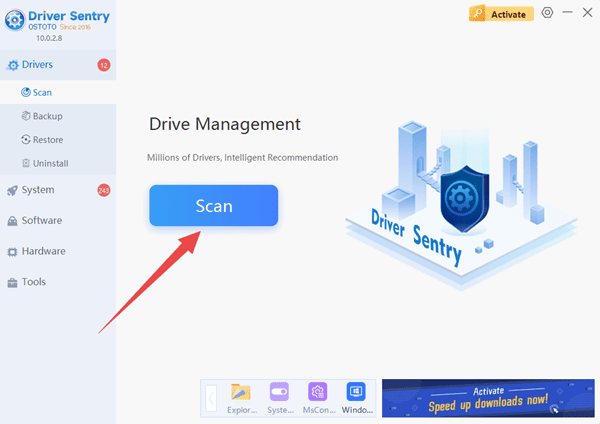
Step 2: Open the software and click "Scan".
Step 3: The tool will automatically detect outdated drivers, including those related to thermal management.
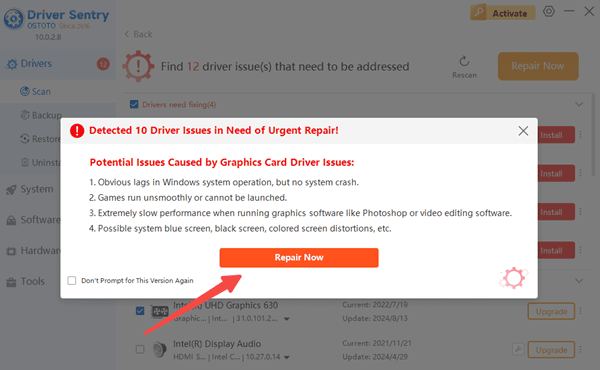
Step 4: Click "Repair Now" to install the latest drivers for your system.
Step 5: Finally, restart your computer to ensure the new drivers are properly loaded.
Using Driver Sentry not only resolves fan-related issues but also ensures your laptop runs efficiently across all hardware components.
5) Fan Malfunction or Damage
If none of the above issues apply, your fan itself might be malfunctioning. Physical damage or wear and tear over time can lead to strange noises or erratic spinning.
Solution:
Listen closely to the fan noise. If it sounds irregular (grinding, clicking, or rattling), the fan may need repair or replacement.
Contact the laptop manufacturer or a professional technician to replace the faulty fan.
2. Preventing Fan Noise in the Future
To avoid excessive fan noise in the long term, consider adopting the following practices:
1) Regular Maintenance
Clean the fan and vents every few months to prevent dust build-up.
Periodically check for loose or faulty components inside the laptop.
2) Monitor Your Laptop's Temperature
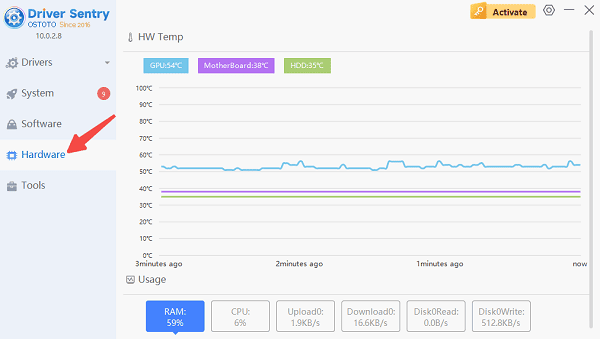
Use Driver Sentry to keep an eye on the CPU and GPU temperatures. If the temperature frequently exceeds safe levels (70-90°C), consider upgrading your cooling solution.
3) Optimize Software Usage
Avoid running multiple resource-heavy applications simultaneously.
Use energy-saving or balanced power modes to reduce heat generation.
4) Keep Drivers Updated
Outdated drivers are often overlooked but play a significant role in laptop performance. Use tools like Driver Sentry to keep your system up-to-date effortlessly.
By applying the methods mentioned above, most issues can be resolved with ease. Additionally, good usage habits and regular maintenance can effectively prevent fan noise problems. If you're frequently troubled by a noisy fan, why not start following the suggestions in this article today to restore a quiet and efficient computing experience!
See also:
8 Ways to Fix Satisfactory Crashes
How to Fix Windows 10 System Crash




