






If your Lenovo laptop keyboard is locked, frozen, or completely unresponsive, the problem may be caused by incorrect keyboard settings, enabled accessibility features, driver conflicts, Gaming Mode, or recent system changes. In many cases, the keyboard itself is not physically damaged and can be restored with a few troubleshooting steps. This guide explains several practical ways to unlock a Lenovo laptop keyboard, including testing the On-Screen Keyboard, checking function key settings, updating drivers, disabling Gaming Mode, running the Windows troubleshooter, and using System Restore when necessary.
Test if On-Screen Keyboard is Workable
Press Windows + R to open the Run dialog
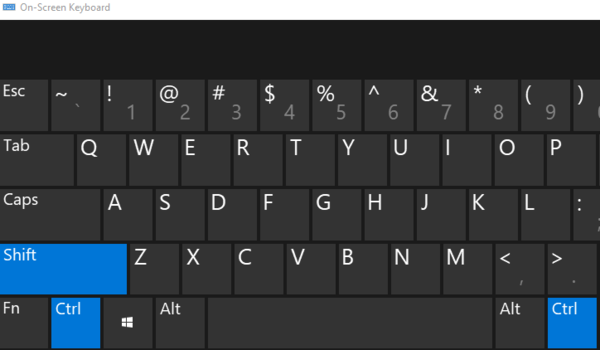
Type osk and press Enter. The On-Screen Keyboard will appear
Try typing using the On-Screen Keyboard. If it works, the issue is likely with your laptop's physical keyboard
If the On-Screen Keyboard doesn't work either, it could be a more systemic problem, such as a driver or software issue
Disable All Keyboard Shortcuts and Enhancements
Disable Sticky Keys
Open Settings by pressing Windows + I
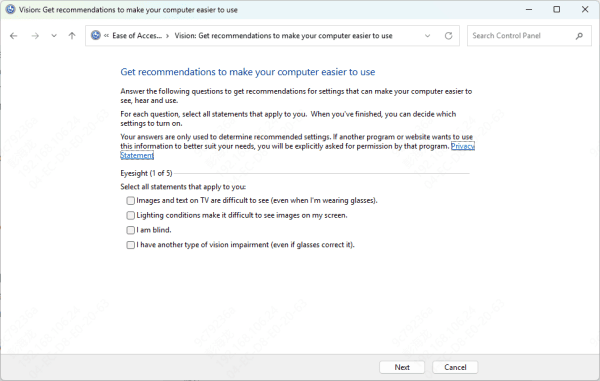
Go to Ease of Access > Keyboard
Make sure Sticky Keys and Filter Keys are both turned off
Disable Function Key Shortcuts:
Many Lenovo laptops have function keys (like Fn + F6 or Fn + F8) that lock the keyboard. Try pressing Fn + F6 to see if it unlocks the keyboard
Check Drivers
Outdated or corrupted keyboard drivers can cause your Lenovo laptop keyboard to stop working. Checking and updating the drivers can often resolve these issues.
Check Keyboard Drivers
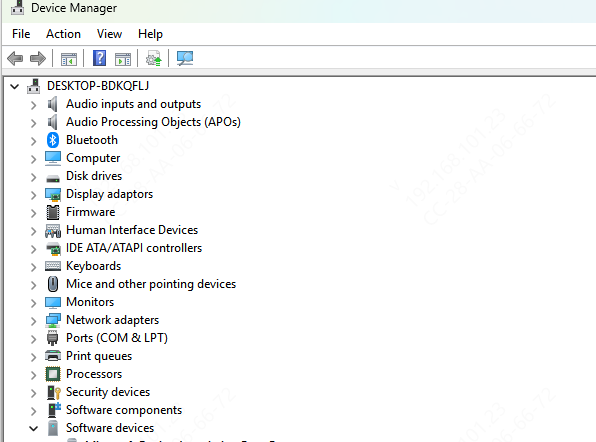
Press Windows + X and select Device Manager
Expand the Keyboards section and right-click on your keyboard device
Select Update Driver and choose Search automatically for updated driver software
If the driver is up to date, you may want to uninstall and reinstall the driver by selecting Uninstall Device. Restart your laptop, and Windows will automatically reinstall the driver
Update Keyboard Drivers with Driver Sentry
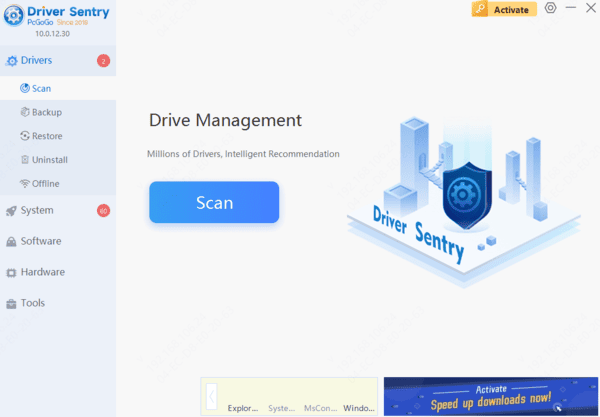
Driver Sentry is a powerful tool that automatically scans your system for outdated, missing, or corrupted drivers and updates them with just a few clicks. Whether it's your keyboard drivers or other system drivers, Driver Sentry ensures that your system always runs smoothly with the latest, most compatible drivers.
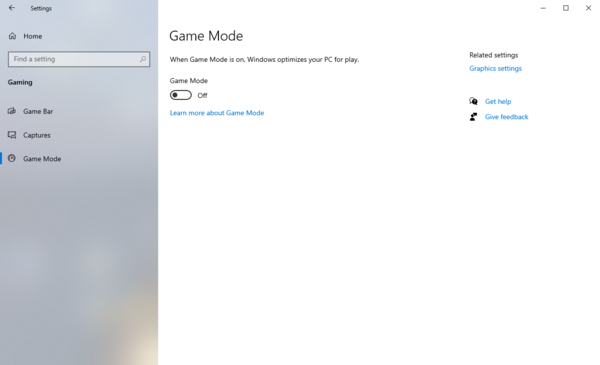
Disable Gaming Mode
Many Lenovo laptops come with a Gaming Mode that disables certain keys to prevent accidental presses during gaming. This could lock or limit keyboard functionality.
Check if your laptop has a dedicated Gaming Mode key, often marked with a joystick or gaming symbol
Press the Gaming Mode key (usually Fn + F7 or Fn + F8) to toggle it off
If your laptop uses Lenovo Vantage, open the app, navigate to the Device Settings, and ensure Gaming Mode is turned off
Try Keyboard Troubleshooting
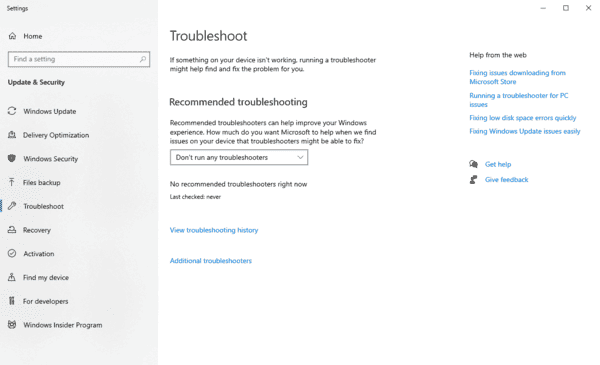
Open Settings by pressing Windows + I
Go to Update & Security > Troubleshoot > Additional troubleshooters
Select Keyboard and click Run the troubleshooter
Let Windows automatically detect and fix any problems it finds
Check if the Key Works under Command Prompt
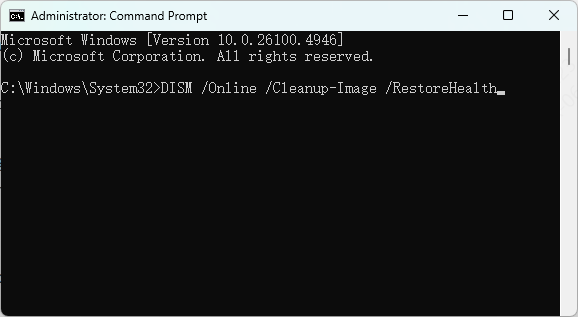
Open Command Prompt by pressing Windows + R, typing cmd, and hitting Enter
In the Command Prompt window, press the unresponsive keys
If the key works in Command Prompt but not in other applications, the issue may lie with the application or software settings
Perform System Restore
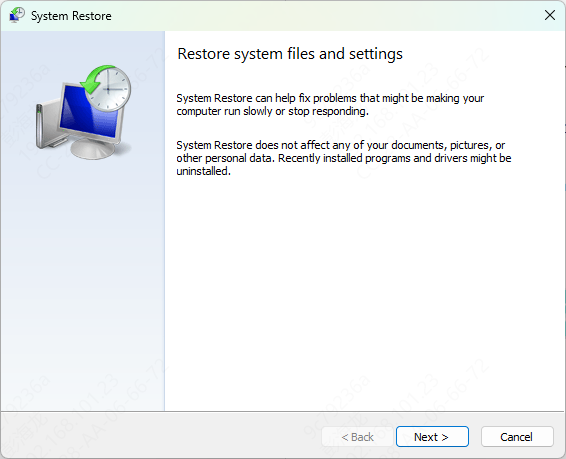
Type System Restore in the Windows search bar and select Create a restore point
Click on System Restore under the System Properties window
Choose a restore point before the issue started and follow the instructions to restore your system
After the system restore completes, check if the keyboard is working again
Conclusion
A locked keyboard on your Lenovo laptop can be caused by a variety of factors, from simple settings to more complex driver or hardware issues. Start by checking if the On-Screen Keyboard works, testing individual keys, and updating drivers. Then, explore other troubleshooting options such as disabling gaming mode, running the keyboard troubleshooter, and performing a system restore if the issue began recently.




