When a red exclamation mark appears on the network icon in Windows, it usually indicates that your device is connected to a network but cannot access the internet properly. This issue can disrupt browsing, online work, and app connectivity. This problem is commonly caused by incorrect IP configuration, router issues, DNS failures, outdated network drivers, or temporary system glitches. In this guide, we analyze the main reasons behind the red exclamation mark on your network connection and provide practical solutions to help you quickly restore a stable internet connection.
1. Reasons for the network exclamation point
driver problems: network adapter drivers may be out of date, damaged or incompatible, resulting in unstable network connection.
network configuration errors: wrong network settings, such as the wrong IP address, subnet mask or DNS server settings, may lead to a blocked network connection.
Hardware failure: Hardware failure of the network card, damaged network cable or router/modem failure may lead to network connection problems.
2. Solutions
1) Update the network driver
If your network card driver is outdated or corrupted, it may cause the network to appear exclamation marks to the point of not being able to access the Internet. In order to make sure your network card driver is in the latest version, it is recommended that you can use Driver Sentry to update your network card driver regularly to avoid the situation of not being able to access the Internet.
Open Driver Sentry on your computer and go to "Drivers" for scanning.
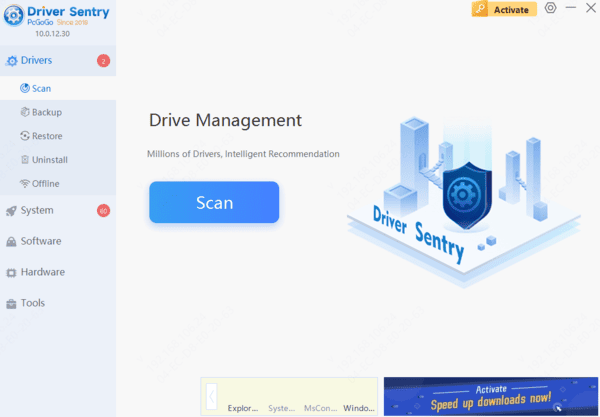
If it identifies that your network card driver version needs updating, click the "Repair Now" button.
After the driver upgrade is completed, restart your computer to ensure that the driver takes effect normally.
2) Check and repair network configuration
Enter Network and Sharing Center: In Windows system, you can enter Network and Sharing Center through Control Panel. In Mac system, you can enter Network Settings through System Preferences.
View current network settings: In Network and Sharing Center or Network Settings, view the current network connection settings, including IP address, subnet mask, default gateway and DNS servers.
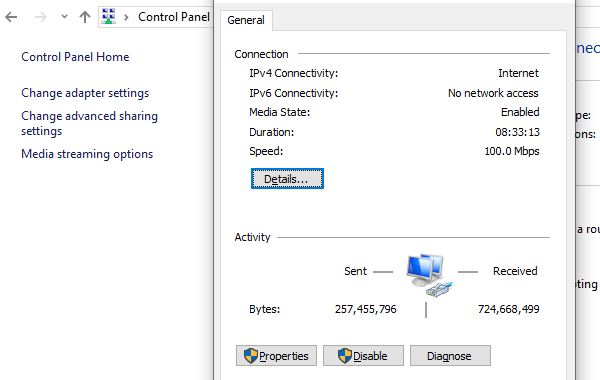
Repair Configuration Errors: If you find errors in network settings, such as conflicting IP addresses or incorrect DNS server settings, you need to repair them accordingly. It can be modified according to the setting information provided by the network administrator or ISP.
3) Check network hardware
Sometimes, network problems can be caused by faulty or congested routers or modems. You can try to restart these devices by powering off or checking whether the network cable connection between the computer and the router/modem is strong to restore normal network service.
By following these methods, most network problems can be solved. If the problem persists, contact a professional for help. Regularly updating your system and drivers can effectively prevent problems with your computer network.
See also:
How to Fix a Gamepad Connection Issue on PC
How to Fix the Issue of a Spinning Mouse
How to Download and Install Sound Card Drivers
How to Fix Windows Black Screen Freeze Issues