






Updating your NVIDIA RTX 4060 Ti driver should bring better game performance, DLSS improvements, bug fixes, and support for new titles. Unfortunately, recent driver branches (especially post-2025 releases like 591.xx, 595.xx series) have caused widespread issues for RTX 40-series cards: black screens, installation freezes, fan control failures, FPS drops, crashes in games, flickering, low GPU utilization, and even system instability after seemingly normal installs. This guide provides a complete, step-by-step approach to update, troubleshoot, and maintain RTX 4060 Ti drivers with ease.
Signs Your RTX 4060 Ti Needs a Driver Update
Games or graphics-intensive applications crash or show reduced FPS
Display issues such as flickering, black screens, or glitches
NVIDIA Control Panel is not opening or missing settings
Device Manager shows yellow exclamation marks under Display Adapters
Driver installation fails or Windows reports errors
Preparatory Steps Before Updating Drivers
Before updating, it's important to prepare your system to prevent data loss or conflicts:
Check System Compatibility: Ensure your PC meets RTX 4060 Ti requirements and confirm Windows version
Backup Important Files: Protect documents, game settings, and other critical data
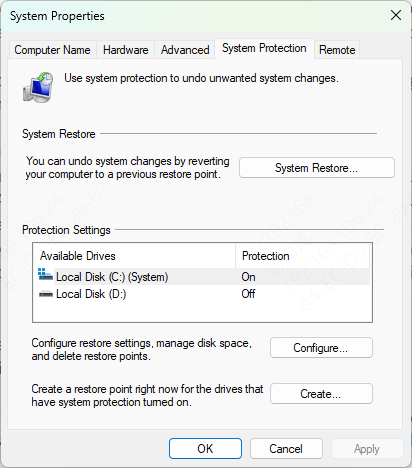
Create a System Restore Point: Search for "Create a restore point", enable protection, and click Create
Close Applications: Shut down games or programs that may interfere with the installation
Stable Internet Connection: Required for downloading the latest drivers
Step-by-Step Driver Update Methods
There are several safe ways to update your NVIDIA RTX 4060 Ti drivers:
Update via NVIDIA GeForce Experience
Open GeForce Experience → go to the Drivers tab → Check for Updates
Download the latest driver available
Choose Express Install or Custom → Clean Install for a fresh installation
Restart your PC to apply changes
Manual Download from NVIDIA Website
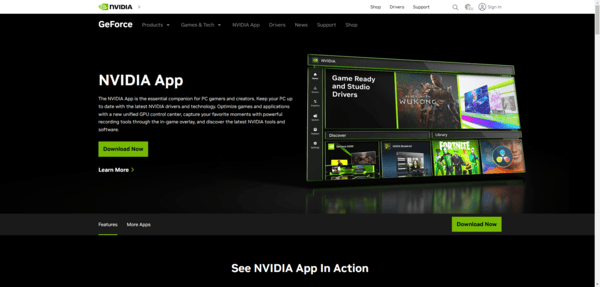
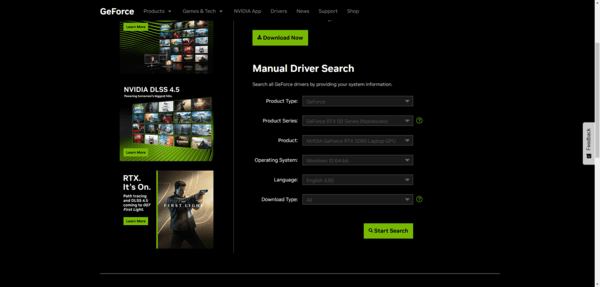
Visit the NVIDIA Driver Download page
Select your GPU model (RTX 4060 Ti) and Windows version
Download the installer and run it
Choose Custom → Clean Install to remove old drivers
Restart your computer
Update Using Device Manager
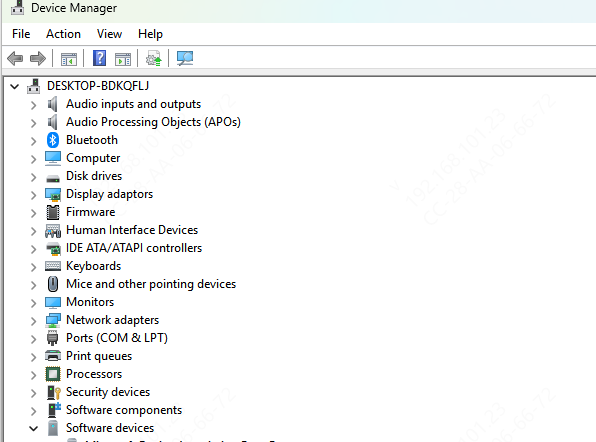
Press Windows + X → Device Manager → Display Adapters → NVIDIA RTX 4060 Ti
Right-click → Update driver → Search automatically for drivers
Follow prompts and restart your PC
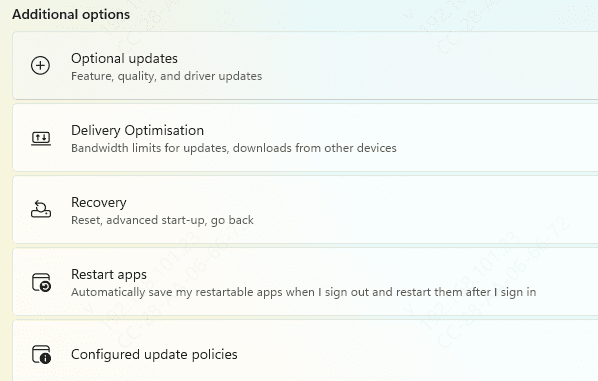
Windows Optional Driver Update
Go to Settings → Update & Security → Windows Update → Optional Updates → Driver Updates
Check for NVIDIA drivers listed under optional updates
Install them and restart your PC
One-Click Repair with Driver Sentry
Manually updating drivers can be tedious and error-prone. Driver Sentry offers a one-click solution for updating or repairing your RTX 4060 Ti drivers safely:
Key Features
Detects outdated, missing, or corrupted NVIDIA drivers automatically
Updates or repairs all drivers in one click
Automatically creates backup and restore points for safety
Detects conflicts between GPU drivers and other system components to prevent crashes
How to Use
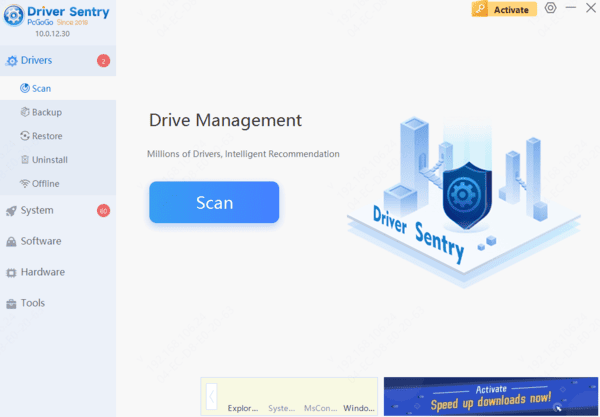
Download and install Driver Sentry from the official website
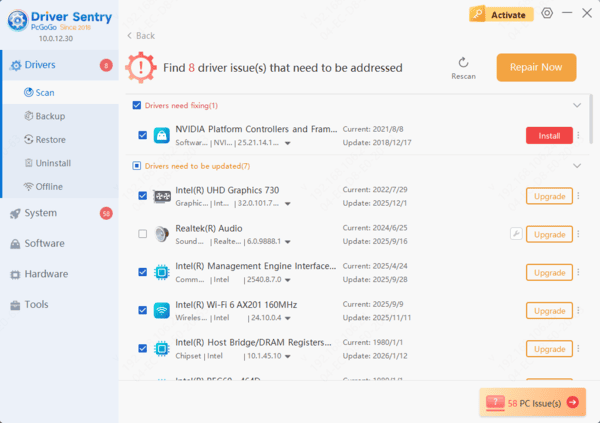
Open the program and click Scan to check for driver issues
Select Repair/Update All or target NVIDIA RTX 4060 Ti specifically
Restart your PC to apply the updates
Advanced Troubleshooting Tips
If your driver issues persist, try these advanced methods:
Safe Mode Installation: Boot into Safe Mode and run the driver installer to bypass conflicts
Driver Rollback: Device Manager → Driver tab → Roll Back Driver to revert to a previous version
Clean Uninstall: Use Display Driver Uninstaller (DDU) to completely remove old or corrupted drivers before reinstalling
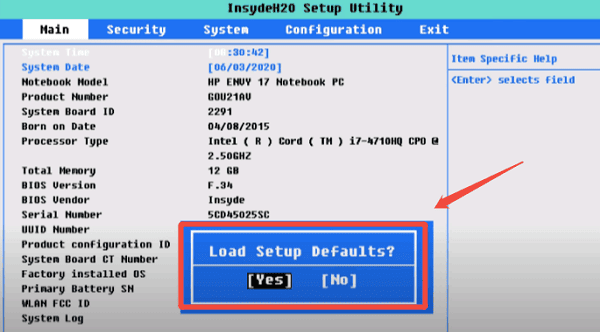
BIOS/Firmware Check: Ensure your GPU is correctly recognized
Resolve Conflicts: Disable integrated GPUs if they interfere with the RTX 4060 Ti driver
Preventing Future Driver Issues
Avoid beta or unofficial drivers unless necessary
Test your system after each update to confirm stability
Keep Windows and BIOS updated for maximum compatibility
Conclusion
Keeping your NVIDIA RTX 4060 Ti drivers updated is crucial for stable gaming, smooth content creation, and overall system reliability. By combining GeForce Experience, manual updates, Windows optional updates, and one-click repair with Driver Sentry, you can troubleshoot driver problems efficiently, minimize errors, and ensure your GPU runs at peak performance. Routine maintenance, clean installations, and proactive updates make RTX 4060 Ti driver management easy, fast, and hassle-free.




