OpenClaw Deployment Assistant is a lightweight, locally deployed AI personal assistant built with Rust. It supports automated tasks such as web browsing, file organization, data tracking, content creation, code review, and more. The entire deployment is designed to be simple and fast — most users can complete it in about 3 minutes with almost no manual work.
System Requirements
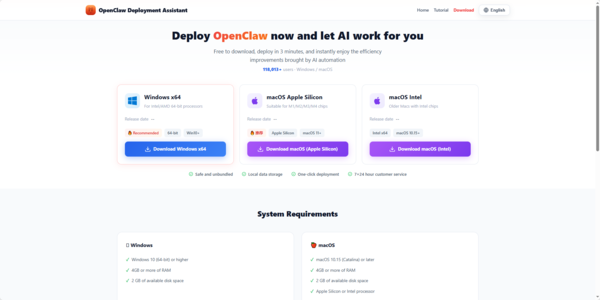
Windows: Windows 10 (64-bit) or higher, 4 GB RAM or more, at least 2 GB free disk space
macOS: macOS 10.15 (Catalina) or later, 4 GB RAM or more, at least 2 GB free disk space
Apple Silicon (M1/M2/M3/M4) or Intel processor
Step-by-Step Installation
Download the Installer
Go to the official download page
Choose the correct version for your system
Windows (x64): Download OpenClawTooli18n_u2451m_1.2.27_x64-setup.exe (recommended for most Windows users)
macOS Apple Silicon: Download OpenClawTool_1.2.26_aarch64.dmg (for M1/M2/M3/M4 Macs)
macOS Intel: Download OpenClawTool_1.2.26_x64.dmg (for older Intel-based Macs)
Tip for macOS users: Check your chip type by clicking the Apple menu → "About This Mac". Choose Apple Silicon if it shows M-series, otherwise choose Intel
Run the Installer
Windows: Double-click the .exe file and follow the on-screen prompts. The installer is clean and contains no bundled software
macOS: Open the downloaded .dmg file, drag the OpenClaw app to your Applications folder
macOS Security Note: If you see a warning "OpenClaw" can't be opened because the developer cannot be verified, go to System Settings → Privacy & Security, scroll down, and click "Still Open" at the bottom. This is normal for apps not notarized by Apple
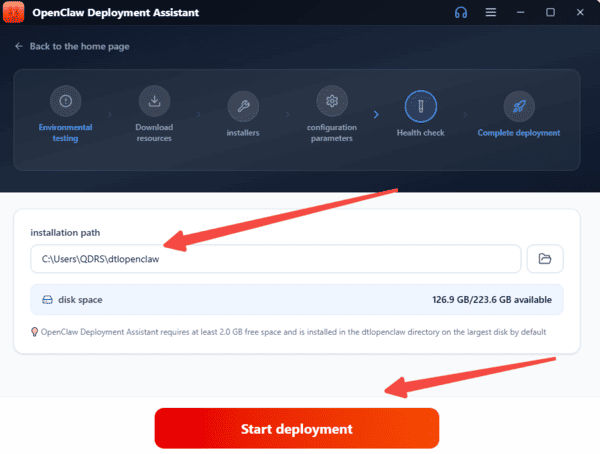
Launch OpenClaw Deployment Assistant
Open the application after installation
The built-in Deployment Assistant will automatically start a guided 6-step process:
Environment detection
Dependency installation
Configuration download
(and other automated steps)
No technical knowledge is required — the assistant handles almost everything automatically
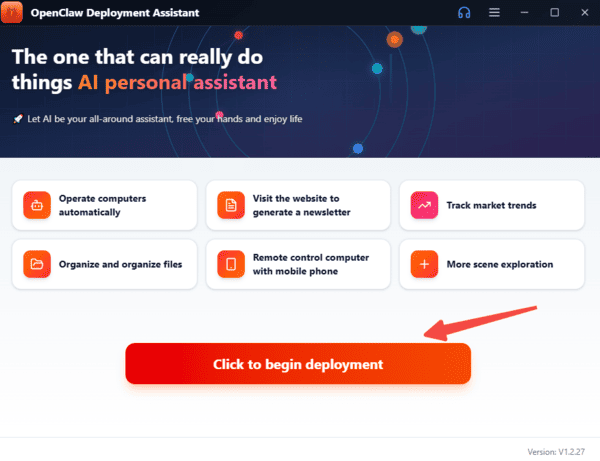
Complete the AI Model Configuration
Once the deployment finishes (usually within 3 minutes), follow the on-screen instructions to:
Set up your preferred AI model (supports Zhipu GLM, Tongyi Qianwen, DeepSeek, Doubao, and any OpenAI-compatible API)
Enter and encrypt your API key (all keys are stored locally for privacy)
Configure basic settings for chat memory, automation scenarios, etc
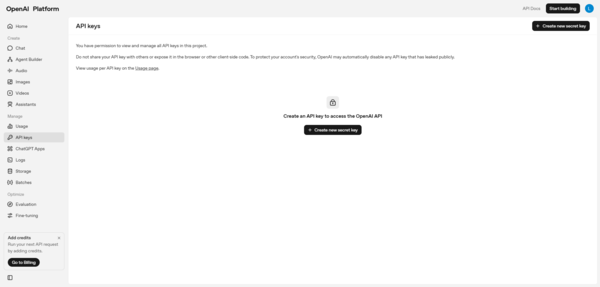
Verify and Start Using
After configuration, the main smart chat interface will appear
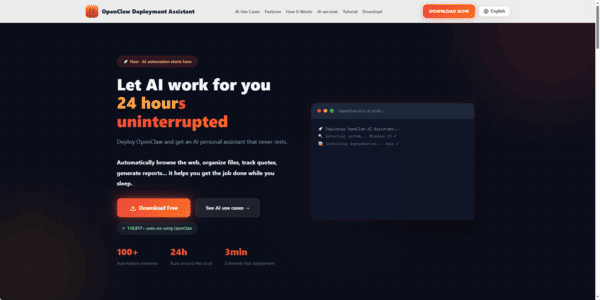
You can immediately begin using features like automated web browsing, file organization, report generation, code assistance, and more
Real-time monitoring of CPU, memory, disk, and service status is available in the dashboard
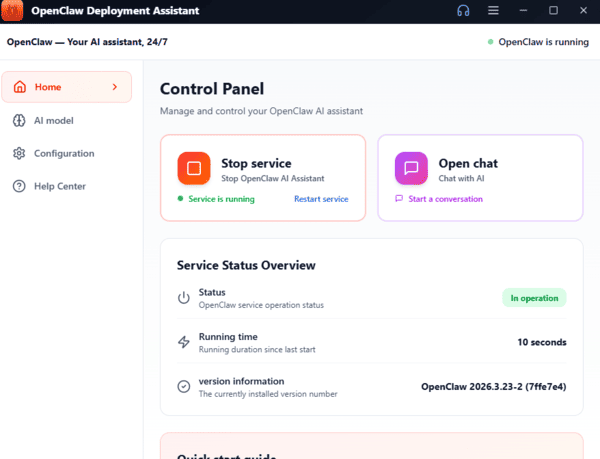
Post-Installation Tips
The entire setup is fully local and privacy-focused — no data is sent to external servers except the AI model API calls you configure. The installation package is very small (tens of MB) and starts quickly with low resource usage. For detailed configuration options or advanced usage, refer to the built-in user guide (accessible from the app menu).