






Losing important files from an external hard drive can be frustrating, especially when the data disappears because of accidental deletion, formatting, file system corruption, malware, or hardware failure. In many cases, the files may still be recoverable as long as the drive has not been severely damaged or overwritten. To improve the chances of successful recovery, stop using the affected drive immediately and avoid saving new data to it. This guide explains the common causes of external hard drive data loss and shows how to recover deleted, formatted, or inaccessible files safely using PcGoGo Data Recovery.
Common Causes of External Hard Drive Data Loss
Several factors can lead to losing data from an external hard drive:
Accidental deletion: Removing files or folders unintentionally
Accidental formatting: Formatting the wrong partition or the entire drive
File system corruption: Errors that make the drive appear as RAW or inaccessible
Virus or malware attacks: Malicious software that deletes or hides files
Bad sectors or aging drives: Physical wear can lead to read/write errors
Improper ejection or power loss: Disconnecting the drive without safely ejecting it
Physical damage: Drops, shocks, or broken USB ports that make the drive inaccessible
Signs Your External Hard Drive May Be Failing
You may notice the following warning signs:
Slow file transfers or lagging performance
Clicking or unusual noises (for HDDs)
Frequent disconnections
Drive not recognized by the computer
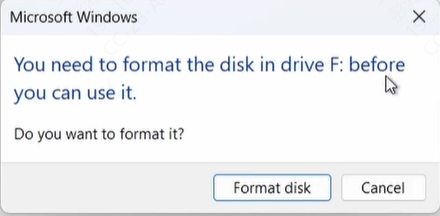
Error messages like "You need to format the disk"
Missing or inaccessible files
If you see any of these signs, stop using the drive immediately to prevent further data loss
Can Data Be Recovered from an External Hard Drive?
Yes, external hard drive data can often be recovered. Recovery is usually possible when:
Files were accidentally deleted
The drive was accidentally formatted
There are logical errors in the file system
However, recovery is more difficult or impossible if:
The drive has severe physical damage
Data has been overwritten
The drive is completely destroyed by fire, water, or other disasters
Acting quickly and avoiding further use of the drive is crucial to maximize recovery chances
How to Recover Data from External Hard Drive Using PcGoGo Data Recovery
Recovering files is simple with PcGoGo Data Recovery. Follow these steps:
Download and Install PcGoGo Data Recovery
Download the latest version from the official website, install it, and launch the program
Plug the drive into your computer and make sure it is recognized
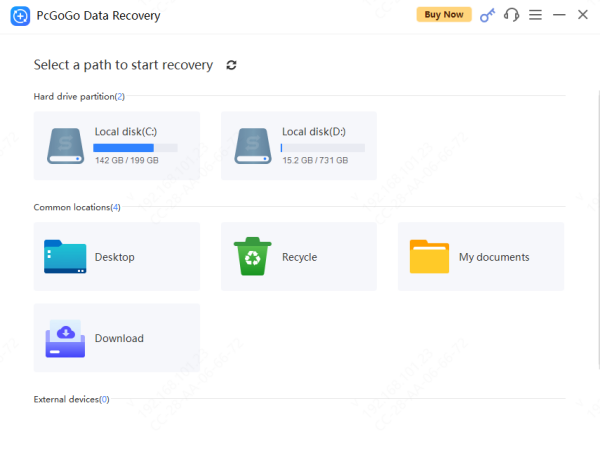
Select the External Hard Drive
From the device list, choose your external hard drive for scanning
Double-check to ensure you select the correct drive
Scan for Lost or Deleted Files
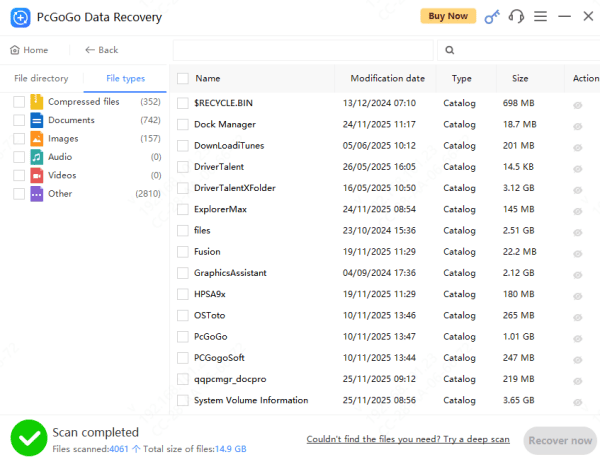
Click Scan to find recently deleted files
Use filters or keywords to quickly locate specific files
Preview the Recoverable Files
Preview photos, videos, documents, audio files
And more to verify the integrity of the data before recovery
Recover and Save Your Files
Select the files you want to restore and save them to a different drive
Do not save recovered files back to the external hard drive being scanned, as this can overwrite remaining recoverable data
Why Use PcGoGo Data Recovery
PcGoGo Data Recovery is a reliable and user-friendly tool for recovering lost files from external hard drives.
Supports Multiple Formats: Support for multiple file types, including documents, photos, videos, and audio
Preview File: File preview to verify recoverable files before restoring
Safe and Reliable: Safe, non-destructive scanning to prevent additional damage
Tips to Maximize Recovery Success
Stop using the external drive immediately after data loss
Avoid formatting the drive multiple times
Do not save new files to the drive
Seek Professional Help
Professional data recovery services may be required if:
The drive makes clicking, grinding, or other unusual noises
The drive is physically damaged or has broken ports
The drive is not recognized by any computer
Fire, water, or electrical damage has occurred
Conclusion
Data loss from an external hard drive can be alarming, but most files are recoverable if you take immediate action and use the right recovery tools. PcGoGo Data Recovery offers a simple, safe, and effective way to restore deleted, formatted, or corrupted files. By following the steps in this guide and practicing proper backup and drive-handling habits, you can successfully recover your data and prevent future loss.




