






Kingston solid state drives (SSDs) are widely used in laptops and desktop computers thanks to their fast performance, durability, and reliability. However, even high-quality Kingston SSDs are not immune to data loss. Accidental deletion, drive formatting, system crashes, malware attacks, or file system corruption can all lead to missing or inaccessible files. The good news is that data recovery from a Kingston SSD is often possible if you act quickly and use the right recovery method. In this guide, you'll learn how to recover data from a Kingston solid state drive safely and effectively, using both built-in Windows features and professional data recovery software.
Important Things to Do Before Data Recovery
Before attempting any recovery, follow these best practices to improve your success rate:
Stop using the Kingston SSD immediately to avoid overwriting lost data
Do not install recovery software on the same SSD where data was lost
Avoid copying new files to the affected drive
Be aware that TRIM technology on SSDs may reduce recovery chances if too much time has passed
Method 1: Check Windows Built-in Recovery Options
Windows offers several built-in tools that may help restore recently lost files. These methods are simple but have limitations, especially for SSDs.
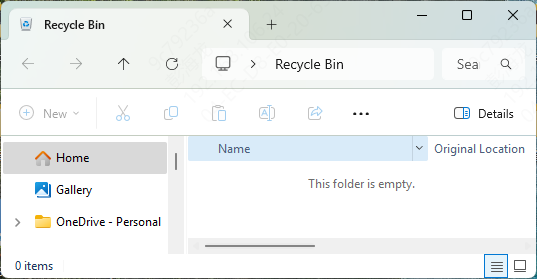
Restore Files from Recycle Bin
If files were deleted normally (not using Shift + Delete), check the Recycle Bin:
Open Recycle Bin
Locate the missing files
Right-click and choose Restore
Recover Using File History or Previous Versions
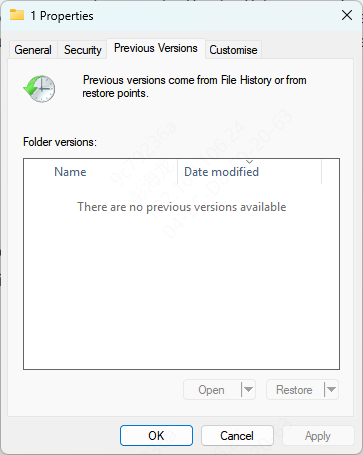
If File History was enabled:
Right-click the folder where the files were stored
Select Restore previous versions
Choose a backup version and restore it
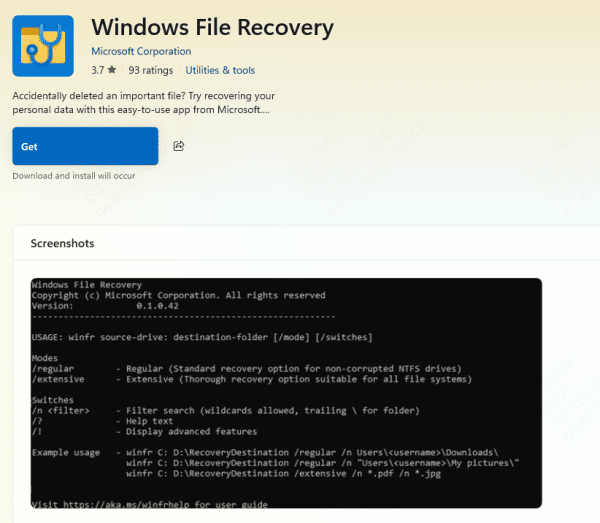
Windows File Recovery Tool
Microsoft provides a free command-line utility called Windows File Recovery, which can recover files from formatted or corrupted drives
However, it requires technical knowledge and does not guarantee results on SSDs
Method 2: Recover Data Using PcGoGo Data Recovery
For higher recovery success and ease of use, professional data recovery software is the best option. PcGoGo Data Recovery is designed to recover lost, deleted, or formatted data from Kingston solid state drives.
Step 1: Download and Install PcGoGo Data Recovery
Download the latest version from the official PcGoGo Data Recovery website
Install the software on a different drive, not on the Kingston SSD you want to recover from
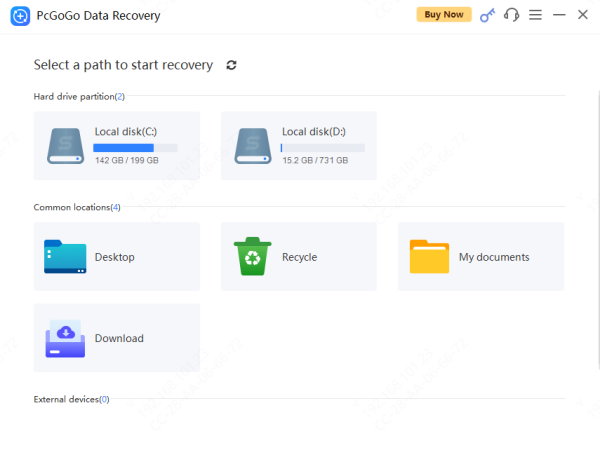
Step 2: Select the Kingston Solid State Drive
Launch the program and select your Kingston SSD from the list of available drives
Step 3: Scan for Lost Files
Start the scan to search for deleted, formatted, or lost files
The software will automatically perform a deep scan for maximum recovery results
Step 4: Preview Recoverable Files
Preview photos, videos, and documents to ensure they are intact before recovery
This helps you recover only the files you truly need
Step 5: Recover and Save Files Safely
Select the files you want to restore and save them to a secure location, such as an external hard drive or another partition
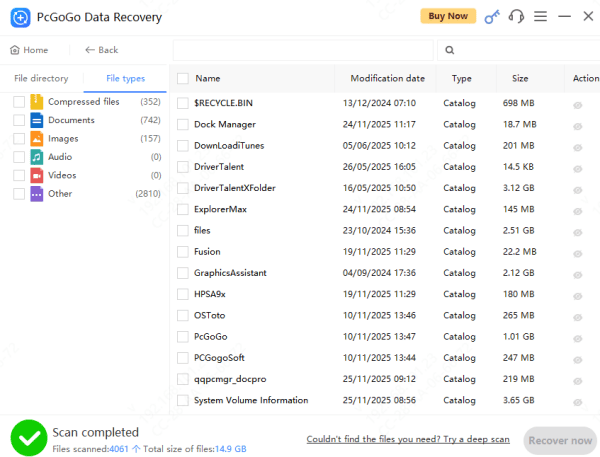
Why Choose PcGoGo Data Recovery?
Supports photos, videos, documents, audio, and more
Works with formatted, corrupted, or inaccessible SSDs
Preview files before recovery
Beginner-friendly interface
Read-only scanning to protect original data
Step-by-Step Guide: Recover Data from Kingston SSD with PcGoGo Data Recovery
Follow these steps to safely restore your files:
Common Causes of Data Loss on Kingston SSDs
Accidental file deletion
Formatting the Kingston SSD by mistake
System crash or Windows update failure
File system corruption or RAW partition
Virus or malware attacks
Power failure or improper shutdown
Conclusion
Losing data from a Kingston solid state drive can be stressful, but it doesn't have to be permanent. With the right approach and tools, many lost files can be recovered safely and efficiently. While Windows built-in tools may help in limited cases, professional recovery software like PcGoGo Data Recovery offers a more reliable and user-friendly solution.




